Merge records
Identity resolution in the Apteco CDP automatically links records that belong to the same person. However, automated processes don't always capture every match.
Merging records gives you control to correct these cases. You can merge specific records immediately or schedule automatic merges based on your identity resolution rules.
Think of merging as a tool for data quality maintenance, complementing your automated identity resolution rather than replacing it.
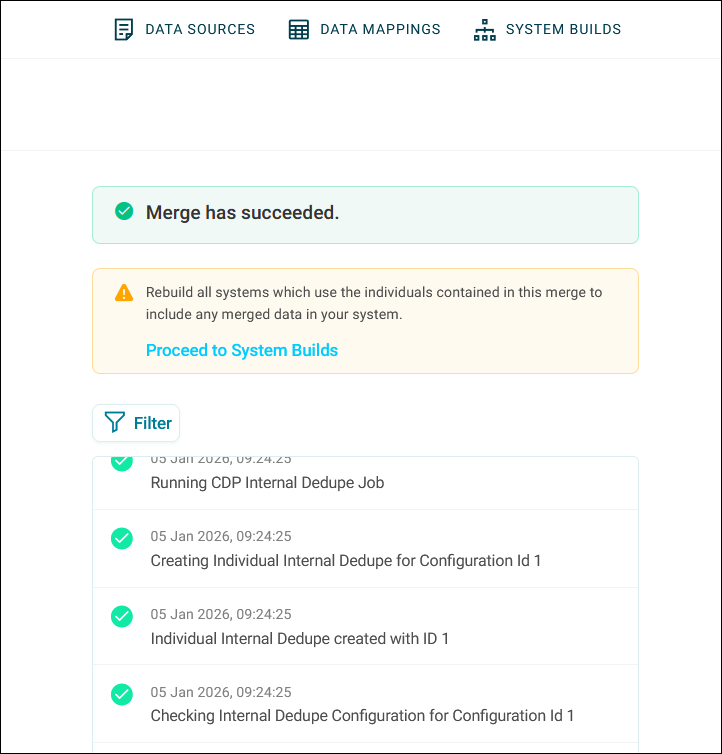
What happens during a merge
When you merge records, Orbit:
- Identifies the most recent record based on its update date
- Creates a new Individual record using details from the most recent record
- Links all child data to the new record, including:
- Source URNs
- Email addresses
- Postal addresses
- Mobile numbers
- Home phone numbers
- Transactions
- Records the merge
- Preserves the original records in the full dataset
Prerequisites
You need:
- The numeric Apteco IDs for the records you want to merge
- Permission to access the internal merge feature
- Identity resolution rules configured in your system (for scheduled merge)
Note
You cannot undo merge operations through the UI. Once you load additional data, recovering the original records becomes difficult.
Note
Scheduled merges do not run during data loads or system builds. The system prevents conflicts by blocking merge operations when these processes are active.
Example use cases
Donor record consolidation
A supporter donates through multiple channels over several years. They give £50 through your website as "J. Smith", make a £100 phone donation as "John Smith", and attend an event registered as "Jonathan Smith" with a different email address.
Your identity resolution creates three separate records. When you discover these are the same person through a phone conversation, you can manually merge the three Apteco IDs. This creates a single donor record showing the complete giving history of £150.
Volunteer database cleanup
A volunteer registers for your system using their personal email address. Later, they use their work email to sign up for additional activities. The system creates two Individual records with different contact preferences and activity histories.
When the volunteer mentions both email addresses during onboarding, you can merge the records. This consolidates their volunteering hours, training records, and communication preferences into one record.
Regular deduplication maintenance
Your organisation processes thousands of new supporter records each month. While your identity resolution catches most duplicates during data loads, some edge cases slip through when supporters use variations of their details.
You can schedule a weekly merge that applies your most reliable identity resolution rules to existing CDP records. This automatically consolidates duplicates that weren't caught during initial processing, maintaining clean data without manual intervention.
Merge specific records
To merge specific records:
- In Connect, click the cog icon in the top-right corner.
- Select Merge Records.
- Click + New > Manual Merge.
-
Enter the Apteco IDs you want to merge in the Individual IDs field.
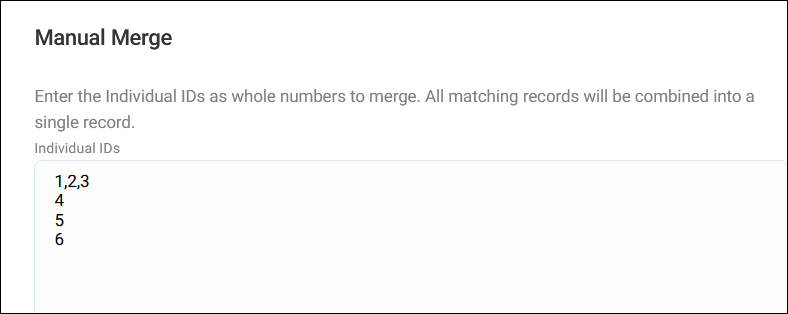
You can enter:
- One ID per line
- Multiple IDs separated by commas
- A combination of both formats
-
Click Merge.
Tip
Double-check your Apteco IDs before confirming.
-
Review the warning message and click Merge again to confirm.
Orbit processes your merge request and displays a log file showing the results.
To review a previous merge, go back to the Internal Merge page and click View Logs next to your merge operation.
After completing a merge, you must rebuild and redeploy your Orbit system for the changes to appear.
Input requirements
- Enter between 2 and 20 numeric Apteco IDs
- Use only whole numbers
- Orbit automatically detects and validates ID format
Note
The 20-record limit reflects typical use cases for manual correction. If you need to merge larger volumes, consider reviewing your identity resolution rules instead.
Schedule automatic merges
Use scheduled merge to apply your identity resolution rules to existing CDP records automatically.
To schedule a merge:
- In Connect, click the cog icon in the top-right corner.
- Select Merge Records.
- Click + New > Scheduled Merge.
- Give your merge a name then click Create.
- Select the identity resolution rules you want to apply from the ID Resolution Rules list.
- Set the schedule:
- Select Specific Time and choose the date and time.
- Set the repeat frequency.
- Set an end date, if needed.
- Click Schedule Merge.
The system queues your scheduled merge and displays it in the merge history list.
How scheduled merges work
The system runs your selected identity resolution rules against existing CDP records, identifies records that match according to the rules, merges matching records automatically, generates a log file showing which records were merged, and repeats on the schedule you've set.
Note
Scheduled merges pause automatically during data loads and system builds. They resume once these processes complete.