Campaign calendar
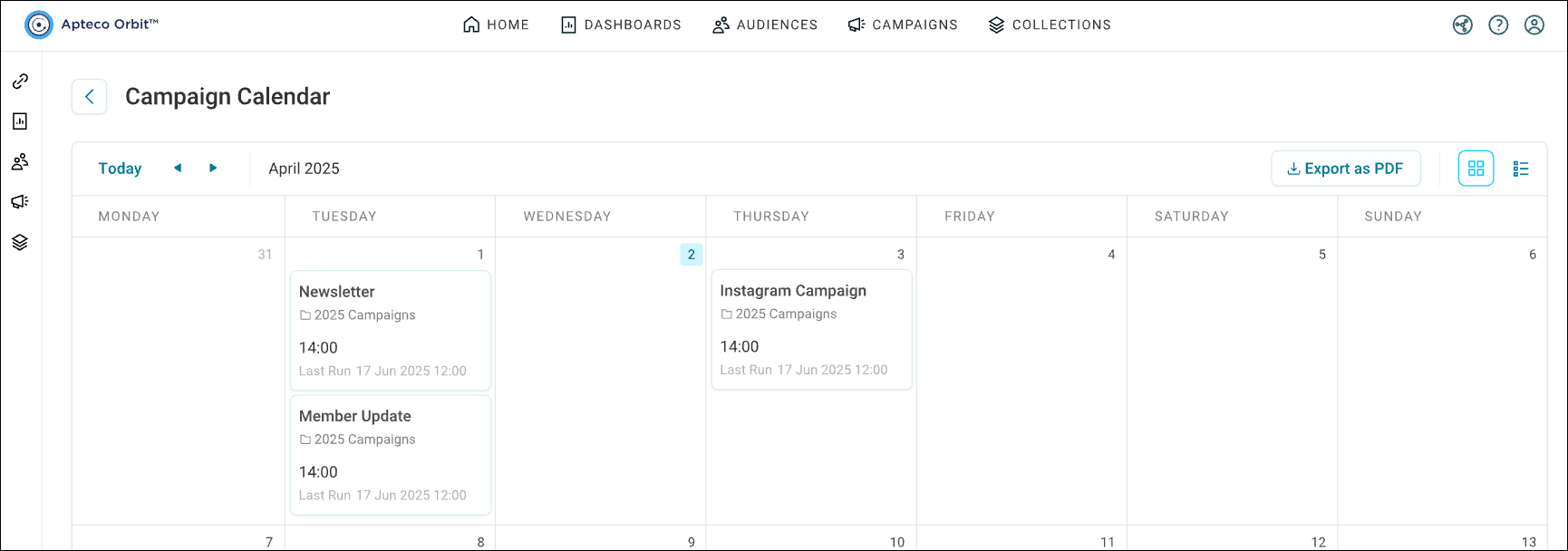
Campaign calendar shows all your scheduled Orbit campaigns in one place. You can view them in a monthly calendar grid or a chronological timeline, making it easy to track your marketing activities and plan ahead.
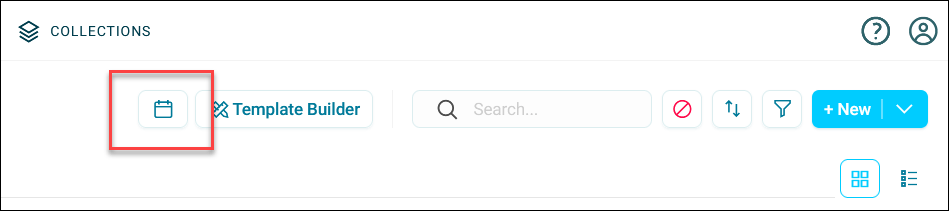
You can access the campaign calendar by clicking the calendar icon in the top-right of your campaigns screen.
How campaigns appear in the calendar
The calendar shows the next scheduled run of each campaign stage, as well as the last run date.
- Single-stage campaigns: The calendar displays when the campaign will next run and when it last ran. The last run entry remains visible until the next run completes.
- Multi-stage campaigns: The calendar shows the next stage due to run and the most recent completed stage, whether that's the initial stage or a subsequent stage (like a time delay).
Examples
Single-stage daily campaign at 10 AM:
- At 9 AM Monday: Calendar shows Monday 10 AM (next run)
- After 10 AM Monday: Calendar shows Monday 10 AM (last run) and Tuesday 10 AM (next run)
- After 10 AM Tuesday: Monday entry disappears, calendar shows Tuesday 10 AM (last run) and Wednesday 10 AM (next run)
Multi-stage daily campaign starting at 10 AM with 1-hour time delay:
- At 9 AM Monday: Calendar shows Monday 10 AM (next run)
- After 10 AM Monday: Calendar shows Monday 10 AM (last run) and Monday 11 AM (next run - wait stage)
- After 11 AM Monday: Calendar shows Monday 11 AM (last run) and Tuesday 10 AM (next run - initial stage)
Using the campaign calendar
You have two view options for the campaign calendar.
Tip
Clicking a campaign in either calendar or list view take you directly to the campaign journey.
Monthly view
The default monthly view displays your campaigns on their scheduled days. This helps you spot gaps, overlaps, or busy periods at a glance.
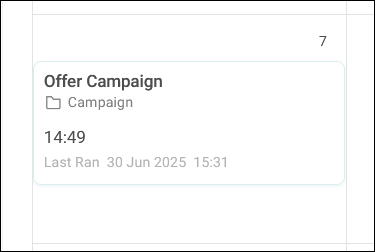
Each campaign appears as a card showing:
- Campaign name
- Campaign folder indicator
- Scheduled time of next campaign stage (24-hour format)
List view
Switch to list view using the toggle in the top-right corner to see campaigns in chronological order. This gives you a clear timeline of upcoming activity, with key details like start and end dates shown for each entry.
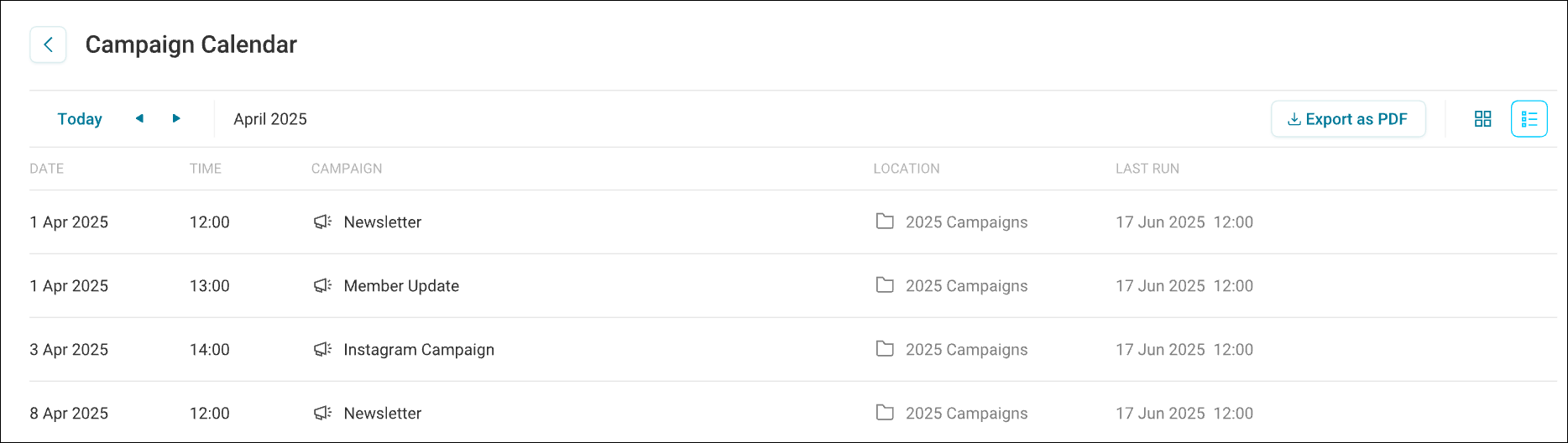
The list view shows:
- Date: When the campaign is scheduled to run
- Time: Scheduled time of next campaign stage (24-hour format)
- Campaign: Campaign name
- Location: Folder location
- Last run: Last stage of the campaign to run
Navigation controls
To navigate the calendar:
- Select your required view with the toggle in the top-right corner.
- Click the forward and backward arrows to move between months.
- Click Today to return to the current date.
- Use the date dropdown in either calendar or list view to jump to a specific timeframe.
Note
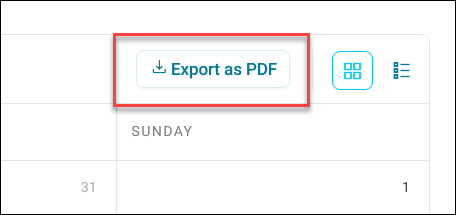
You can export both calendar and list views to PDF format. Click Export as PDF from the top-right controls to download your PDF file and open it in a new browser tab.