Google Ads
Connect your Google Ads campaigns with Orbit's powerful audience management tools to deliver targeted advertising to clearly defined audiences. This integration allows you to:
- Seamlessly upload audience lists directly to Google Ads
- Manage your Google advertising campaigns from within the Orbit platform
The Google Ads channel supports both manager and client account structures. You can upload audience lists to manager accounts for distribution across multiple client accounts, or upload directly to specific client accounts and attach a custom audience to the required Ad Group.
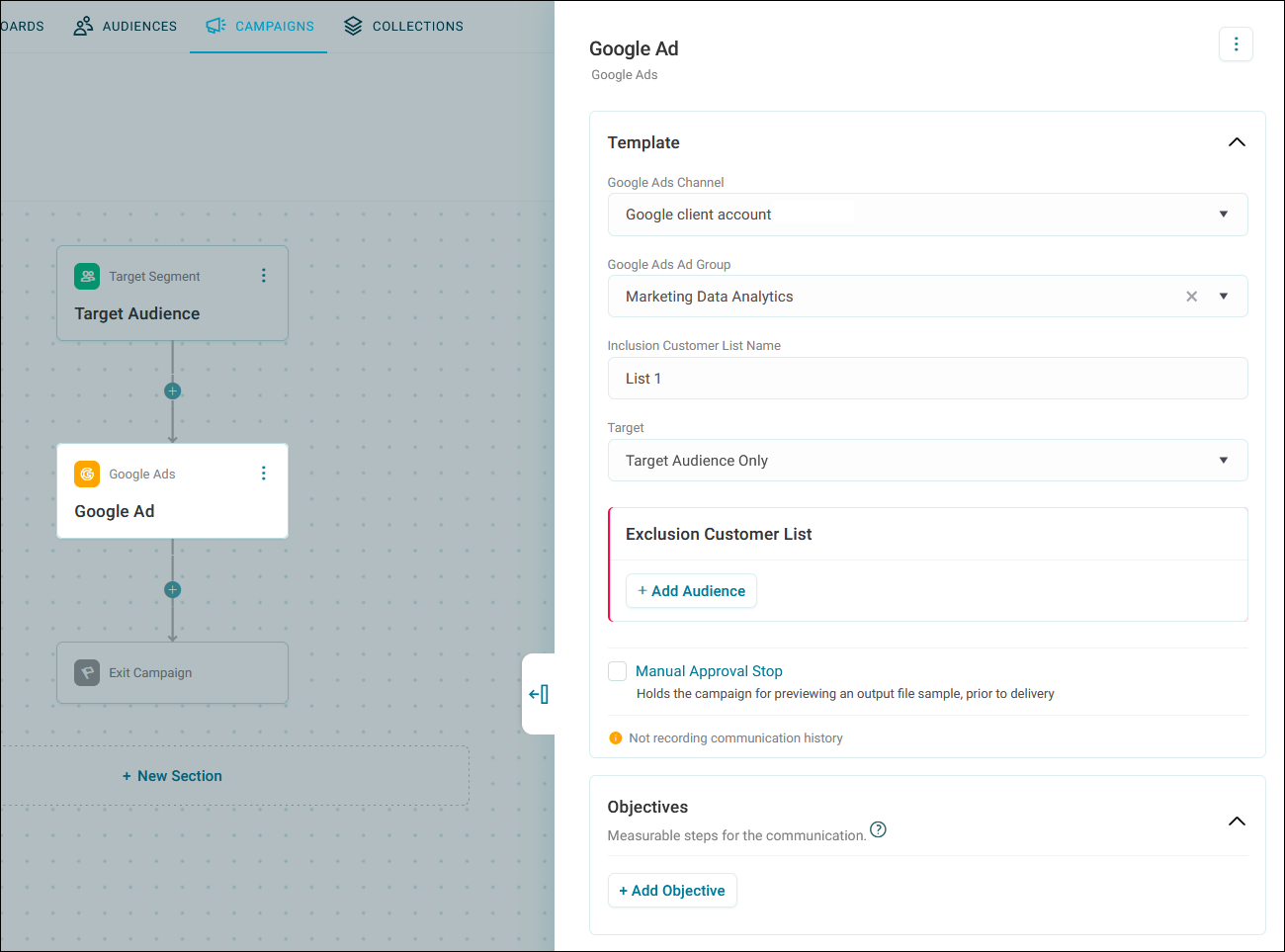
When connecting Google Ads to Orbit, you can:
- Upload audience segments directly from Orbit to Google Ads
- Choose between upload-only or upload-and-advertise options
- Manage audiences across multiple client accounts from a single Manager account
- Target precisely defined audience segments based on your first-party data
Example use cases
Agency managing multiple clients
As an advertising agency managing campaigns for several clients, connect your Google Ads Manager account to Orbit to create targeted audience segments from client data, upload them to appropriate client accounts, and monitor performance without platform switching.
Retail brand with multiple product lines
With separate Google Ads accounts for different product categories, you can use Orbit to create audience segments based on customer behavior, deploy these segments across your various accounts, and maintain consistent messaging while tailoring ads to specific products.
Connect your Google Ads account
Before you can set up your channel and use Google Ads in Orbit, you must first connect to Google and grant Apteco access to your Google Ads account.
To connect your Google Ads account:
- In the top right corner of your Orbit screen, click your avatar.
- Click Account Settings.
- Click Google.
-
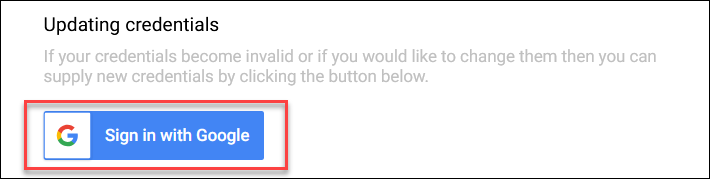
Click Sign in with Google.
-
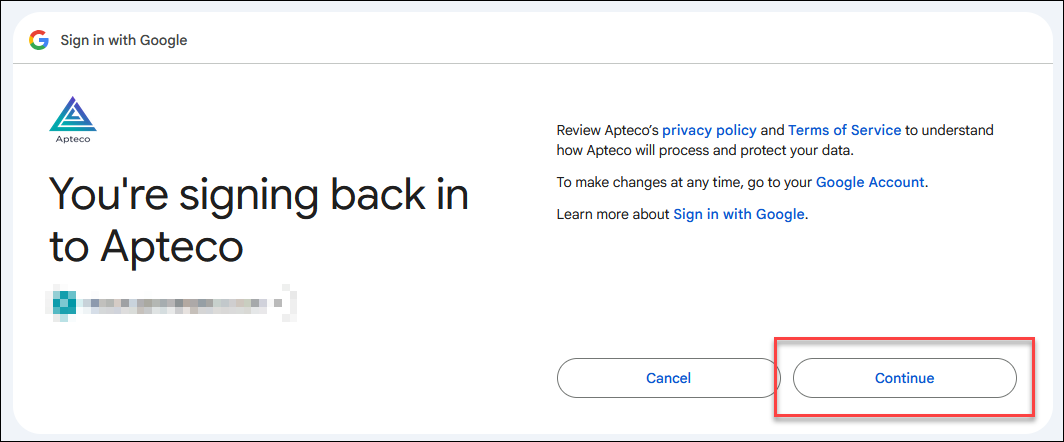
Choose a Google Ads account to grant access to.
-
Click Continue.
-
Click Allow to authorise Apteco to access your Google Ads account.
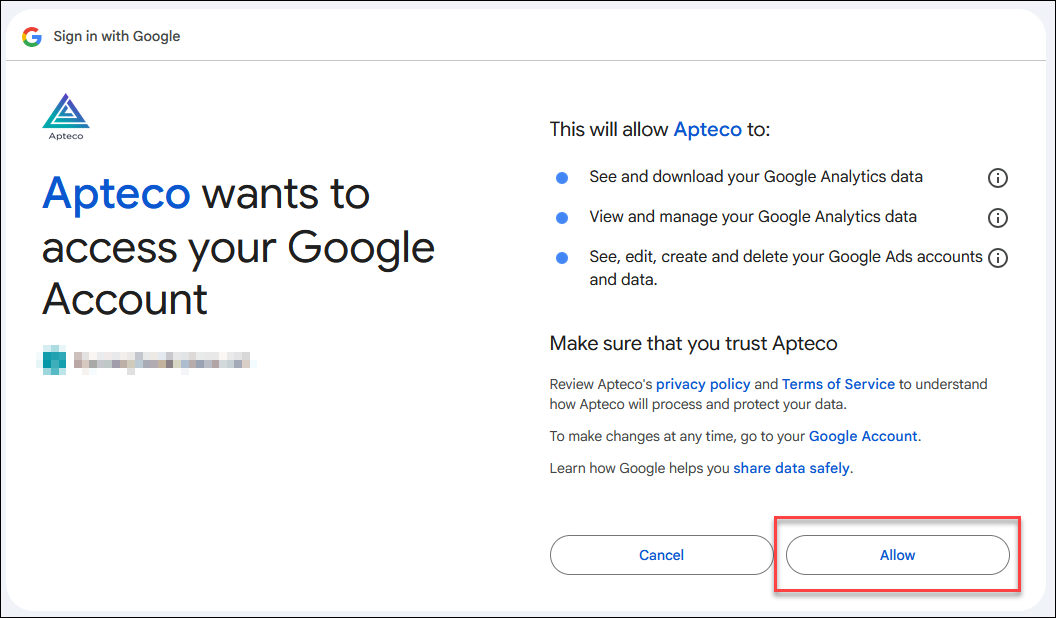
Once authorised, Orbit displays a list of your available Google Ads accounts.
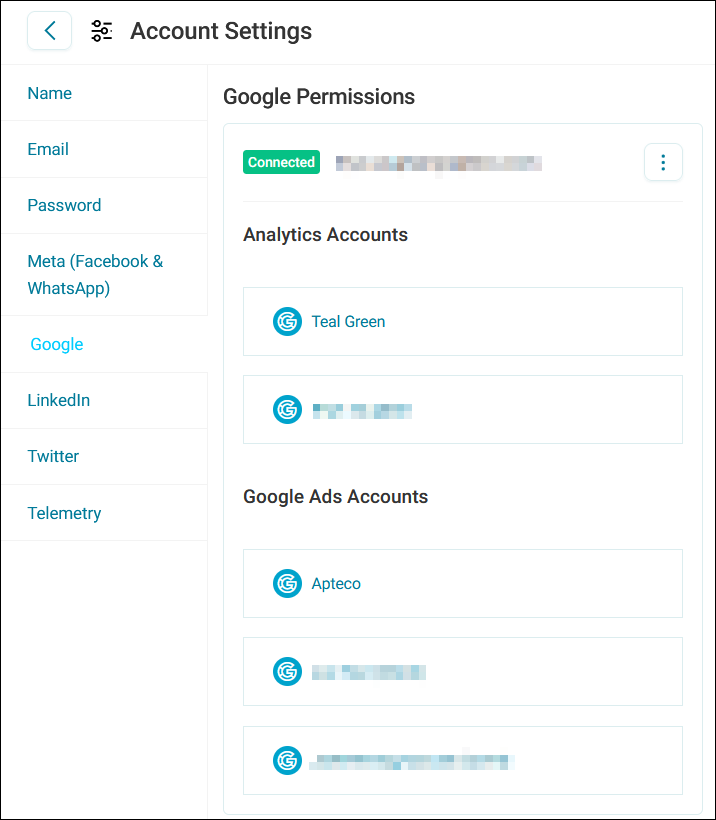
Google Ads channel
Once you've configured your Google Ads channel you can connect your advertising audiences with your Google Ads accounts.
Understanding Google Ads account structure
Before setting up your channel, it's helpful to understand how Google Ads accounts are structured:
- Google Ads Manager account: Allows you to manage multiple ads accounts in one place
- Google Ads Client account: Individual advertising accounts containing campaigns, budgets, and settings
With Orbit, you can either:
- Upload audience lists to a manager account for distribution to client accounts
- Upload audience lists directly to a specific client account for advertising
Create your channel
To create a new Google Ads channel:
- Log into Orbit as an administrator with permissions to configure the Campaigning Channel Editor.
- In the top right corner of your Orbit screen, click your avatar.
- Click Application Settings.
- From the left-hand menu, click Campaigning Channel Editor, then Edit.
-
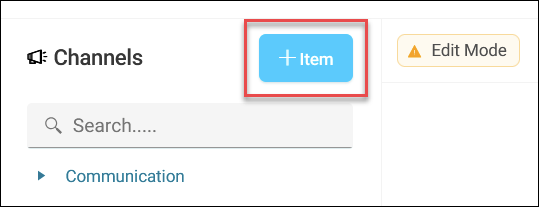
Click + Item.
-
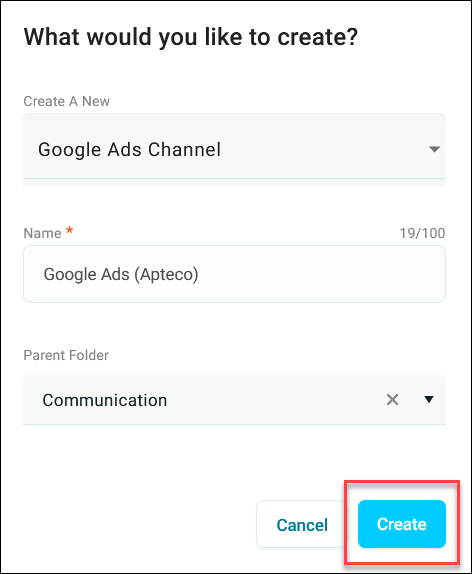
Select Google Ads Channel from the dropdown.
-
Give your channel a meaningful name (e.g., Google Ads) and organise the folder structure.
-
Click Create.
Channel settings
After creating your channel, you need to configure the basic details:
-
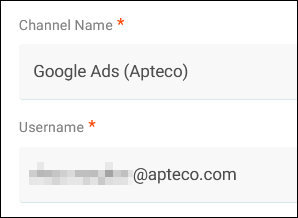
Enter the Username of the user who has permission to access Google.
-
Enter the name of the App you'll use to access Google (typically the Apteco app).
-
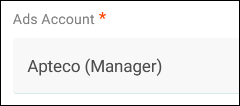
Enter the Ads Account you want to access from Google.
Note
Orbit automatically detects whether this is a manager or client account.
-
Click + Add Variable and select the email variable from your FastStats system.
Note
You can select a hashed email address. This supports secure data sharing from systems that store only hashed contact details.
-
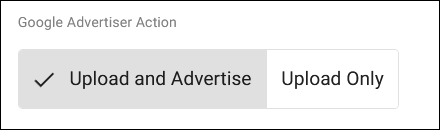
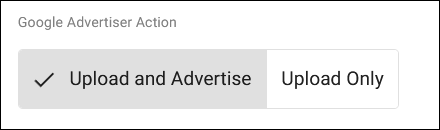
Choose whether this channel should allow Upload and Advertise or Upload only of audience lists.
Note
This selection determines which options appear when setting up Google Ads messages in the journey builder.
-
Click Save All Changes.
Now that you've created your Google Ads channel, you're ready to start using it in your campaigns.
Using Google Ads in campaigns
With your Google Ads channel configured, you're now ready to use Google Ads in the Orbit journey builder.
Add a Google Ads step
To add a Google Ads step to your campaign journey:
- Go to Campaigns.
-
Either select an existing campaign or create a new one.
See Creating a campaign.
-
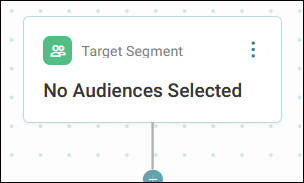
Choose a target segment for your campaign.
See Including and excluding audiences.
-
Click the + on your journey where you want to add the Google Ads step.
- Under Channels, select Google Ads.
- Click your new Google Ads step and give it a meaningful name for easy reference.
- Click Create
You can now configure your Google Ads step in the side panel.
Configure your Google Ads step
The configuration options you see depend on the type of Google Ads channel you want to use.
Note
If you configured your channel for Upload Only, you'll only see the Inclusion Customer List Name field.
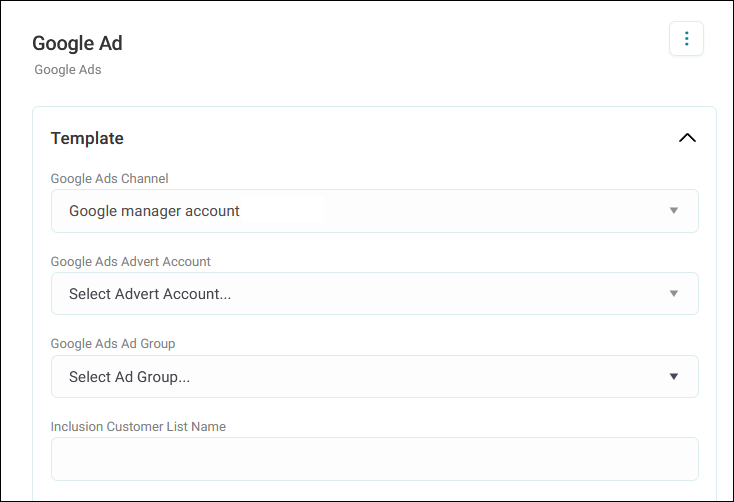
When using a manager account
If you've selected a manager account channel, you'll need to specify:
- The Google Ads Advert Account (client account) you want to use
- The Google Ads Ad Group belonging to that account
- The Inclusion Customer List Name for your audience
Note
These options appear regardless of whether your manager account is set to Upload and Advertise or Upload only in the channel editor.
When using a client account
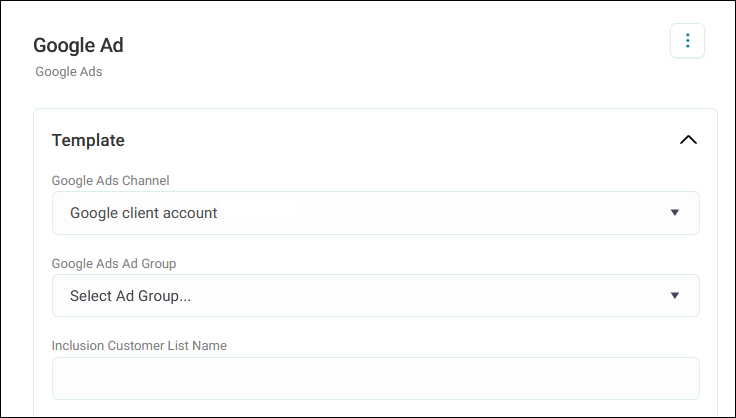
If you've selected a client account channel:
- You won't see the Google Ads Advert Account option
- Select the Google Ads Ad Group to upload your audience list to
- Specify the Inclusion Customer List Name
Finalise your Google Ads step
To complete your Google Ads step configuration:
-
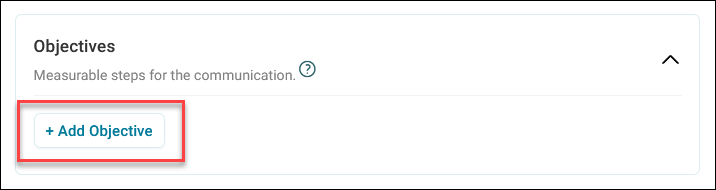
Add any objectives you want to apply to the step by clicking + Add Objective. See Message objectives.
-
Click Apply.
Your Google Ads step is now added to your campaign journey and Orbit runs the campaign according to your campaign schedule.
Important notes
- Google Ads manager accounts can manage multiple client accounts
- Each client account contains its own campaigns, budgets, settings and audience requirements
- Channel settings determine whether you can upload audience lists only, or upload and advertise
- When using a manager account, you'll need to specify which client account and Ad Group to use