Apteco Email reporting
The campaign overview screen provides insights into your Apteco Email campaigns, offering real-time data on engagement and email interaction statuses.
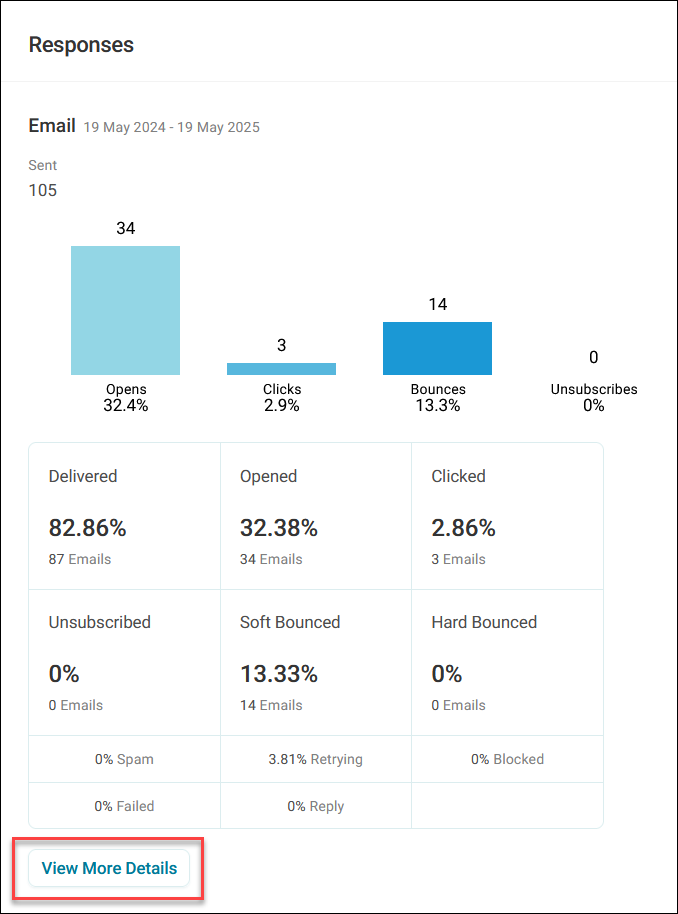
This insight enables you to monitor, analyse, and act on campaign performance directly within the campaign.
You can then identify problem areas, drill down into them, and resolve any issues quickly.
Note
You must have permission rights to view details to access the report.
Example use cases
Diagnosing email deliverability issues
You can identify and resolve issues behind hard and soft bounces by drilling into affected email addresses and reasons.
Managing spam reports
Review recipients marking emails as spam, understand the causes, and adjust your content or strategy to protect your sender reputation.
Access your Apteco Email statistics
To access your Apteco Email statistics:
- Open your campaign and click the Overview tab.
-
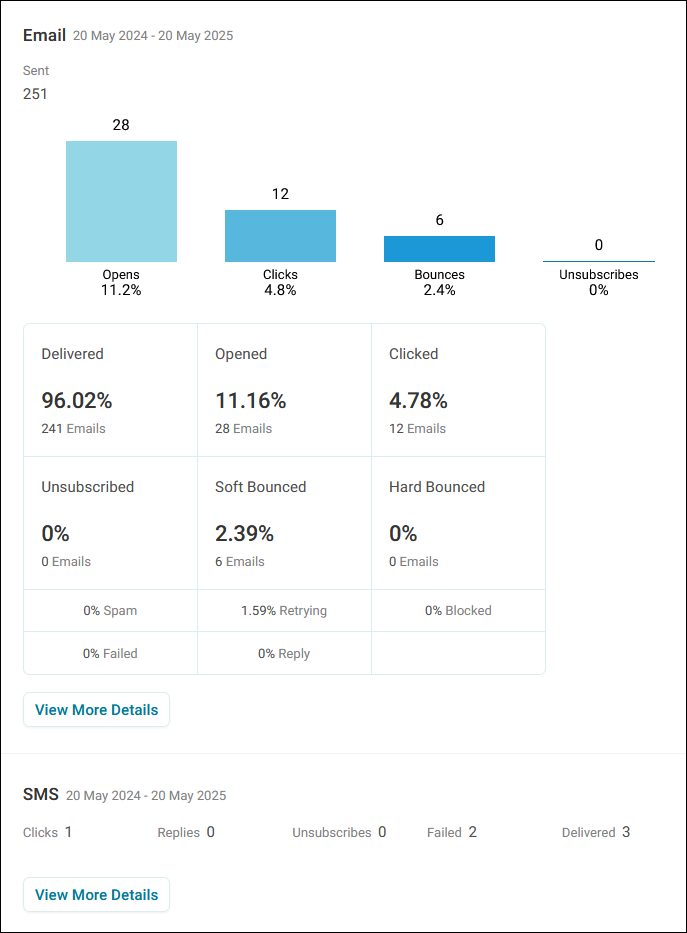
Here you’ll find the responses section and can review the Sent graph and summary boxes for other key metrics.
-
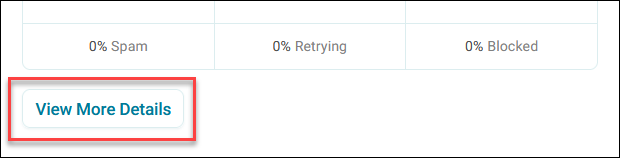
If the campaign uses Apteco Email, then click View More Details for an in-depth breakdown.
You’re now ready to better understand your Apteco Email response metrics.
Apteco Email response statistics
From the campaign overview tab, you can gain a more detailed understanding of your Apteco Email campaign statistics.
Understanding email interaction tabs
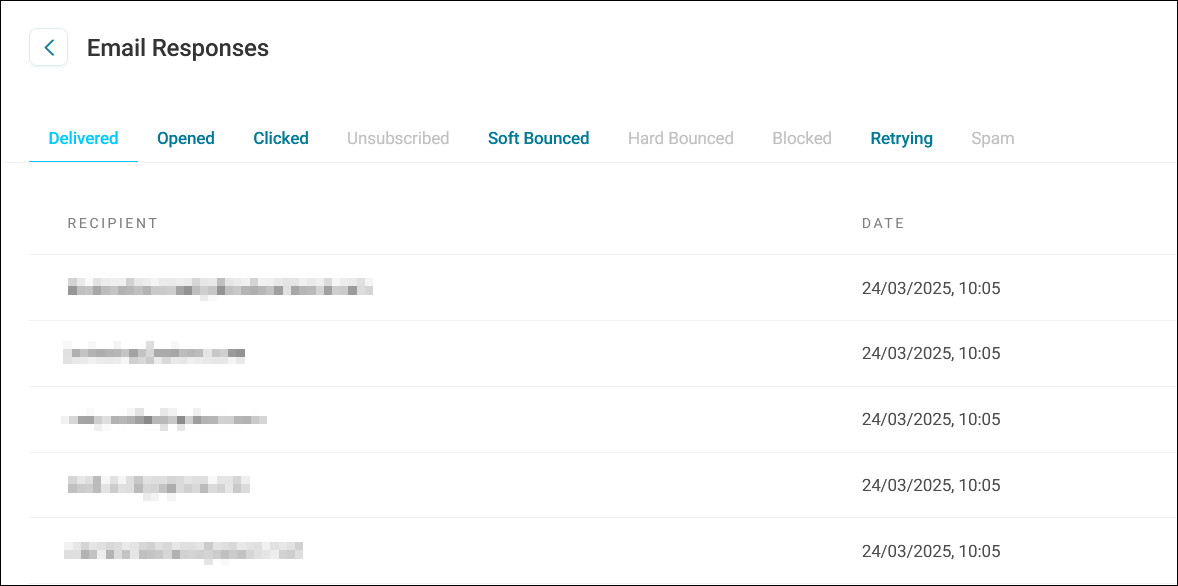
On the email responses screen, each tab represents a specific metric, allowing you to analyse both positive and negative interactions.
Note
Only tabs with data are visible. Tabs without data appear greyed out. For example, the Blocked tab is greyed out if no emails were blocked.
- Delivered: Shows the number of contacts successfully delivered to Apteco Email before send and their delivery dates
- Opens and Clicks: Displays engagement metrics with timestamps for each open or click
- Hard Bounces: Details emails that permanently failed to deliver, e.g., due to invalid addresses
- Soft Bounces: Highlights temporary delivery issues, such as a full inbox
- Blocked: Lists emails rejected by recipient servers, along with rejection reasons
- Spam: Indicates emails marked as spam by recipients
Warning
Spam reports can harm your sender reputation. A spam report doesn’t mean the email landed in a spam folder but that the recipient actively marked it as spam.
Tip
Prioritise resolving spam issues, as they can cause reputational damage.
Filtering and sorting
To filter and sort your response data:
-
Use the search bar to narrow results across all tabs.
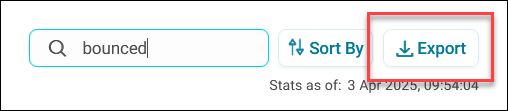
For example, type Bounced to view all emails that were either hard or soft bounced.
Note
The search applies across tabs, not just the currently active one.
-
Organise results by ascending or descending order using the sorting controls.
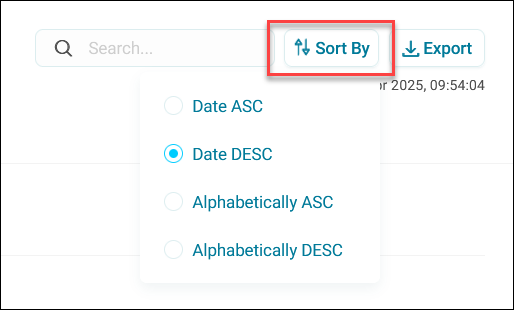
Sorting options are available for all columns.
Exporting campaign statistics
To export your campaign responses stats as a CSV file:
-
Click Export.
-
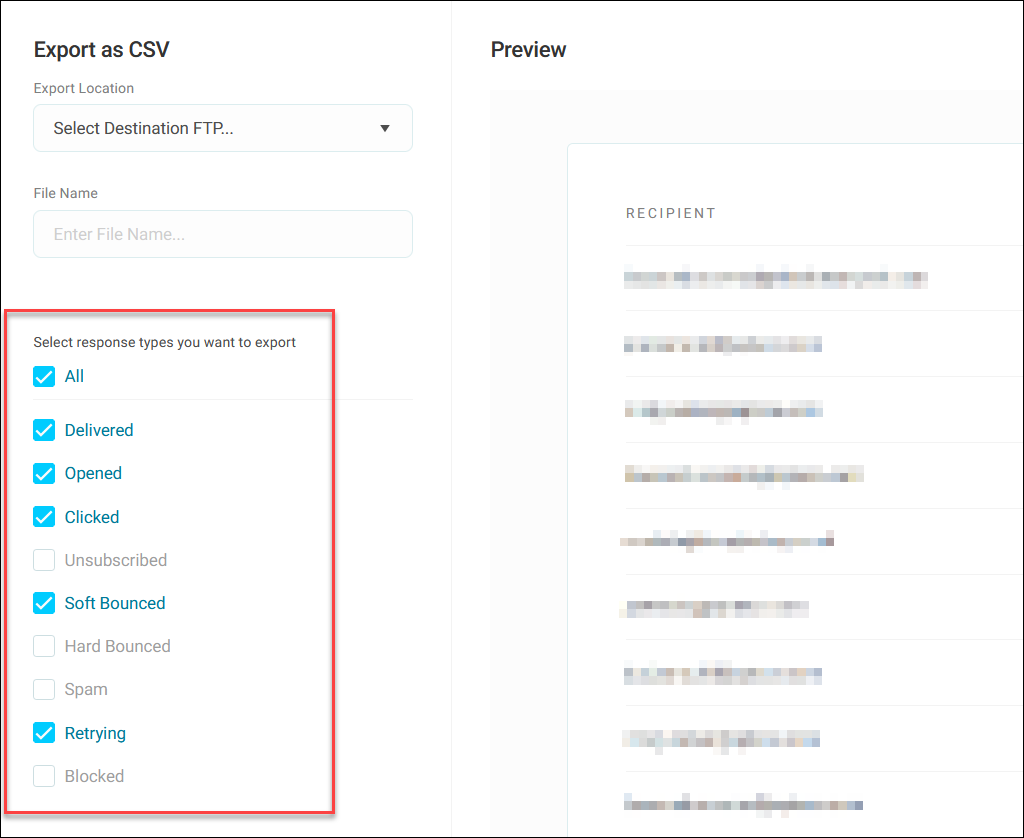
Select the responses to include in the export by ticking or unticking checkboxes.
-
Choose the export location.
Note
If you do not have an FTP site, then you're unable to export to FTP.
-
Confirm your selections to generate and download the export.
You’ve now successfully shared your email reponse report.