Google Analytics reporting
Orbit's Google Analytics integration allows you to track web page activity from your campaigns using UTM codes. With this feature, you can directly monitor campaign performance within the campaign overview tab by linking it to your Google Analytics data.

This overview helps you measure the impact of your campaigns and make informed marketing decisions.
Prerequisites
To use the Google Analytics reporting feature, ensure that you have set up the following:
-
A Google Analytics account with the necessary permissions for the data stream you wish to track
Orbit currently supports reporting for one data stream (i.e., website) per campaign.
-
A UTM code tracking to your campaign URLs
These codes help Google Analytics identify and categorise traffic from specific campaigns.
-
Google tags added to each webpage you wish to track
These tags enable data collection and tracking through Google Analytics.
Example use cases
Measuring campaign traffic
Track the impact of your campaigns by monitoring user activity and engagement metrics.
- Your retail company uses Orbit campaigns to promote a seasonal sale. UTM tracking is added to email links directing customers to the sale page.
- On the campaign Overview tab, the marketing team sees that the campaign drove 5,000 users to the website, with 70% being new visitors. They also note high engagement, indicating the sale campaign resonated with their audience.
Comparing campaign performance
Analyse results to refine your approach and optimise future strategies.
- Your charity runs two campaigns: one targeting existing donors and another reaching new audiences. Each campaign uses distinct UTM parameters.
- The campaign Overview tab shows that the new audience campaign resulted in more website visits but fewer engaged sessions than the donor-focused campaign. This insight helps them adjust messaging for future outreach.
Setting up Google Analytics reporting
To enable Google Analytics reporting, you need to:
- Connect your Google Analytics account
- Add a property ID to the Orbit API configurator
- Select a data stream
- Ensure your campaign URLs are correctly configured with UTM codes
Connect to Google Analytics
To begin setting up Google Analytics:
-
In the top right corner of your Orbit screen, click your avatar icon.
-
Click Account Settings.
-
Click Google.
-
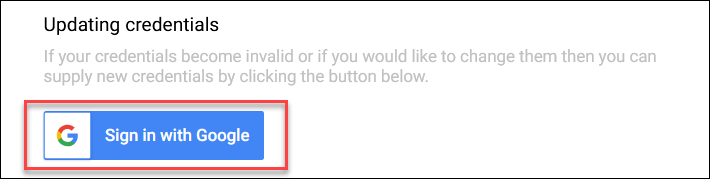
Click Sign in with Google.
-
Authorise Orbit to access your Google Analytics and Ads accounts.
-
Complete Google’s two-step verification process for added security.
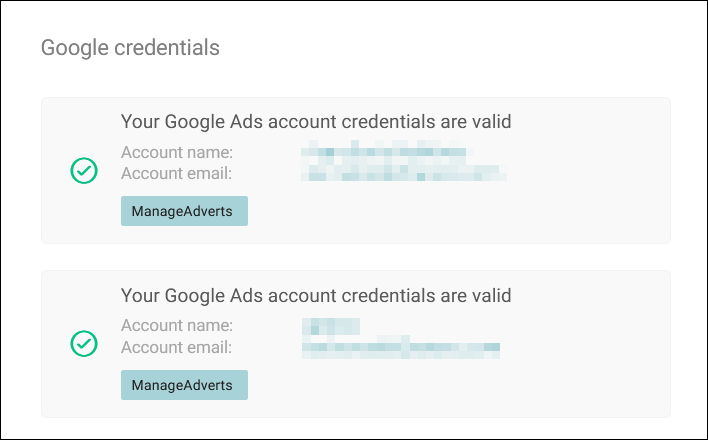
Once authorised, Orbit displays a list of your available Google Analytics accounts and data streams.
Analytics account property ID
You can track campaigns across multiple websites within a single Property ID, as long as each link uses the same utm_campaign parameter.
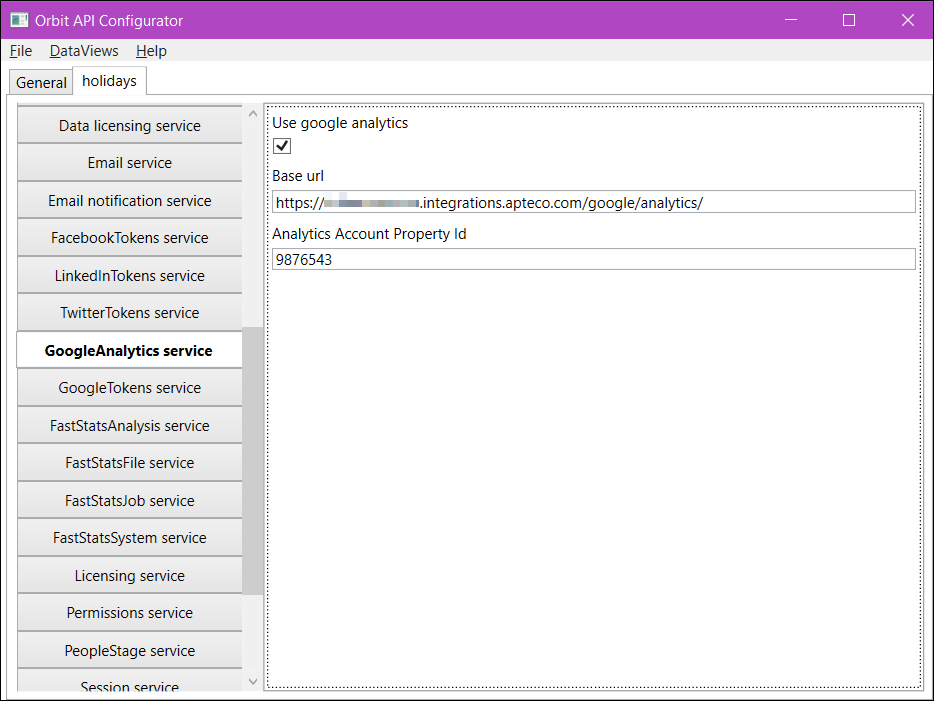
Your system administrator needs to update the Orbit API Configurator with a property ID so Orbit can generate the report.
To add a property ID:
- Open the Orbit API Configurator.
- Under your system, click GoogleAnalytics service.
-
Add your Analytics Account Property Id.
Google data streams
Each website in Google Analytics is represented by a data stream, which has unique identifiers:
- Data Stream ID
- Measurement ID
Orbit supports reporting for one data stream at a time. Select the data stream you want to monitor (e.g., "example.com").
Note
At present, Orbit supports reporting for only one measurement ID (data stream) at a time. For campaigns spanning multiple websites, select the data stream most relevant to your analysis.
Info
You must have permission to access to the chosen measurement ID in Google Analytics. Without this measurement ID, Orbit doesn't display any reporting data.
Verify UTM tracking
To enable and confirm your UTM codes:
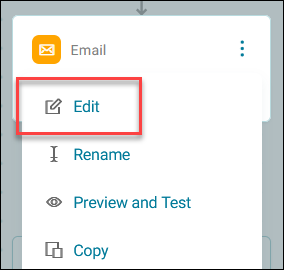
- In your campaign journey, click the option menu on your message step.
-
Click Edit.
-
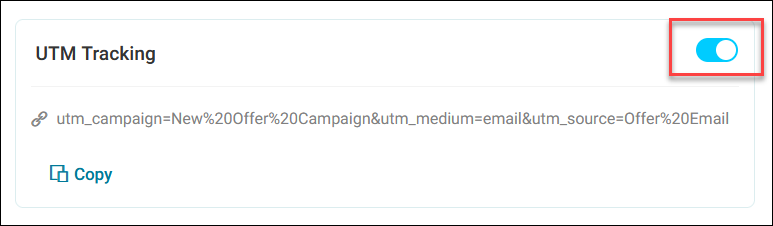
Click the UTM Tracking toggle to enable UTM tracking.
-
Confirm that UTM parameters are correctly applied to your campaign URLs. For example:
https://example.com/?utm_campaign=holiday_sale&utm_medium=whatsapp&utm_source=orbit
The initial URL is your data stream in Google Analytics which has its own data stream ID and measurement ID.
Your UTM tracking is related to this particular data stream. If you don’t have permission for this stream, then you won’t see any Google Analytics reporting on the Overview tab.
Google Analytics can now track visits from this specific campaign.
Viewing Google Analytics campaign reports
Once your campaigns are live and UTM tracking is in place, you can access reports in Orbit.
To view your Google Analytics campaign report:
-
Open your campaign and click the Overview tab.
-
Review key metrics, including:
- Users: Total visitors driven to your site from the campaign
- New Users: First-time visitors resulting from the campaign
- Returning Users: Visitors who have accessed your site before
- Active Users: Active users on your site
- Engaged Sessions: Sessions where users actively interacted with your site (e.g., clicked links, scrolled)
- Average Engagement Time: Average time spent per session
- Events: Specific user actions (e.g., downloads, clicks)
-
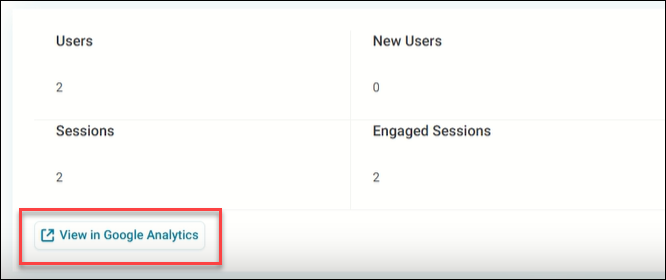
To explore detailed metrics or UTM breakdowns, click View in Google Analytics.
Advanced insights within Google Analytics
While Orbit provides a high-level summary, Google Analytics offers deeper insights:
- Traffic sources: See which channels (e.g., email, social media) drive the most visitors
- User behaviour: Analyse pages visited, time spent, and user flows
- Event tracking: Monitor clicks, downloads, and other interactions
Click View in Google Analytics from the campaign Overview tab to go to the corresponding report in your Google Analytics account.