Database connections
Orbit Connect supports several database providers, enabling you to specify and securely store database credentials and connect your database.
Supported database providers:
- PostgreSQL
- Amazon Redshift
- Snowflake
- Microsoft SQL Server, including Azure SQL
You can import a table or view directly, or write a custom query to choose, filter, and join your data before you import it.
Import your data
To import your data using Orbit Connect:
-
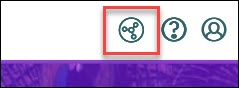
Select the Orbit Connect icon.
-
In Data Sources, select + New Data Source.
-
Next to your database type, such as SQL Server, select Connect.
-
Provide a descriptive name for your data source, then select Create.
-
From the Credential list, select + New Credential.
If you've already added a credential for this database, choose it instead and go to step 8.
-
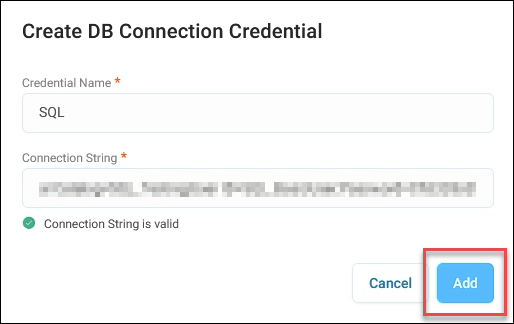
Fill in the following:
- Credential Name
- Connection String: see Example database connection strings for the format
When you move out of the Connection String box, Orbit Connect tests it and shows Connection String is valid if it works.
-
Select Add.
-
From the Tables & Views list, select the table or view to import.
A data preview appears.
To import the results of your own SQL query instead, select Custom SQL. Use a read-only credential for custom queries. For more information, see Custom queries.
-
Select Import.
You've completed your data import. You can now map your data to a User Defined Table or, if you use the Apteco CDP, to a Customer Data Table.
Example database connection strings
Use these formats for the Connection String when you add a credential. Replace each placeholder in angle brackets with your own details.
PostgreSQL
Amazon Redshift
User ID=<username>;Password=<password>;Host=<workgroup>.<account_number>.<region>.redshift-serverless.amazonaws.com;Port=<port>;Database=<database>;
Snowflake
scheme=https;ACCOUNT=<account>;HOST=<account_identifier>.snowflakecomputing.com;port=443;USER=<username>;PASSWORD=<password>;DB=<database>;
Note
You can find your Account Identifier in Snowflake under Account Details.