Additional relationship types
Multiple relationship types are available for selection with Orbit Connect.
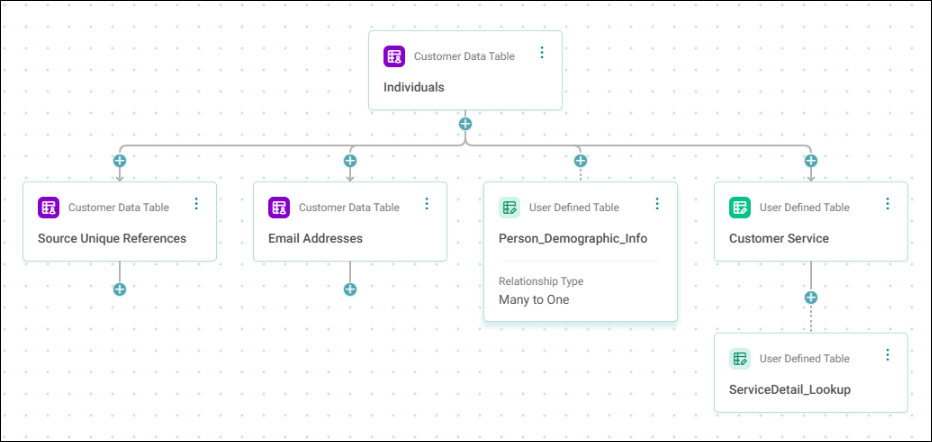
Relationships are defined by selecting common fields in related data tables. Relationship types determine how data in these tables join together.
You can choose from the following relationship type options:
- One to Many
- One to One
- Many to One
One to Many is the default relationship type. The One to One and Many to One options allow you to efficiently add to your main data by matching values in a parent table.
These options enable you to use a lookup-style data join. This allows you to bring additional columns of data into your system by matching to a value in the parent table.
Prerequisites
- Before using additional relationship types, you must first define the data sources that you wish to draw data from.
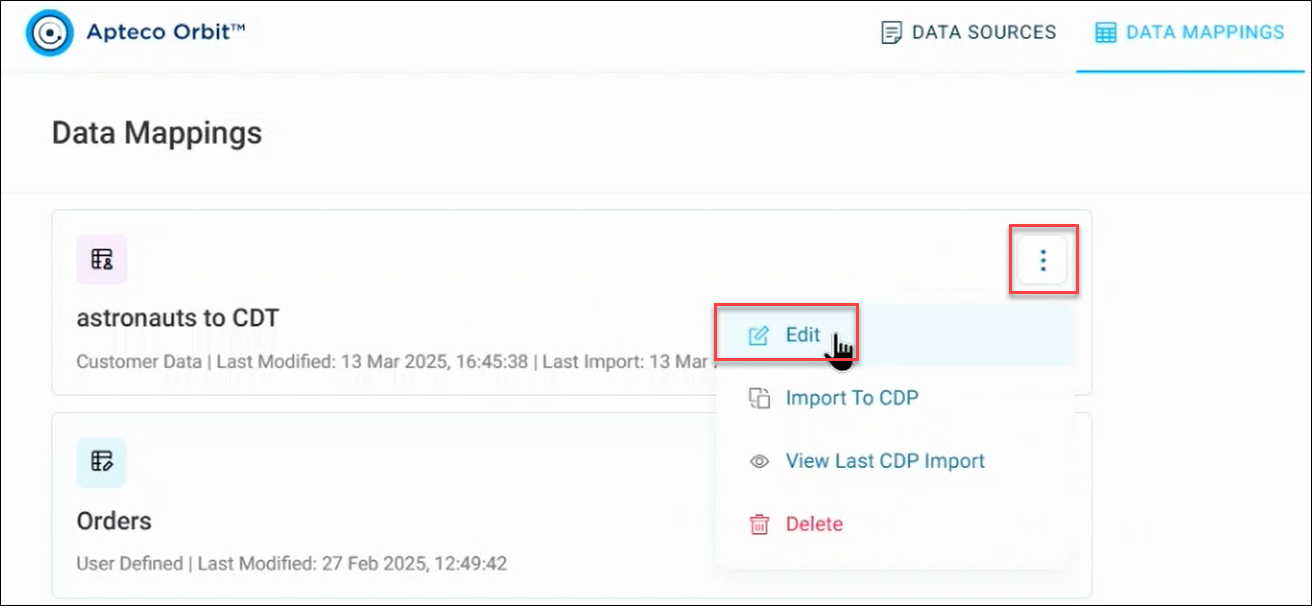
- You can check the data sources in Data Mappings by opening the option menu on a data source and selecting Edit.
Benefits
- Greater flexibility when setting up, maintaining, and enhancing your system
- Easily add extra data to your system without spending substantial time redefining it
- Minimise the amount of necessary data required in each record
- Add additional data to individuals, sites, products (or any other type of) records, or add geodemographic information to addresses
- The parent data record doesn’t need to be updated. A single code is used to efficiently append many additional columns to each record instead of storing the additional data against every record in the original source data (and parent table).
Example use case
You might use these additional relationship types to enhance your original data by:
- Adding demographic or Geo demographic data to your current records
- Enhancing product information by matching it with a product code
By using this feature you can enrich your data, making it more comprehensive and suitable for customer segmentation and analysis.
Adding additional relationship types
To add additional relationship types:
- Go to System Builds.
-
On the system you want to add data to, open the option menu and select Edit.
-
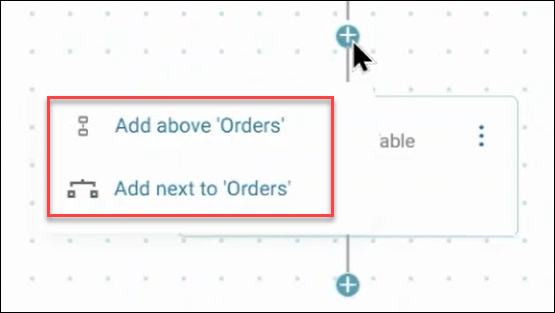
Select the + icon between your user defined tables.
-
Choose how you want to display your additional data:
- Add above 'Orders'
- Add next to 'Orders'
This example uses Add next to 'Orders'.
-
Search for and select your additional table.
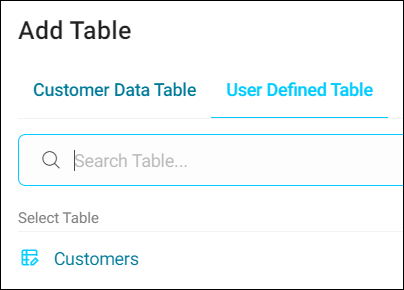
This example uses a Geo demographics table.
-
A Relationship Properties side panel menu is now displayed.
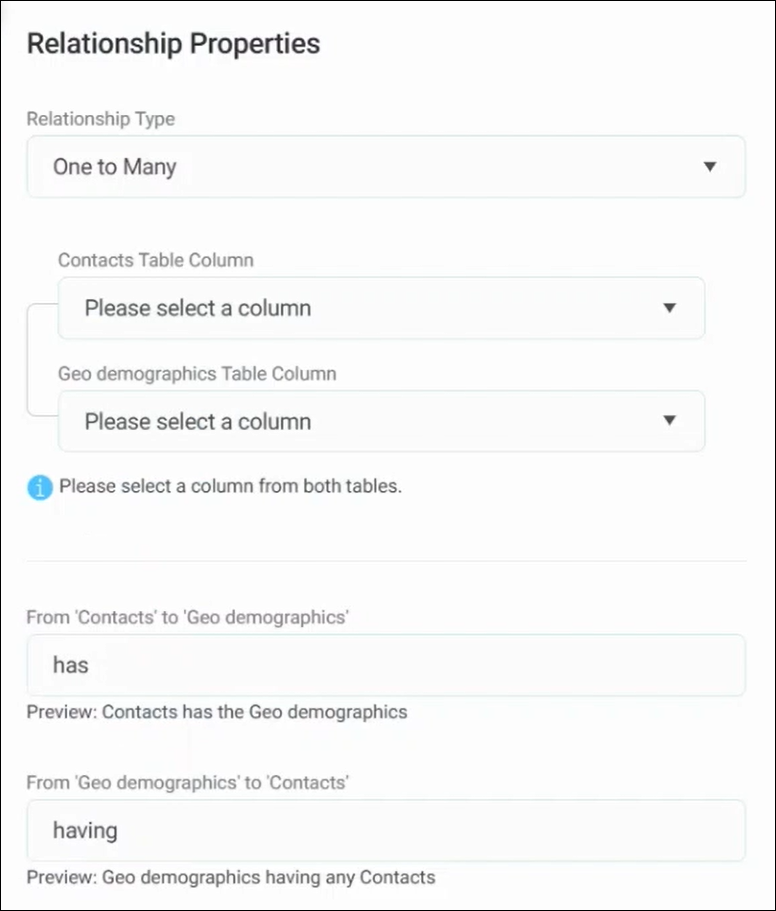
Select your Relationship Type:
- One to Many: Match to zero, one, or many
- One to One: Match to exactly one record
- Many to One: Match many to one
-
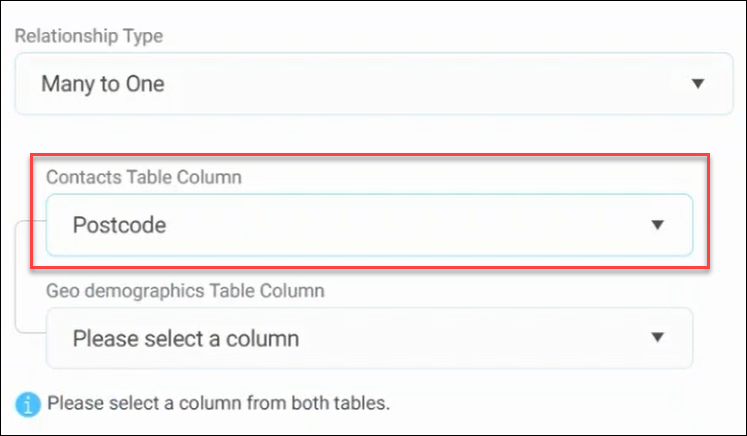
Select your Contacts Table Column. This example matches on Postcode.
-
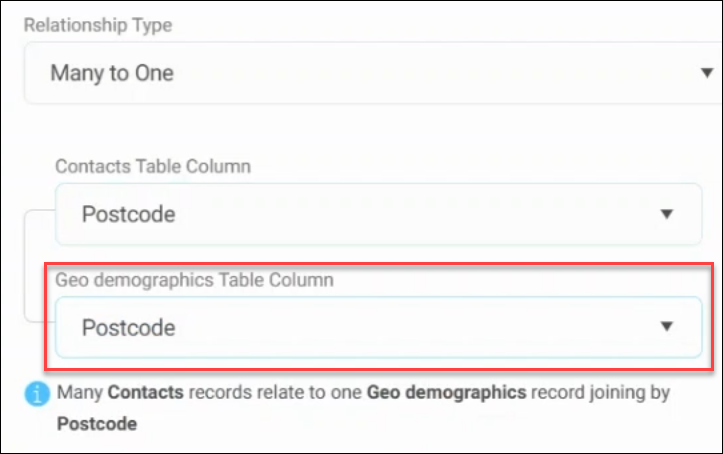
Select the matching table column, in this example Postcode in the Geo demographics table.
-
Select Apply.
Note
Hover over your user defined tables to see the currently selected relationship type.
-
Select Save.
You’ve now successfully added a new relationship type to your system build. You can repeat this process to join further data using different relationship types, as required.
You can now build and deploy your system to view the additional data you’ve appended to your system.