Tile filters
Tile filters are persistent filters that dashboard editors apply to individual tiles.
Use tile filters to show data subsets and create focused views that always display specific segments. This allows you to build dashboards that tell a complete data story by comparing different audiences, time periods, or metrics side by side.
Note
Active tile filters take precedence over any conflicting User filters.
Example use cases
Time-based comparison
Compare campaign performance across different time periods by filtering tiles to show specific quarters. For example, display Q3 and Q4 results side by side to measure whether proposition changes improved engagement rates.
Brand or segment analysis
Filter tiles to show data for different brands or customer segments on the same dashboard. For example, create a dashboard showing 2021 customer activity with separate tiles filtered for Brand A and Brand B.
Identifying tiles with filters
In view mode, a blue dot appears on the option menu when a tile filter is active.
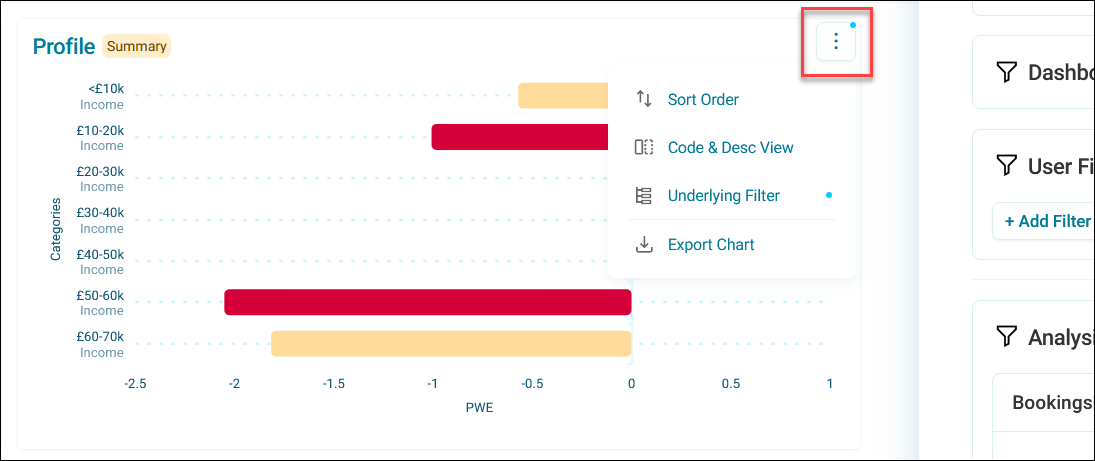
To see tile filter details:
- Expand the option menu.
- Select Underlying Filter.
A panel shows all filters applied to the tile.
Tip
Consider documenting important tile filters in your dashboard description.
Setting up a tile filter
To add a tile filter:
- Open your dashboard and select Edit.
- On the tile, expand the option menu.
- Select Edit Tile.
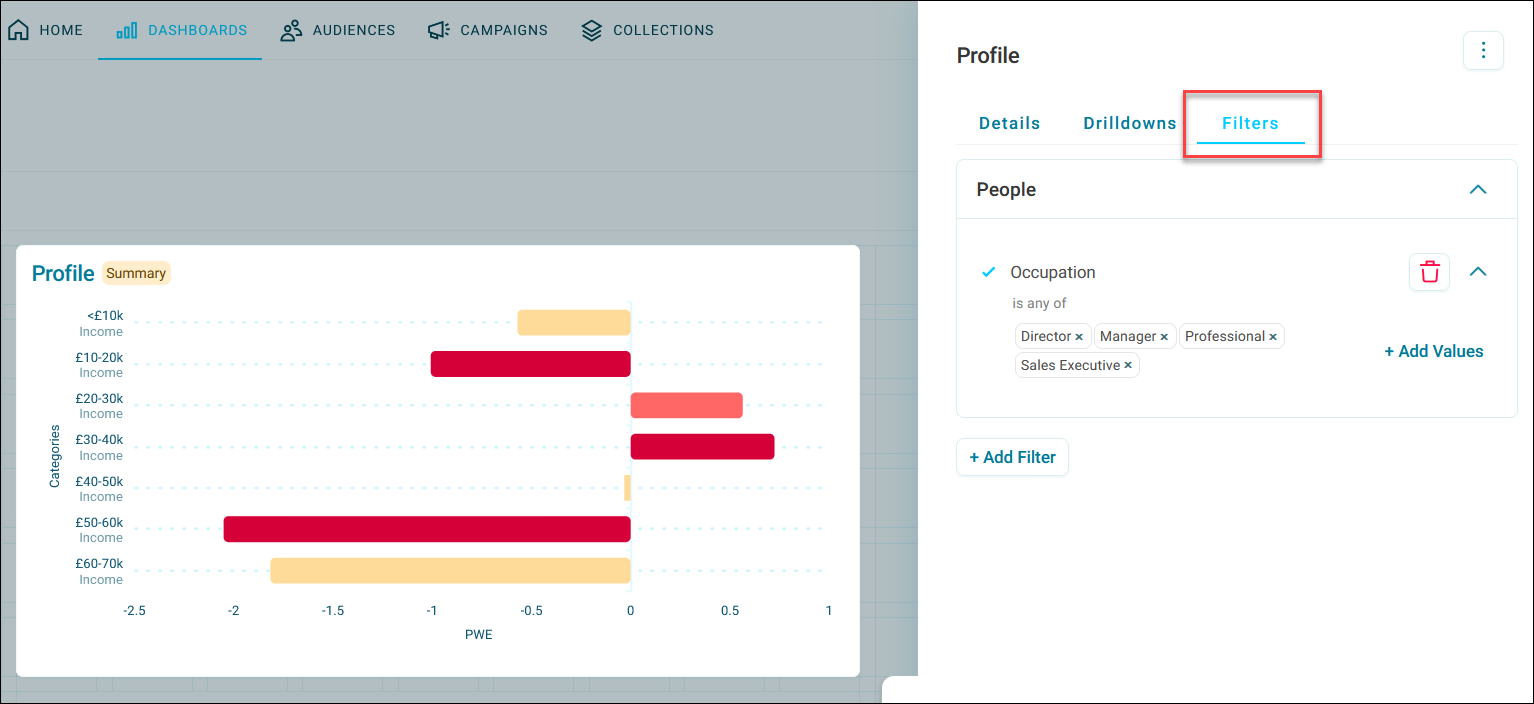
- Select the Filters tab.
- Select + Add Filter.
- In the Select filter dialogue, add your filter using variables, audiences, or files. See Using filters.
-
Select Apply.
Tip
You can add multiple tile filters to a single tile to create complex filtering logic.
-
You can modify existing tile filters. See Editing existing filters.
- Once you’ve added all your filters, select Apply.
- Save the dashboard.
The tile filter is now active on this tile.
Dimension and measure filters
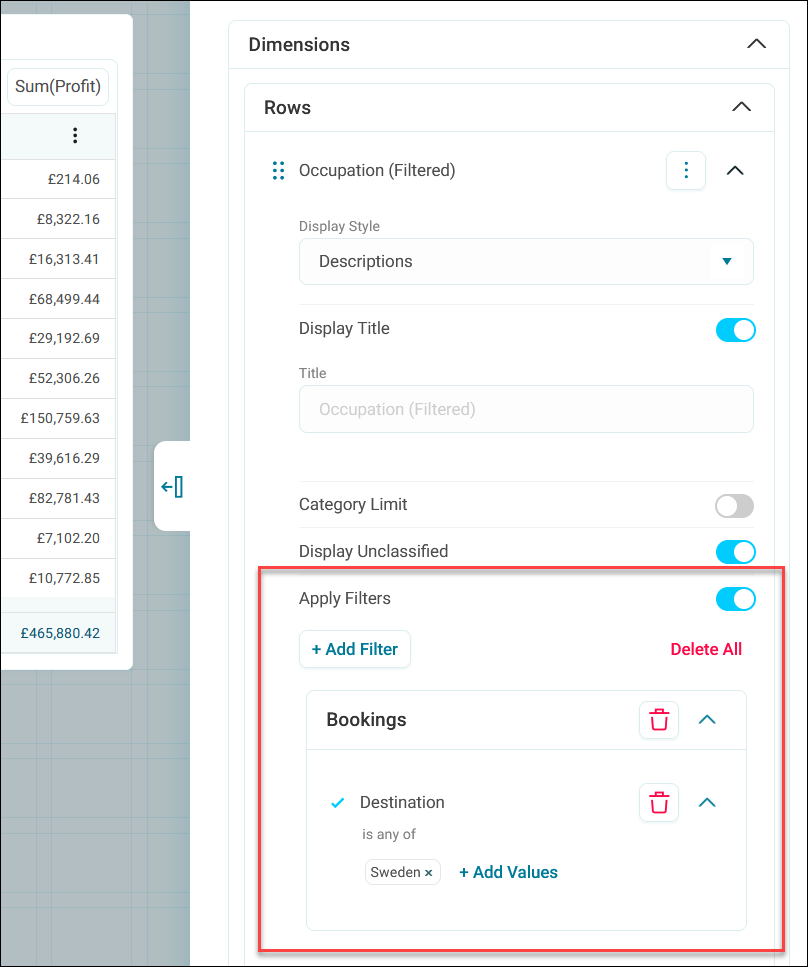
Apply filters to dimensions and measures on chart or cube tiles to analyse your data on a more granular level. You can also filter the measure on a number tile.