Orin capabilities
Orin has three capability areas, available depending on your bundle.
Knowledge guide
Orin answers questions about the Orbit platform and how to create and use resources including dashboards, audiences, and campaigns.
Example prompts
- What is a triggered event?
- How do I create an audience?
- What's the difference between a user filter and a dashboard filter?
Note
Knowledge guide capabilities are available with the Selector/Broadcaster bundles or higher.
Data navigator
Orin answers questions about the data in your Orbit system to help you navigate the tables, variables, values, and resources.
Orin can provide information about:
- Table structure and relationships
- System information (build/refresh/business year)
- Variables by their description, categories, and categories by description
- Variable min/max values and range
- Recently created or run objects (audiences, dashboards, campaigns)
Variable and table descriptions come from your data dictionary. Keeping it up to date helps Orin make better suggestions when it interprets your requests.
Example prompts
- What tables are in my system?
- What date variables are there on my People table?
- What audiences are there in this system?
- List all of the audiences in last edited order
- Which dashboards have been shared with me?
- List all the dashboards in the system in date created order
- What campaigns are in the system?
- Which campaign ran last?
- List the draft campaigns
- Are there any draft campaigns?
Note
Data navigator capabilities are available with the Analyser/Campaigner bundles or higher.
Dashboard summaries
Orin can analyse the data on your dashboard and provide a concise summary in the chat window. This helps you understand unfamiliar dashboards or share context with colleagues.
To create a dashboard summary, open the dashboard you want to summarise, then either:
- Open the option menu in the top-right corner, then select Summarise Dashboard.
- Ask Orin directly in the chat window.
Example prompts
- Summarise this dashboard
- Summarise dashboard
Note
You need to have the dashboard open for Orin to summarise it from chat. If no dashboard is open, Orin lets you know it can't provide a summary.
Save a summary as a tile
Save a dashboard summary onto the dashboard as a text tile, so everyone who opens the tab sees it. This works well for dashboards whose data changes on a regular cycle, such as a monthly fundraising report.
Note
You need to be able to edit the dashboard. If you can't, selecting Create Summary Tile copies the summary to your clipboard instead. You can then paste it somewhere else, such as a message when you share the dashboard.
To save a summary as a tile:
- Create a dashboard summary.
-
At the bottom of Orin's summary, select Create Summary Tile.
Orbit puts the dashboard into edit mode and adds a text tile containing the summary wherever there's space on the current tab. The tile shows that Orin generated it, and when.
-
Move or resize the tile as needed. To change the text, edit the tile and select Apply.
- Save the dashboard.
A summary tile covers the current tab only, like the summary itself, and doesn't update by itself. To refresh it:
-
Summarise the dashboard again.
If the current tab already has a summary tile, the button at the bottom of the summary is Update Summary Tile instead of Create Summary Tile.
-
Select Update Summary Tile.
Orbit puts the dashboard into edit mode and replaces the tile's text with the new summary, overwriting any edits you made to it.
-
Save the dashboard.
The summary tile button only appears on a new summary, not on summaries in your message history.
Solution builder
Orin can create and change Orbit resources on your behalf, so you don't need to configure them manually.
Note
Solution builder capabilities are available with the Predictor/Orchestrator bundles.
Build an audience
Describe the audience you want, and Orin builds it for you. Orin then asks you to review the audience. The new audience shows as Unsaved until you save it.
Orin can build audiences with:
- Include and exclude criteria
- Text criteria that match the start, end, or part of a value (Starts with, Ends with, or Contains), such as email addresses ending in a particular domain
- Fixed date ranges and specific dates
- Relative date rules, including predefined ranges (today, last year), custom ranges, and rolling rules that shift by days, weeks, months, or years
- Criteria that must all apply to the same record, such as a single booking that was both to Germany and flight only
- Criteria from different related tables, such as where people live and what they've booked
Whether criteria must apply to the same booking, or can apply to different ones, depends on how you phrase your request. For the best results, follow the tips for creating audiences.
Example prompts
-
Create an audience of all people that have made a booking using the date rule today
Using "date rule today" prompts Orin to apply a dynamic rule rather than today's fixed date.
-
Create an audience with bookings made in the last year
This creates a dynamic range of "the last year".
-
Create an audience of bookings with travel date in the next quarter
This creates a custom rule from today forwards three months.
-
Create an audience of managers that have had a booking to Germany with a product of Flight Only
Orin looks for managers with a single booking that matches both the destination and the product.
-
Create an audience of managers that have had one booking to Germany and a potentially different booking that was flight only
Orin looks for managers with a booking to Germany and a flight-only booking, which can be different bookings.
-
Create an audience of people living in the South West that booked to France in 2020 and Germany in 2021
Orin combines where people live with two separate bookings, each matching its own destination and year.
Note
When you build or change an audience, be explicit about whether you want a relative rule or a fixed date. Phrases like "in the last year" or "in the next quarter" produce dynamic rules. Specific dates produce fixed ranges. Always review your audience counts to confirm they match your expectations.
Change an existing audience
With an audience open, ask Orin to add, remove, or change its filters. Orin makes the changes in the audience and tells you what it changed, so you can check them before you save.
Orin can:
- Add filters to the includes or excludes
- Remove filters, including expression filters
- Change a filter's values, such as a destination or a date range
- Change whether a filter includes or excludes records
- Change how a text filter matches, such as Starts with or Contains, and whether it uses Match case
- Replace a filter's values with values from a different variable, such as swapping towns for a region
- Make several changes in one request
- Undo its last change
Orin can't add limits to an audience. To add one, select Apply Limits at the top of the audience.
To change an audience with Orin:
-
On the Audiences screen, open the audience you want to change.
-
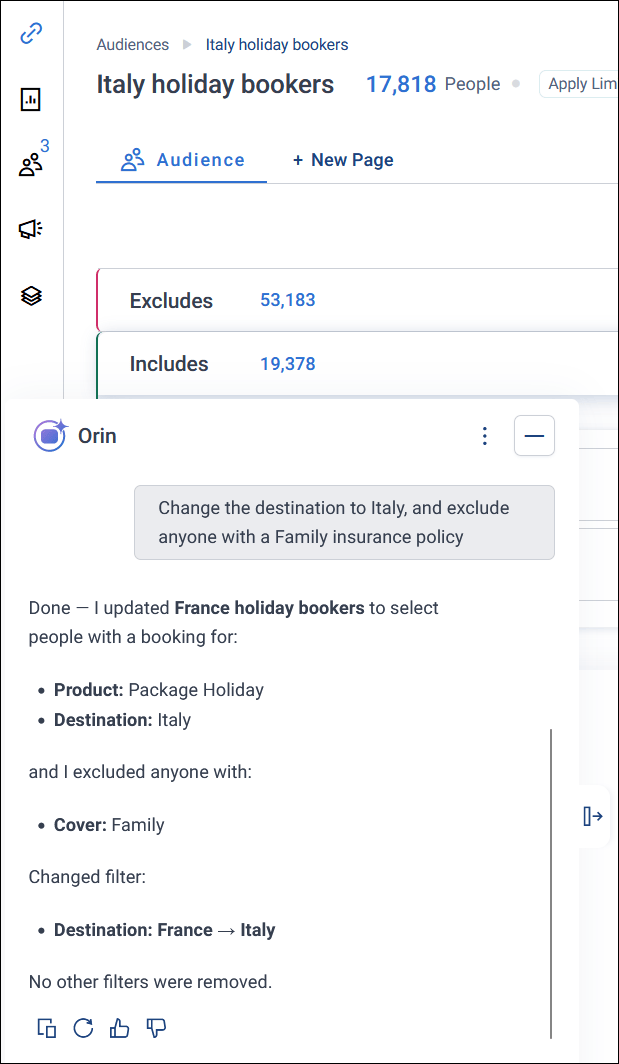
Open Orin and describe the change, such as Change the destination to Italy, and exclude anyone with a Family insurance policy.
-
Read Orin's reply. It lists the audience's filters and what it changed.
-
Check the audience's filters and count.
-
Save the audience. Orin doesn't save its changes for you, and the audience shows as Unsaved until you do.
If Orin can't apply some or all of your request, it tells you which parts it couldn't apply. When it can't tell which variable or value you mean, it suggests the closest matches for you to choose from.
To reverse Orin's last change, ask Orin to undo it. This reverses everything Orin changed in response to your last request. You can also use the audience's Undo button.
For the best results, follow the tips for changing audiences.
Example prompts
-
Exclude anyone with a Family insurance policy
Orin adds a Cover filter to the excludes.
-
Change the cost filter to between 800 and 1000
Orin replaces the filter's existing values with the new range.
-
Replace Aberdeen and Manchester with the West Midlands
West Midlands is a region, not a town, so Orin replaces the Town filter with a Region filter.
-
Remove the booking date filter
Orin deletes the filter, whether it uses a fixed date or a relative rule.