Salesforce channel in PeopleStage
You can create Salesforce channels directly in PeopleStage to upload campaign data to your Salesforce tables.
Note
Before using your Salesforce Sales Cloud channel in campaigns, complete the configuration steps in Setting up your Salesforce custom object and table.
Creating your channel
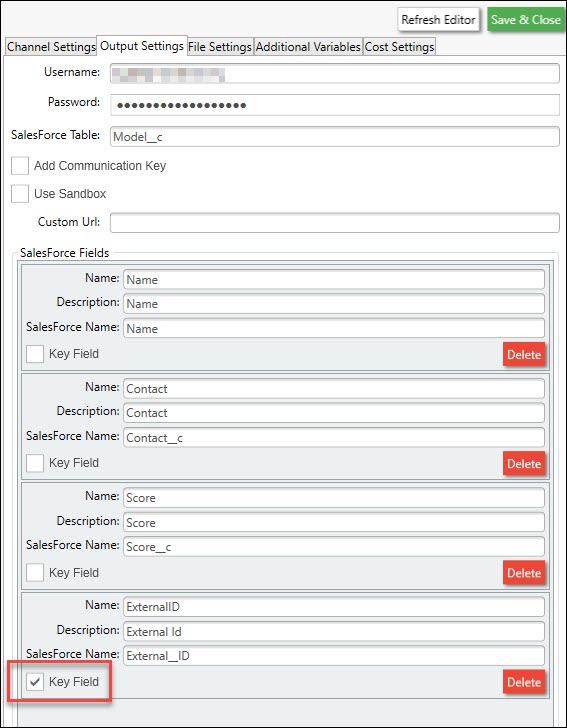
Create a channel that maps to the Model__c object you created in Salesforce.
Note
Mark ExternalID as the Key Field.
Use additional variables if needed
If campaign variables can populate fields (for example, contact IDs), add them as additional variables and make sure they're mapped correctly.
Example: A variable called Contact Id holds the Salesforce Contact ID. Map it to the Contact field in the channel, which in turn maps to Contact__c in Salesforce.
Add Salesforce credentials
In your channel configuration, add:
- Username: The email address you use to log in to Salesforce
- Password: Your Salesforce password, concatenated with your security token
Note
You receive a new security token if you change your Salesforce password or request a new token.
Upsert your data
To test your setup, create example content in PeopleStage:
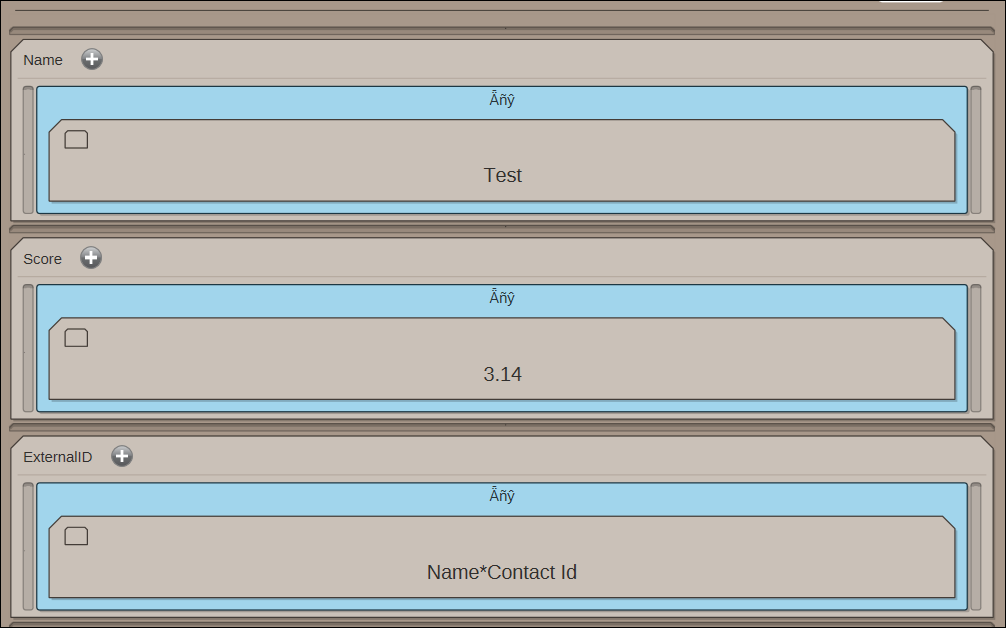
| Field | Example Value | Description |
|---|---|---|
| Name | Test | Model name |
| Score | 3.14 | Fixed score (typically from your model data) |
| ExternalID | Test* | Concatenation of Name and Contact Id with a * delimiter |
| Contact | Salesforce Contact ID (from a variable) |
Note
Contact is already included in the channel mapping, from the Contact Id variable. You don't need to define it again in the content.
View data in Salesforce Sales Cloud
Once your campaign runs, you can view your model records directly in Salesforce Sales Cloud.

The system upserts records based on the ExternalID, so you can continue to update model scores using this process.
For detail on using Salesforce Sales Cloud in Orbit campaigns, see Salesforce Sales Cloud in Orbit.