To log in to a local FastStats system you need to have a system (probably built with FastStats Designer) on the computer that you are running FastStats on.
You will also need to have a server connection file. This might have been created by the person that built your system (as part of the Designer build process), or you might have to create your own before you log in.
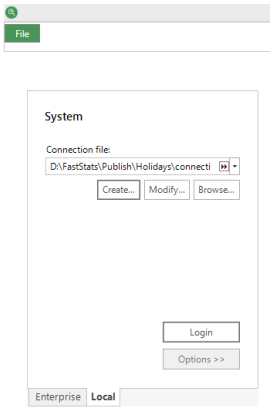
I have a server connection file to use
If you have logged in to FastStats before using an existing connection file, then press the down arrow next to the "Connection File" text box and this will show the last 5 connection files used. If the file you want to use is present, then select it and press the Login button.
If the correct connection file is not in the list, or if you have not logged into FastStats using the connection file before, press the Browse... button. This will show a file chooser. From here you can navigate to the appropriate file and press the Open button. When the file chooser closes, you will see that the connection file name has been put in the text box. You can then press the Login button to log in. The next time you want to use this connection file, it should appear in the list as mentioned above.
I don't have a server connection file
If you don't have a server connection file, but have a local FastStats system, you can create a connection file using FastStats. Press the Create button and a window will be displayed with all the options required to create a connection file.
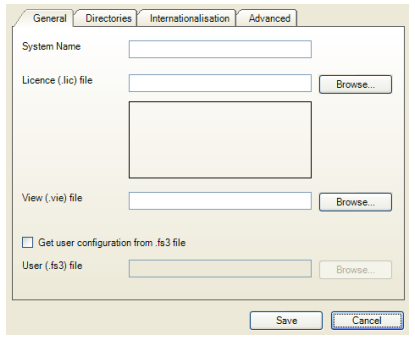
Enter the name of the system (as chosen when the system was built) in the first text box. Then choose a FastStats licence file by either typing in the path or pressing the Browse... button and using the file chooser. When the licence file has been chosen, its details will appear in the label below the licence file text box.
Then choose the View file (also known as the ".vie" file) in the same manner as the licence file. The view file must be in the FastStats system's base directory. If you have a user configuration file (also known as the ".fs3" file) then tick the "Get user configuration from .fs3 file" tick box and choose the user file.
If you don't have a user configuration (".fs3") file, or you don't want to use it, make sure that the tick box mentioned above is not ticked and enter the appropriate details in the Directories and Internationalisation tabs. Only change settings in the Advanced tab if you are absolutely sure that this is required.
Logging in to an Enterprise FastStats System