Cubes in audience workbooks
With cubes in audience workbooks, you can use powerful one and two dimension cubes to display multiple measures with reworked cube properties, a colour scale, and swappable dimensions and measures.
Creating a new cube
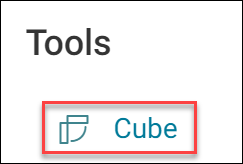
To add a cube to an audience, you can select it from the Tools menu on the Add New page.
Note
Give the cube a name so you can find it later in your workbook.
Sorting and filtering columns
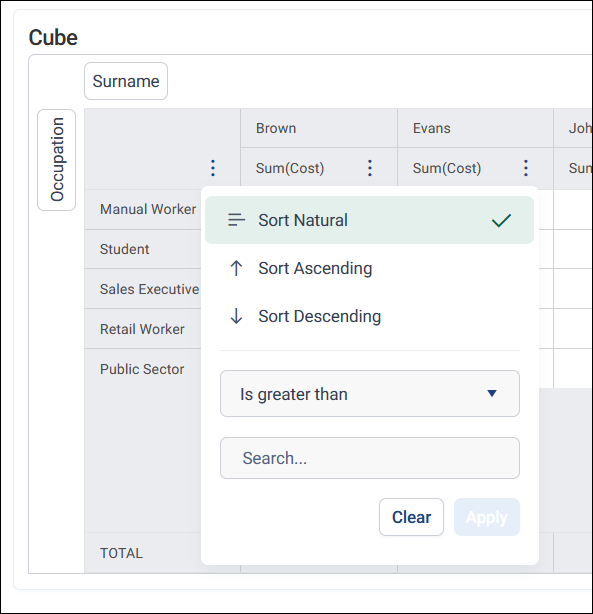
Select a column header's options menu to sort or filter the column.
Sorting applies as soon as you select it. Select Sort Natural to reset a column to its default sort order.
You can filter numeric columns. Choose a comparison, such as Is equal to, Is greater than, or Is less than or equal to, then enter a value. Select Apply, which stays disabled until you enter a value. Selecting Apply applies the filter and closes the menu. Select Clear to reset the filter.
Filtering only affects the data shown on screen. It doesn't change your audience, and isn't applied when you export the cube.
Note
Sorting and filtering columns works the same way on a dashboard cube tile.