Exporting an audience workbook cube
You can export cubes and tables from audience workbooks to PDF, Excel (XLSX), or text formats.
Export options
When you export a cube or table, you have two options:
- Partial view export: Exports only the statistics currently visible in the tile.
- Complete data export: Exports the full dataset, including data not displayed due to category limits or value limits. Use XLSX or TXT format to access all data.
Note
Data grids always export the complete dataset matching the applied filter. For more information, see Exporting an audience.
Note
You can also export a cube or table tile on a dashboard. See Exporting a dashboard tile.
Exporting a cube or table
To export a cube or table:
- Create or open an existing cube in audience workbooks.
- Expand the Options menu and select Export.
- Give your cube or table a File Name.
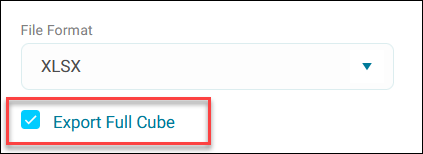
- Select a File Format (PDF, XLSX, or TXT).
-
If you want to export the complete data set, then select Export Full Cube.
Note
The full cube exports even if you’ve applied any limits.
-
Review the Preview of your export.
- Select Export.
- A confirmation message confirms your selected output.
You’ve now successfully exported a cube or table from your audience workbook.