Manual campaign approval
Manual approval holds a campaign delivery before Orbit uploads the list of recipients to the channel, so you can check the recipients and content before they go out. You then approve the delivery, or reject it and discard the file without recording any false communication history.
Manual approval lets you:
- Hold delivery at a message step
- Download a sample of the output
- Review the sample records and values
- Approve or reject pending deliveries, one at a time or several at once
Turning on manual approval
When you turn on manual approval for a message step, the campaign pauses before Orbit uploads the list of recipients to the chosen channel.
To turn on manual approval:
- Select a campaign and select Journey.
- Select the message step to open its settings panel.
-
Check the Manual Approval Stop box.
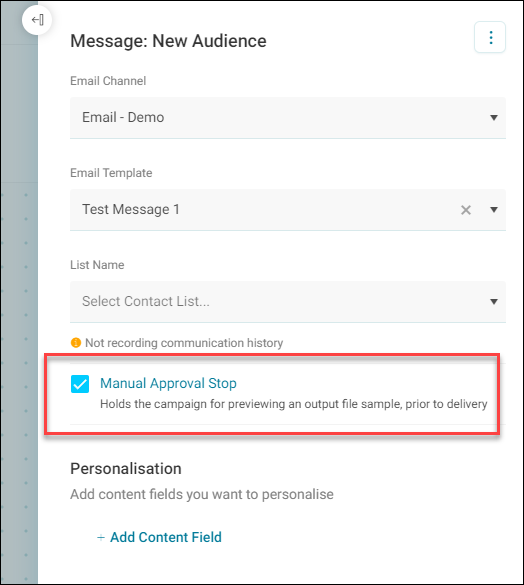
Deliveries from that step now wait for approval before Orbit uploads them.
Opening pending approvals
When a delivery is waiting for approval, Orbit flags it on the Campaigns screen and in the campaign's journey.
You can open the Pending Approvals dialogue from any of these:
- List view: Select the options menu on the campaign's row, then select View Pending Approvals.
- Grid view: The campaign's tile shows a badge with the number of pending approvals, and the notice There are deliveries pending approval. Select the options menu on the notice, then select View Pending Approvals.
- The journey: Select View Pending Approvals on the There are deliveries pending approval notice.
Tip
To find every campaign with deliveries waiting, filter the Campaigns screen by the Pending Approval status. See Filtering campaigns and folders.
The dialogue lists each pending delivery with its Message, Request Date, and Net Count.
Downloading a sample
Download a sample of a delivery's output to check who's included before you approve it.
To download a sample:
- In the Pending Approvals dialogue, select the options menu on the delivery's row.
- Select Download.
The sample contains data such as:
- The Individual ID
- The output fields from the chosen channel
- Any applied personalisation
Use the sample to check that the data output against each individual is correct. You can also import it into another system, such as an operational or Customer Relationship Management (CRM) system.
Approving or rejecting deliveries
Approve a delivery to let Orbit upload it to the channel, or reject it to discard it without recording any false communication history. Every delivery goes through the Pending Approvals dialogue, even when only one is waiting.
Before you start, make sure you have:
- The PeopleStage Viewer role, or administrator rights for the system
- The PeopleStage Publisher role
- The Approve permission on the campaign or its diagram
To approve or reject deliveries:
- In the Pending Approvals dialogue, check the box next to each delivery you want to act on. To select every delivery, check the box in the header row.
- Select Approve or Reject. Both stay unavailable until you select at least one delivery.
Each row shows a loading indicator while Orbit processes it. When it's done, a notification confirms the result and the delivery leaves the list.
Note
After you approve or reject deliveries, the pending approvals count badge stays until Orbit finishes processing the records.