Voucher codes
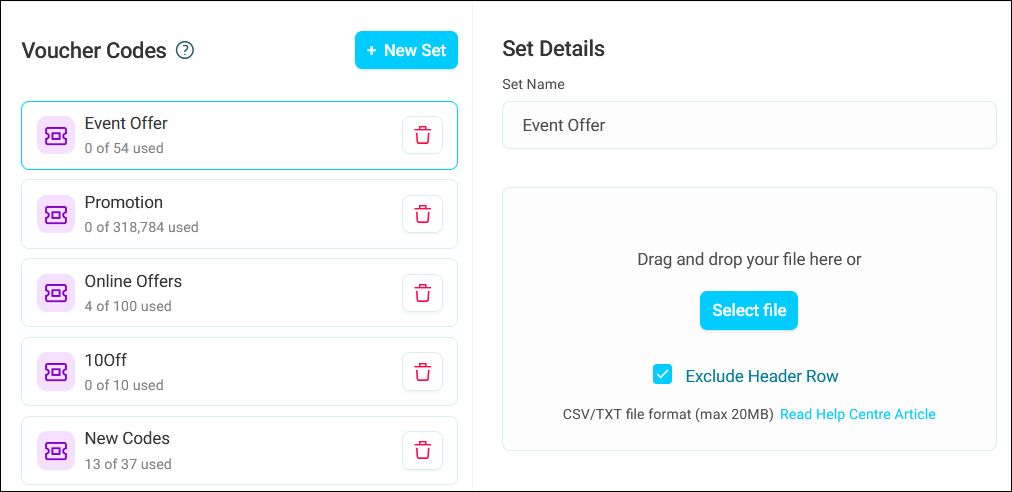
Include unique voucher codes in your campaign messages to create personalised offers and promotions. Orbit manages code distribution automatically, ensuring each recipient receives a unique code from your uploaded sets.
Example use cases
Tiered promotional offers
Create separate voucher sets for different customer segments or purchase behaviours. Use an audience split in your campaign journey to direct customers down different paths based on their actions, then apply relevant voucher sets to each path.
Holiday or seasonal campaigns
Upload multiple code sets for different seasonal promotions. Configure channel steps in the journey builder to include codes from the appropriate set based on timing or customer preferences, ensuring relevant offers reach the right audiences.
Managing voucher codes
Upload and organise your voucher code sets through Application Settings. Orbit tracks usage automatically and displays statistics for each set.
Prerequisites
Ensure you have:
- Orbit Administrator rights or Voucher Editor permission
- Voucher codes in CSV or TXT format (maximum 20MB)
- Apteco software version Q3 2025 or later to view upload history
Creating a voucher code set
To create a new voucher code set:
- Open Orbit and click your avatar icon in the top right corner.
- Click Application Settings.
- Click Voucher Codes from the left-hand menu.
-
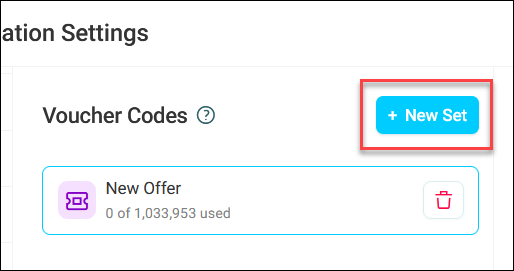
Click + New Set.
-
Enter a descriptive Set Name.
- Click Save.
-
Click Select file or drag and drop your file into the upload area.
Note
Check the Exclude Header Row checkbox if your file contains a header row.
-
Click Save. Details of your code upload appear below.
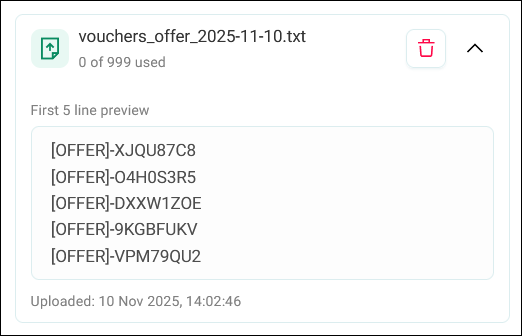
You can top up an existing voucher code set by repeating steps 7-8. Orbit continues allocating codes in the order they appear across all uploaded files for that set.
Note
To delete a voucher code set, click the bin icon next to the set.
Viewing voucher code details
Voucher code sets appear in the left-hand panel. Click on a set to view its details on the right.
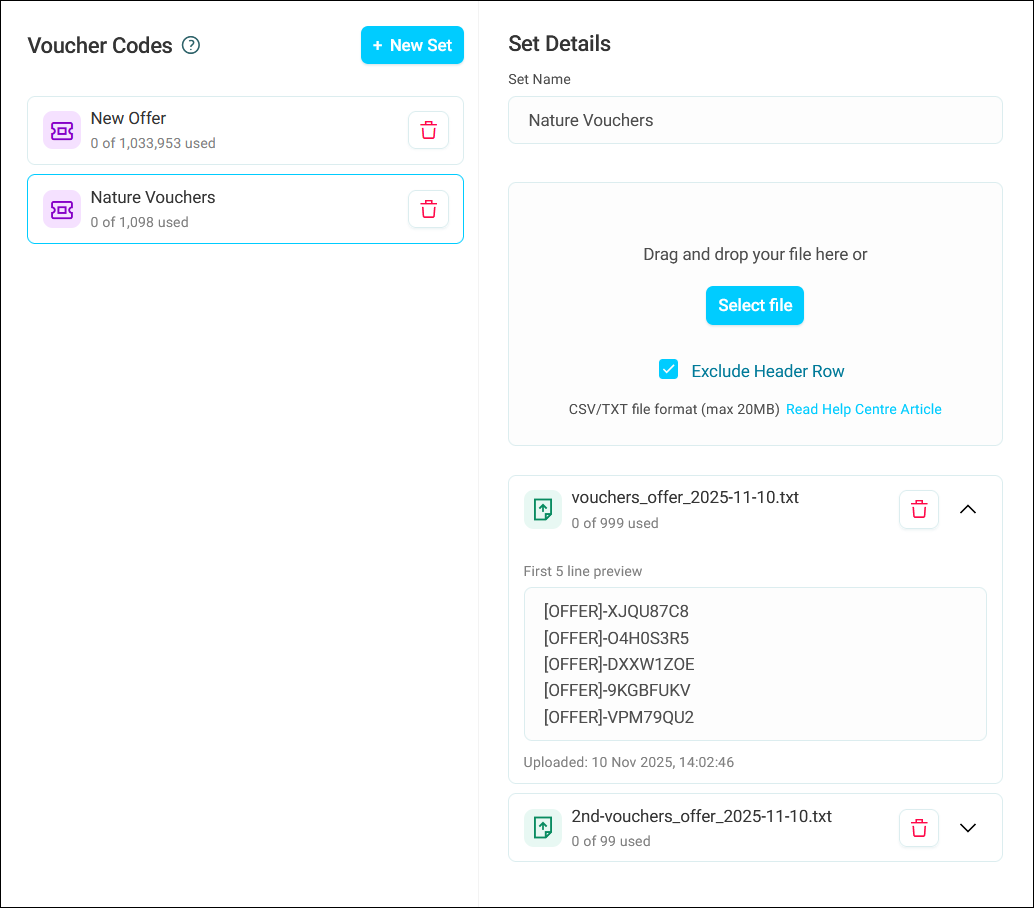
The Set Details panel displays:
- Upload history
- Code count per upload
- First 5 line preview
- Upload timestamp
- Delete option
The system updates usage counts automatically as campaigns allocate codes to recipients.
Best practices
Here are some tips for using voucher codes:
- Name sets clearly to identify their purpose (for example, Summer Sale 2025 or Nature Tour Discounts)
- Monitor remaining code counts regularly and top up code sets before they run out
- Create separate sets for different promotion types to maintain clear organisation
Voucher codes in campaigns
Add voucher codes to your campaign messages through personalisation fields in channel steps. Orbit allocates unique codes from your selected set to each recipient.
Prerequisites
Ensure you have:
- Created and uploaded at least one voucher code set in Application Settings
- Built a campaign journey with channel steps where you want to include codes
- Created or identified email templates for your promotional messages
Adding voucher codes to a channel step
To add voucher codes to a channel step:
- Open your campaign and go to the Journey tab.
-
Click the Channel Step where you want to include voucher codes.
Example
Here you have a redirect section of the journey that splits recipients based on meeting a previous message objective about their holiday purchase type.
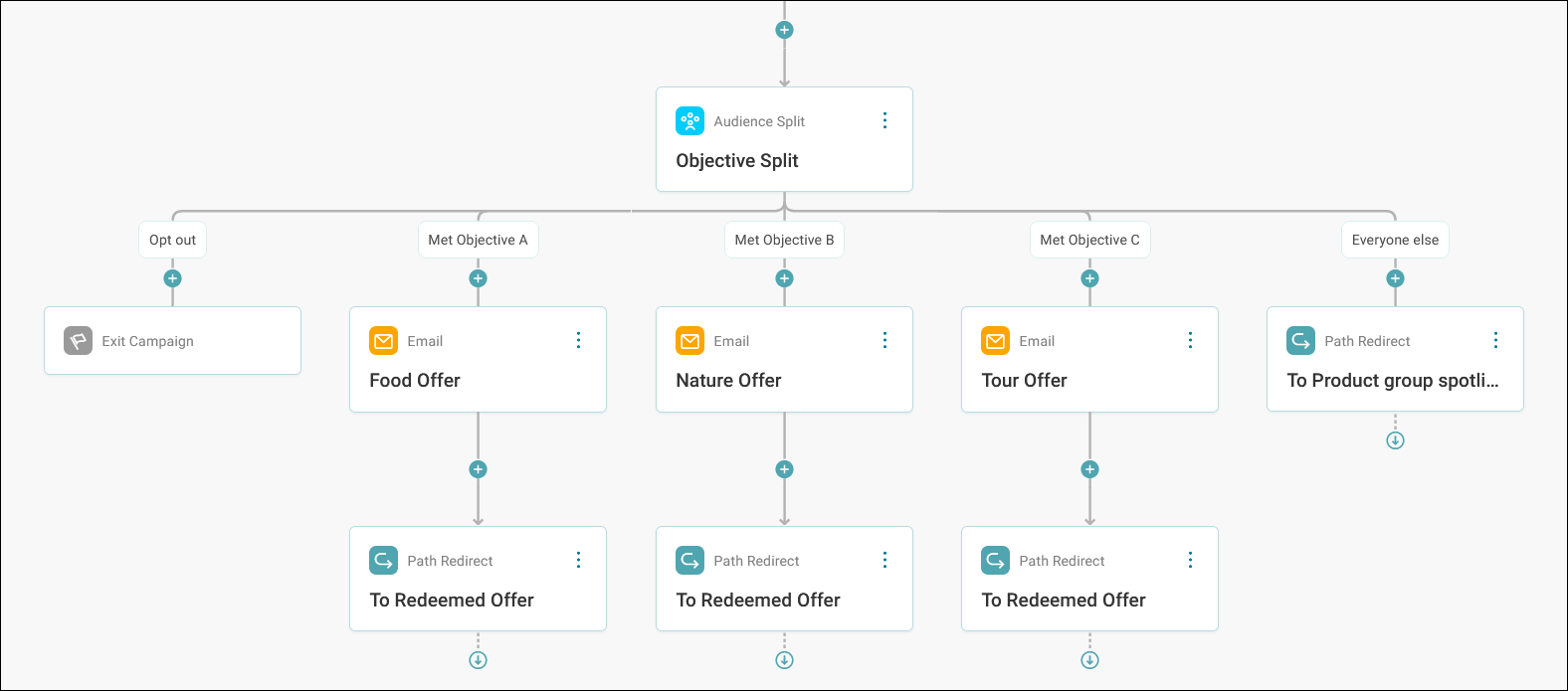
- Recipients who purchased nature holidays receive nature tour discount codes
- Recipients who purchased food tours receive restaurant voucher codes
- Recipients who purchased city tours receive attraction discount codes
Each recipient receives a unique code from the relevant set to use when booking extras.
-
Under Personalisation, click + Add Content Field.
- Expand the Field Type dropdown and select Voucher Code.
- Enter a descriptive name in the field name box (for example, ‘FoodVoucher’ or ‘NatureOffer). This field name is just your column header in the output file.
- Click Add.
-
Select your voucher code set from the dropdown.
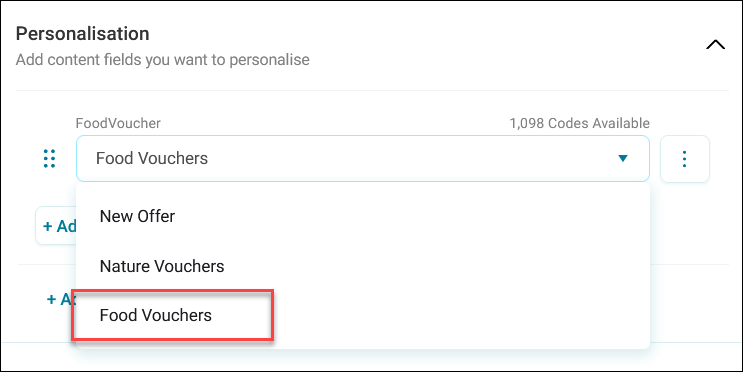
Tip
You can see the number of available codes for each content field. This number updates as you configure multiple channel steps or as campaigns use codes.
-
Click Apply.
You’ve added voucher codes as personalisation to your campaign message. Continue adding codes to other channel steps as necessary.
When this campaign publishes, those vouchers are allocated to each individual recipient.
Next, create corresponding email templates with matching personalisation field names for each path.
Creating personalisation fields in email templates
To display voucher codes in your email templates:
- Go to Campaigns and click Template Builder.
- Click Email Template Builder.
-
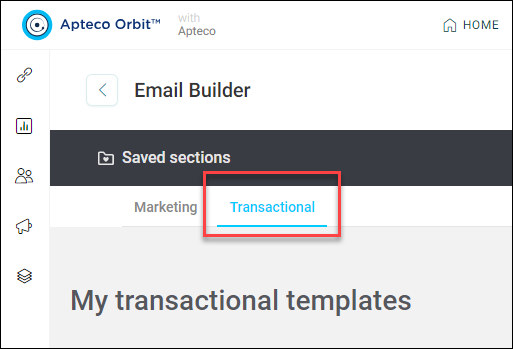
Click the Transactional tab.
-
Under your email template, click Edit.
- Click within the text field where you want to insert the voucher code.
-
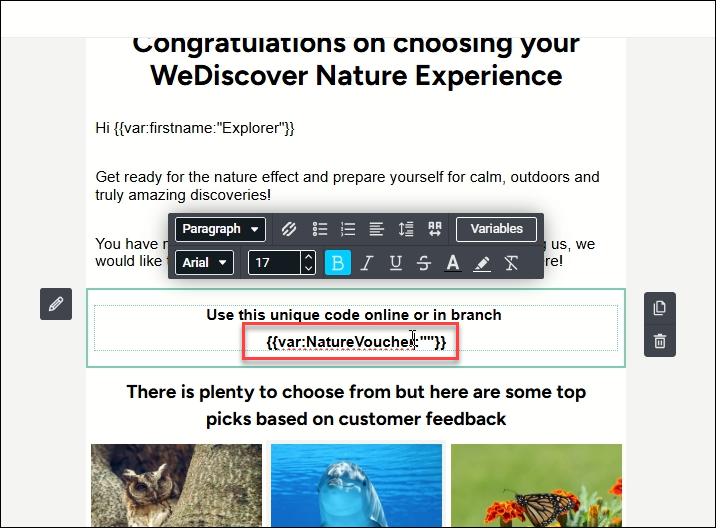
Create a variable personalisation field with the exact name you used in your channel step (for example, ‘NatureVoucher’). See Personalise your content with variables.
Note
The personalisation field name must match exactly the field name you created in the channel step configuration, including capitalisation.
-
Click Save & Publish.
What happens when codes run out
If your campaign runs out of voucher codes, then:
- At campaign start: Recipients don't enter the journey until you add more codes.
- Mid-journey with time delays: Recipients pause before the time delay step until you top up the code set.
- Without time delays: You must drain recipients from the campaign and re-add them after uploading additional codes.
Orbit warns you when available codes are insufficient, but doesn't prevent campaign publishing.