Number tiles
A number tile shows a single headline figure on your dashboard, such as total donations this month or the number of active supporters. The figure comes from a measure, such as an aggregation of a variable, an audience count, a behaviour, or a calculated measure.
To add a number tile, follow Add your first tile and choose Number Tile as the tile type. Then use the sections below to set up its measure, compare it against a target or another value, and change how it displays.
Adding measures
Measures determine what value your number tile displays. You can base a measure on a variable, a whole table, an audience, a behaviour, or an expression.
Adding a measure
To add a measure:
- With your dashboard in edit mode, expand the option menu on your number tile and select Edit Tile.
-
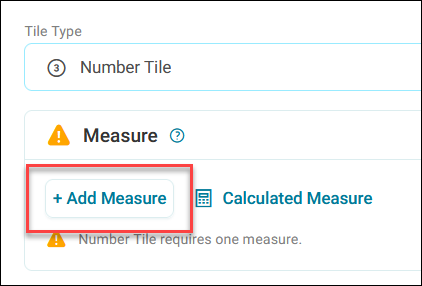
Select + Add Measure.
-
Choose what to measure:
- A variable: Search for and select a currency or numeric variable
- A table: Select a whole table to display data from every record in it
- An audience: Select the Audiences tab, then select your audience
- A behaviour: Select the Behaviours tab, then select a recency, frequency, or value behaviour. See Behaviours.
- An expression: Where available, select the expression tab and write an expression. See Expressions.
-
For a variable, select a function from the Function dropdown, such as Sum, Average, or Count. For a whole table, the function is Count.
-
Select a display format from the Display As dropdown:
- General: Displays the raw numeric value
- Currency: Formats the value with a currency symbol. Choose the currency from the Currency Format dropdown, for example € - Euro. This works for any numeric value without a currency format of its own, including expression measures and calculated measures.
- Percentage: Displays the value as a percentage
A variable that's already set up as a currency when your system is built always displays in that currency, and you can't change it.
Example use case
A charity records donations in pounds sterling, but its European fundraising board reports in euros. An expression measure such as
[Amount] * 1.17applies the exchange rate, and displaying it as Currency with € - Euro shows the total in euros.
Your tile displays the value. For a variable or table, that's the result of the function you chose. For an audience, it's the count of records in the audience, along with the audience name.
Calculated measures
Create sophisticated metrics by combining multiple measures with mathematical operations using Calculated measures.
Note
When adding audiences to calculations, your system uses the audience count as the numeric value in your formula.
Tip
Use calculated measures to create metrics like a donor retention rate (donors who gave again ÷ all donors) or an average gift (total donations ÷ number of gifts).
Filtering a measure
Filter a measure so it counts only some of the tile's records, such as households in particular regions. On a tile with a single measure, this works in much the same way as a tile filter.
To filter a measure:
- With your dashboard in edit mode, expand the option menu on your number tile and select Edit Tile.
- Expand the Measure section and your measure. On a calculated measure, expand each measure you want to filter.
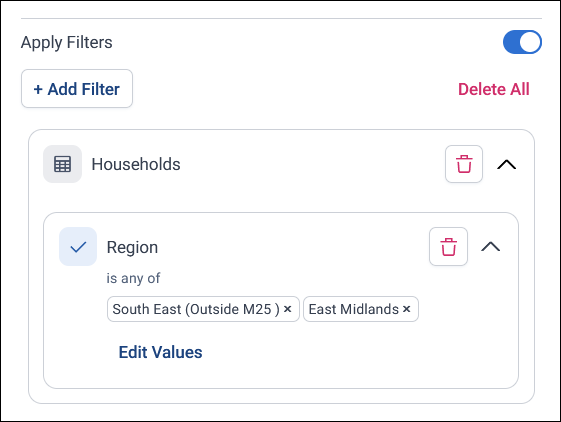
- Toggle on Apply Filters.
-
Select + Add Filter, then choose the variable and values to filter by. For more information, see Using filters.
-
Select Apply.
Your tile displays the measure's value for the filtered records only.
Measure filters are particularly useful on a calculated measure, where you can filter each of the two measures separately.
Example
To show the share of supporters who gave this year, divide the People table, filtered to people who donated this year, by the unfiltered People table, and show the result as a percentage.
Comparing values
Contextualise your metrics on number tiles by showing how they perform against targets, historical values, or audience counts.
Every comparison starts in the measure's settings:
- With your dashboard in edit mode, expand the option menu on your number tile and select Edit Tile.
- Expand the Measure section and your measure.
- Toggle on the Compare option.
Each comparison type then has its own settings, described below. Every type also has a Value Definition, which sets whether a result above, below, or equal to the comparison counts as good:
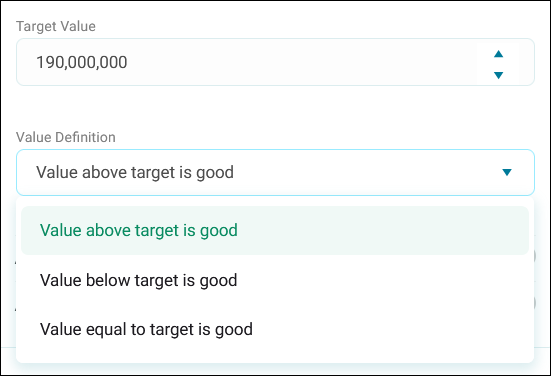
- Value above target is good: Higher values indicate better performance
- Value below target is good: Lower values indicate better performance
- Value equal to target is good: Meeting the exact target indicates optimal performance
Comparing against a target
Compare current values against fixed targets on number tiles to track progress towards goals and identify performance gaps.
To compare a value against a target, toggle on Compare as described in Comparing values, then:
- Select Fixed Value.
- Set the Target Value as required.
- Optionally, enter a Value Title to label the comparison on the tile, such as
BudgetorForecast. Without one, the tile shows "Target". -
Set the Value Definition as required.
-
Select Apply.
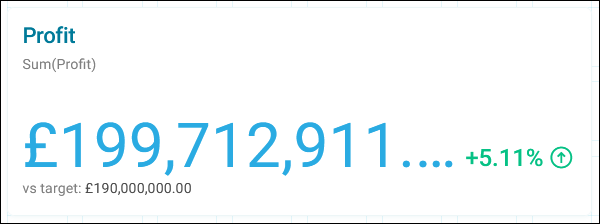
Your tile displays the current value alongside the target, showing how your actual performance compares as a percentage difference.
Comparing against a previous period
Compare current values against historical data on number tiles to track performance trends and identify changes over time. This allows you to measure period-over-period changes using percentage or absolute value calculations.
To compare a value against a previous period, toggle on Compare as described in Comparing values, then:
- Select Date Range.
- Select + Add Source Period.
-
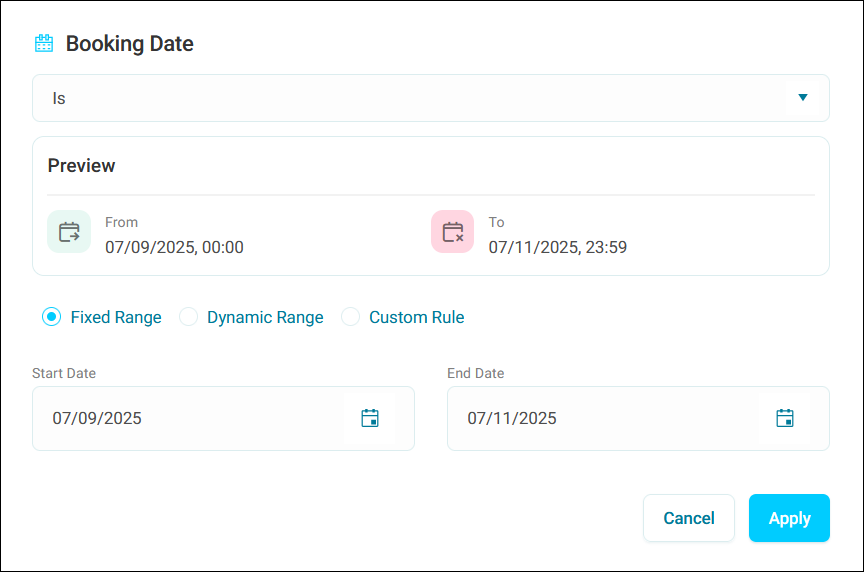
Select your source period variable and configure the timeframe:
- Fixed Range: Set specific start and end dates for comparison
- Dynamic Range: Define a rolling time period relative to the current date
- Custom Rule: Create advanced date logic based on your requirements
Tip
Use dynamic ranges for ongoing monitoring (such as ‘last 30 days’) and fixed ranges when comparing specific campaign periods or business quarters.
-
Select Apply.
-
Expand the Comparison Type and select one:
- Previous Period: Compares to the equivalent time period immediately before your selected period (for example, if you select this month, the previous period is last month)
- Same Period Last Year: Compares to the same time period one year ago (for example, if you select this month, the comparison is to the same month last year)
- Custom Period: Allows you to define a specific comparison period
-
Set the Value Definition as required.
- Select Apply.
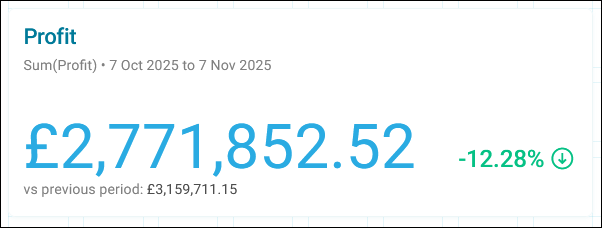
Your tile displays the current value alongside the comparison metric, showing how performance has changed from the previous period.
Comparing against an audience
Compare your measure values against audience counts on number tiles to understand segment performance and calculate percentage differences.
To compare a value against an audience, toggle on Compare as described in Comparing values, then:
- Select Audience.
- Select + Add Audience.
-
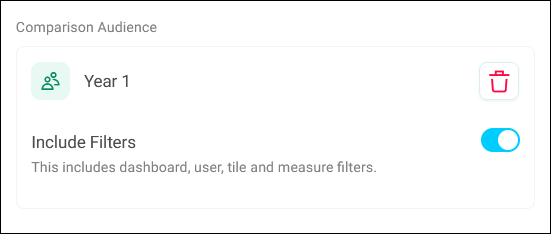
Select your Comparison Audience.
Note
The system only displays audiences that exist on the same table level as your measure.
-
Configure the Include Filters toggle:
- Enabled: The audience count includes dashboard, user, and tile filters
- Disabled: The audience count remains independent of all filtering
Tip
Disable the Include Filters toggle when you need a stable comparison baseline that shouldn't change with dashboard interactions.
-
Set the Value Definition as required.
- Select Apply.
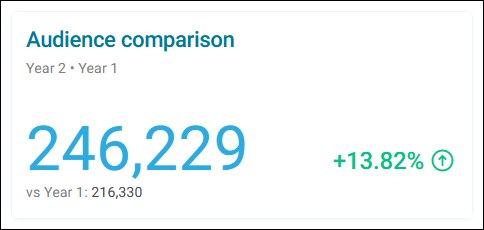
Your tile displays your measure value compared to the audience count, showing the percentage difference between them.
Note
The comparison applies to the records being counted, not to the audience definition itself.
Note
If your comparison shows unexpected results, check whether your audience definition includes linked filters. When filters aren't linked, the comparison counts records that match both your audience criteria and your tile filters independently, rather than counting audience members who also meet the filter criteria.
Display options
Change how a measure's value appears, for example to fit a large value on a small tile. These options are in the measure's settings.
To change how a value displays:
- With your dashboard in edit mode, expand the option menu on your number tile and select Edit Tile.
- Expand the Measure section and your measure.
-
Toggle on the options you want:
- Display Title: Shows the measure's title on the tile. Edit the text in the Title box, which defaults to the function and variable, for example
Sum (Profit). - Abbreviate Count: Shortens large values, for example 4,321 to 4.3K, 7,654,321 to 7.7M, and 1,987,654,321 to 2B
- Apply Decimal Places: Sets the Maximum number of decimal places the value shows, up to 6, including when it's abbreviated
- Display Title: Shows the measure's title on the tile. Edit the text in the Title box, which defaults to the function and variable, for example
-
Select Apply.
Note
Currencies display with your language's number separators and symbol position, normally with 2 decimal places. The language doesn't change the currency itself. For example, £1,368,623,974.24 displays as 1.368.623.974,24 £ in Deutsch.