Working with filters
You choose what to filter a dashboard by in the data picker, titled Select Filter or Add Filter. You then set the values to filter on.
Tip
If you create filters with multiple conditions or complex logic, document them in the dashboard description or tile notes so others understand the filtering logic.
Selecting a filter
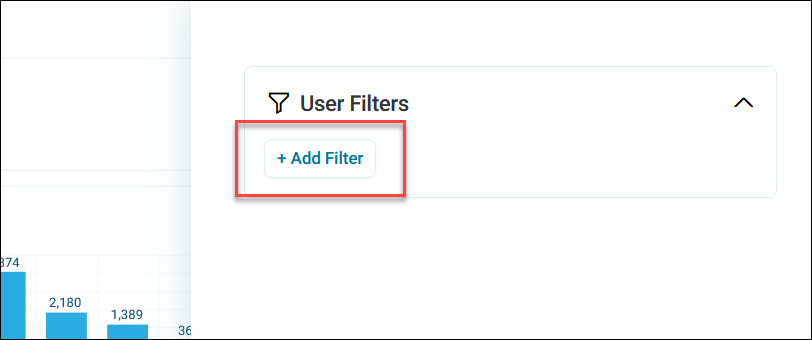
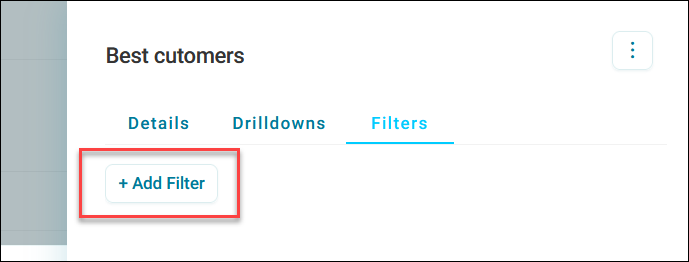
The data picker opens when you select + Add Filter in:
-
The filters side panel (for User, Search, Dashboard, Predefined, or Analysis filters)
-
The Filters tab on a tile (for Tile filters)
Choosing what to filter by
In the data picker, search for or browse to what you want to filter by: a variable, an audience, a file, or a behaviour. You can also build an expression to filter by a value you calculate, such as each supporter's age. When you search, each tab shows how many results it found. See Find what you need.
What you can choose depends on the type of filter. For example, search filters only accept variables, and you can choose several at once for a predefined filter. See where the data picker opens on dashboards.
Editing existing filters
You can add values to a filter, or remove values from it, without recreating it.
To remove values from a filter:
- Locate the filter.
-
Select the x next to the value you want to remove.
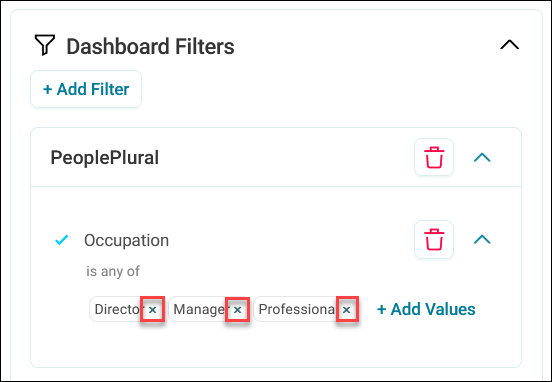
Orbit removes the value and updates the filter immediately.
Tip
This is useful when you want to refine a filter gradually rather than rebuilding it from scratch.
To add values to a filter:
- Locate the filter.
-
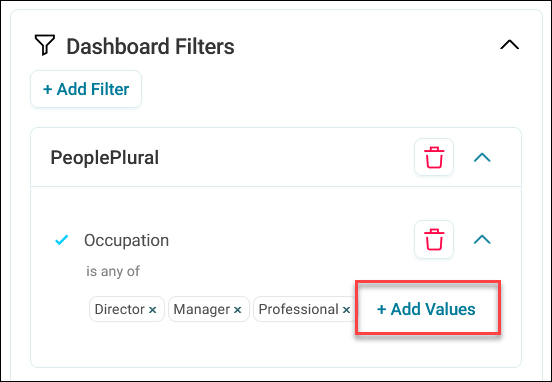
Select + Add Values.
-
Select or input additional values.
- Select Apply.
Orbit adds the new values to the existing filter.
See User filters.
Filtering with audiences or files
When you choose an audience or a file, choose In to include its records or Not in to exclude them, then select Apply. The audience or file filters your data immediately. See Audiences and files.
Setting filter values by variable type
When you choose a variable, the values you set depend on its type:
- Selector and multi-response variables: Tick the categories to include or exclude
- Text variables: Enter values to match, including with wildcards
- Numeric and currency variables: Set ranges of values
- Date and DateTime variables: Set a fixed, dynamic, or custom date range
- Reference variables: Enter or upload the references of specific records
When you filter by an expression, the values you set depend on its output type, in the same way. A filter accepts numeric, text, or date expressions. See Build an expression.
For selector, multi-response, text, and reference variables, you can also use a file of values. See Use a file of values.