Data grid hyperlinks
This feature lets you render data elements in data grids as functional hyperlinks. In this case, a data element refers to the content within a cell.
Your system administrator sets up hyperlinks for a variable via application settings.
Any time this variable then appears in an audience or dashboard data grid, it displays as a hyperlink. When you select this hyperlink, the target opens in a new browser tab, and takes you directly to your external link.
Hyperlinks remain functional when your dashboard or audience is:
- Exported to PDF
- Shared with another user on the same system
Use case example
In this example, postcode is a selector variable and town map URL is a text variable, created using expressions.
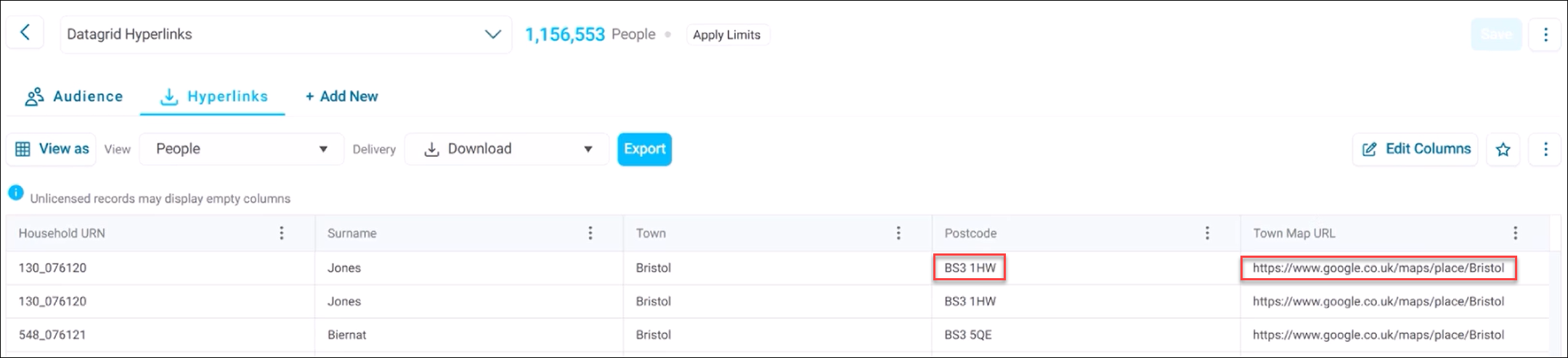
These links allow you to navigate to the exact the locations highlighted by your variables for further analysis, using Google Maps.
Note
Data grid hyperlinks are per-system settings. This means once enabled, they're available to all users within that system.
Creating data grid hyperlinks
Your system administrator must set up a hyperlink for a variable in application settings, before you can use it in audiences or dashboard data grids.
To create data grid hyperlinks:
- Go to Application Settings.
- Select Data Grid Hyperlinks.
- Select + New Hyperlink.
-
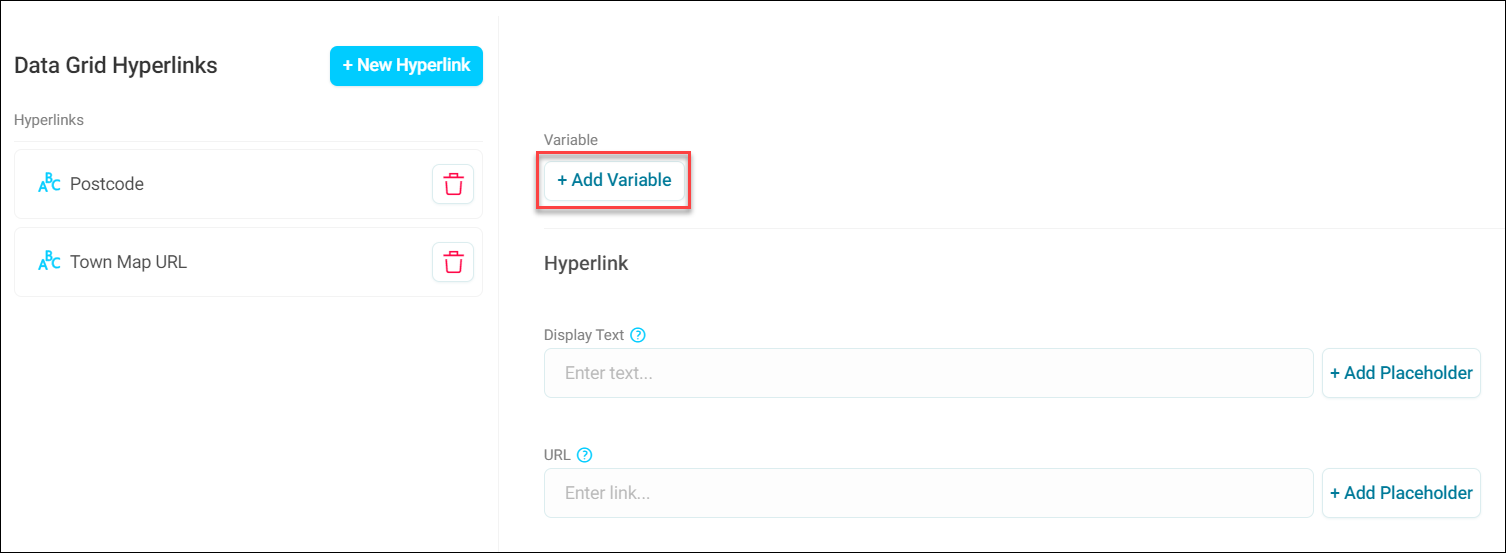
Select + Add Variable.
-
Search for and select your Variable.
-
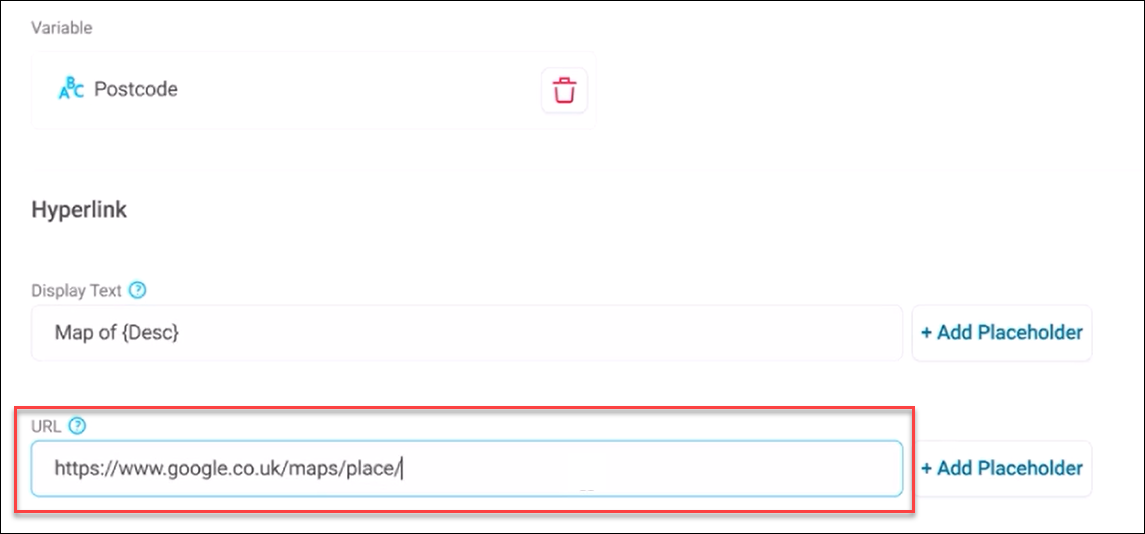
Enter your Display Text.
Note
Orbit applies validation to the Display Text and URL fields.
When rendered in a cell, this text appears as a prefix placeholder, before your variable.
-
Select + Add Placeholder.
- Select the relevant Value.
-
Enter your URL. This is the target address that your hyperlink opens in a new tab.
-
Select + Add Placeholder.
- Select the relevant Value.
- Select Save.
A confirmation message appears stating that Orbit has created a data grid hyperlink for your variable. Select Show Details to view.
You’ve now successfully set up a data grid hyperlink. This hyperlink is now available on any audience or dashboard featuring the relevant variable in a data grid.