Installing licences
The following guides cover installing and updating Apteco software licences.
Pre-installation notes
Before installing a licence, pay attention to the following:
- If you hover over any listed licence, the tooltip displays the licence details.
- If the application server has an outbound internet connection that can reach the FastStats Licensing Server, you should only need to carry out this manual licence installation process once.
- For any installed or updated licences in the FastStats Configurator, FastStats automatically picks up future modifications to the licence (new bundles/modules, expiry date changes, volume restriction changes). You don't need to make a manual update.
- The Cache Updated entry displays the last time the FastStats Service connected to the FastStats Licensing service and validated the licence.
- If an outbound internet connection is available, FastStats checks the licence each time an administrator opens the Licensing option, and when the FastStats Service restarts.
- Select Online Refresh to force a connection to the licensing server and update the licence details.
Warning
If you are updating a licence with a reduced number of users, reduce the allocations within the FastStats Administrative tools before updating the licence.
Installing a licence on a new system
You can install a licence for the first time either via the .xml file or the Licence Key.
Note
If you are installing a licence via the .xml file, you must copy the .xml file onto the FastStats application server first. For this reason, it's preferable to use the Licence Key when you have one.
To install a licence for the first time:
- Run the FastStats Configurator on the FastStats application server.
-
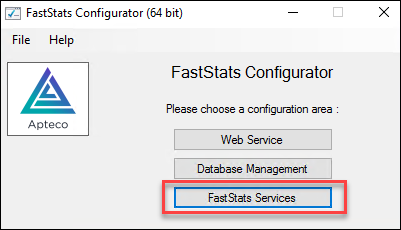
Select FastStats Services.
-
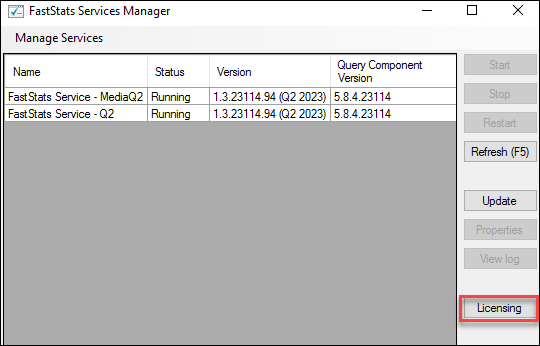
Select Licensing.
-
Select Install.
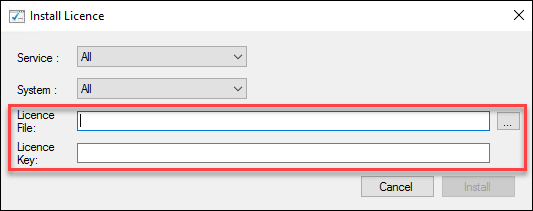
- Choose the relevant FastStats Service from the Service dropdown.
- Choose the relevant System from the System dropdown.
-
To install via a Licence File, select the ellipsis button to the right of the Licence File textbox and browse to the
.xmlfile.To install via a Licence Key, copy the supplied key into the Licence Key textbox.
-
Select Install.
- Once the licence appears in the list, select OK.
Installing an updated licence
If Apteco issues an updated licence, for instance after an annual renewal, don't remove your current licence before installing the new one. Use the Update licence option instead.
Note
For systems running the Q1 2019 release or later, you can use the Remove option to uninstall an existing licence.
To update a licence via a supplied .xml file:
- Log onto the FastStats application server which runs the FastStats Services.
- Run the FastStats Configurator.
-
Select FastStats Services.
-
Select Licensing.
-
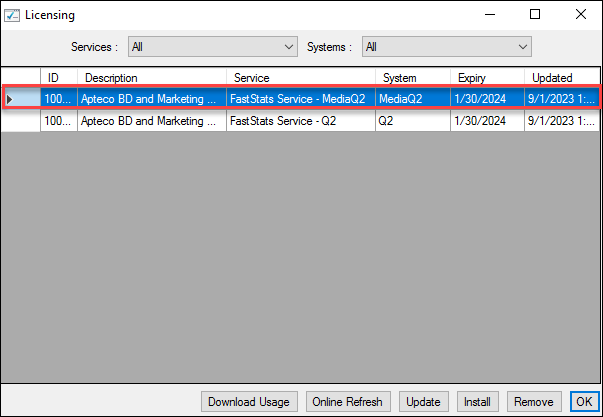
Highlight the relevant system name.
-
Select Update.
- Browse to the supplied
.xmlfile and select Open. - The Updated date changes to reflect the new licence.
- Select OK.