Dotdigital SMS

Apteco integrates with Dotdigital SMS so that campaigns can send out text messages via PeopleStage.
Prerequisites
- PeopleStage diagram configured
- Apteco software Q2 2025 or later installed
With Apteco software Q2 2025, you can integrate with Dotdigital SMS using two different approaches. See Integration options below.
Setup
To configure a new PeopleStage channel:
- Sign in to PeopleStage with a user that has Administration access.
- Select File > Administration > Channel Editor.
- In the folder where you wish to create the new SMS channel, select the options menu.
-
Select Add… > Add SMS Channel.

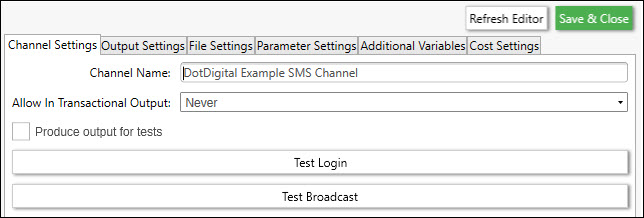
Row Item Description Mobile Number Variable Select the variable from the FastStats system for Mobile (this should be on the person table) Variable Description Override Optional. Use this if the variable's name differs from Mobile Reply Email Address Contact Email Address for replies Reply Mobile Number Contact Mobile for replies Response File Key Type Recommended as Urn or Communication Key Message Content Type To decide which option suits your needs, see Integration options below Retrieve existing message names Checked Row Item Description Add New Fields Ability to add new fields. Default is false Address Book Add contacts to Address Book Admin From Email The email address used to send administrative emails Api Host The endpoint address used for Dotdigital API calls. Default is https://api.dotmailer.com/v2/Communication Key Field Name Name of the Communication Key Field Cpaas Host The endpoint address used for CPaaS API calls. Default is https://api-cpaas.dotdigital.com/cpass/Dated List Format The dated list format; default is yyyyMMdd-HHmmssDm Timeout The number of seconds before the API call times out. Default is 300 seconds Email Field Name Name of Email Field Encoding Encoding of the input file. Possible values: ASCII, BigEndianUnicode, UTF32, UTF7, UTF8, Unicode, Default Originator Enter the Sender ID for the message originator you wish to use for this broadcast Page Size The number of records to receive in each API page request. Must be in the range of 1 to 1000. Default is 1000 Upload Batch Size The size in MB in which to batch recipients when uploading. The recommended value is 10 MB Urn Field Name Urn Field Name Use Dated List Setting to trueadds a date and time stamp at the end of the list name. Default istrue -
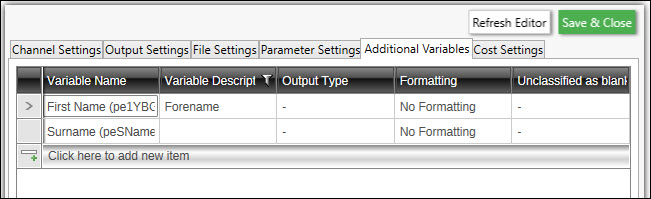
Add any required Additional Variables.
Create SMS message in Creative Template Editor
Dotdigital doesn't currently let you call message templates from its API. Create the SMS message within PeopleStage instead, as a Creative Template.
-
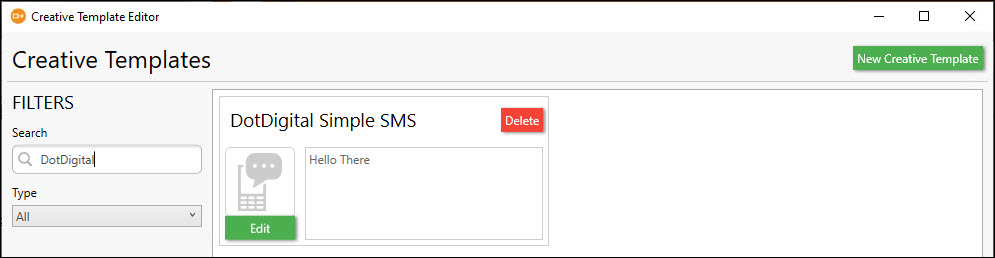
As an Administrator in PeopleStage, go to File > Administrator > Creative Template Editor.
-
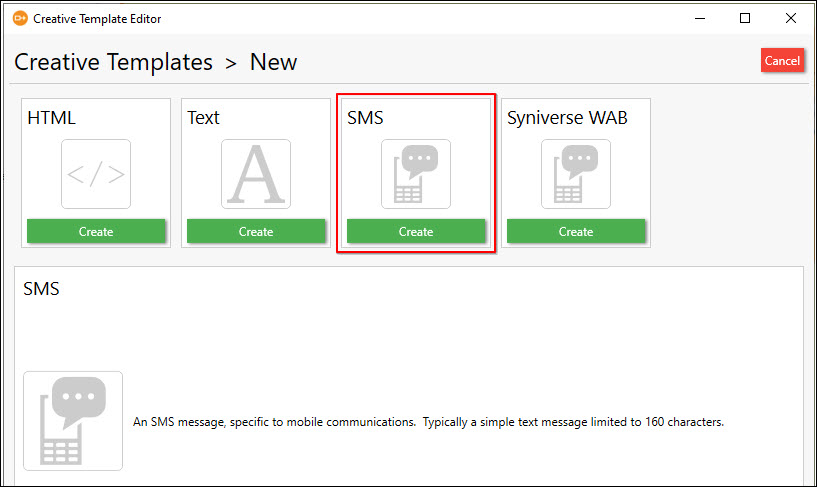
Select New Creative Template, then choose SMS Create.
-
Give the Creative Template a Name and Description. In the right-hand dialog box, enter the SMS text, using double curly brackets for any variables, for example
{{Forename}}. For each variable added to the message, a new entry appears in the Parameters section.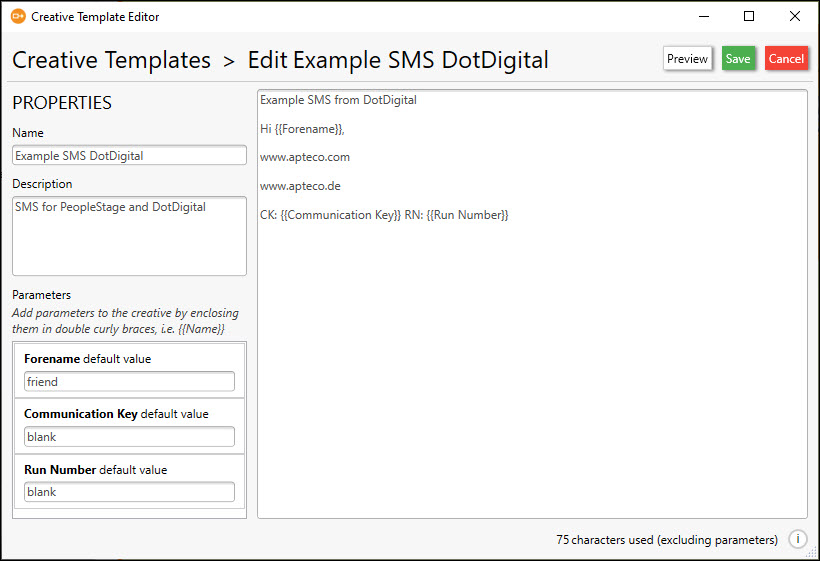
-
Save and Close. The new Creative Template appears.
- Close the Creative Template Editor.
SMS campaigns in PeopleStage
Note
Dotdigital expects the mobile number format as: 447855512345
- After creating the channel, refresh the PeopleStage Library.
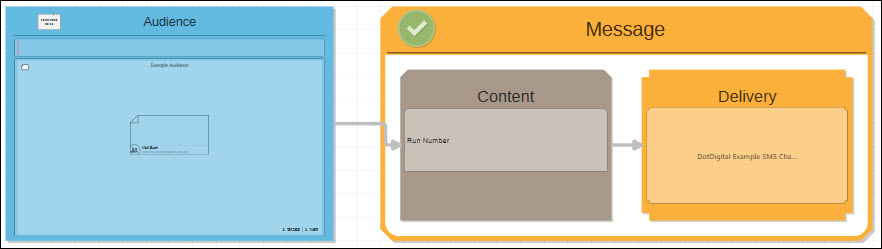
- Create a Person level Campaign, with an Audience and Message (Content and Delivery).
-
Drag the new Dotdigital SMS channel into the Delivery step.
-
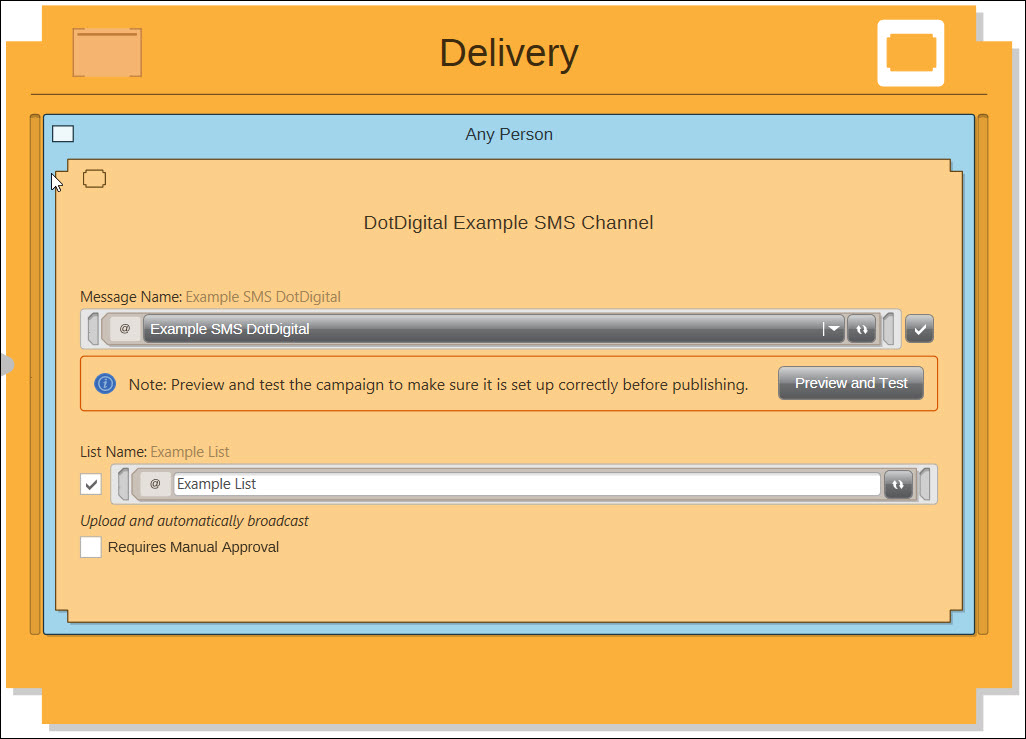
In the Delivery > Message Name, select the SMS Message template created in the Creative Template Editor.
-
Enter a List Name.
-
Schedule the campaign to run.
Integration options
With Q2 2025 installed, you can integrate with Dotdigital SMS using two different approaches. Your choice depends on how you want to handle opt-outs and responses.
- Broadcast templates: use this option when you want Dotdigital to manage SMS templates and handle opt-outs automatically.
- PeopleStage SMS templates: use this option for contractual SMS messages where you need full control over responses and link management.
Message content type options
The Message Content Type setting in the channel editor determines how the system processes opt-outs and which features are available.
Broadcast templates
Use broadcast templates for promotional SMS campaigns where you want Dotdigital to manage compliance and opt-out handling.
Key features:
- You create and manage SMS templates in Dotdigital rather than PeopleStage
- Dotdigital automatically handles opt-outs and
STOPreplies - SMS responses aren't available in PeopleStage
- Link shortening isn't supported
PeopleStage SMS templates
Use PeopleStage SMS templates for transactional messages or when you need to capture and process SMS responses.
Key features:
- You create SMS templates in PeopleStage using the Creative Template Editor
- Opt-outs aren't automatically handled: you must manage these separately
- SMS responses are available in PeopleStage
- You can use link shortening
Getting SMS responses
To receive SMS responses when using PeopleStage SMS templates:
- Set up response handling in PeopleStage.
- Select PeopleStage SMS Template as the Message Content Type.
Warning
SMS responses are only available when using the PeopleStage SMS message type. Broadcast templates don't support response collection.