Expressions in selections
You can use date and datetime expressions in a selection and interact and use them in all the same ways that you can a date or datetime variable.
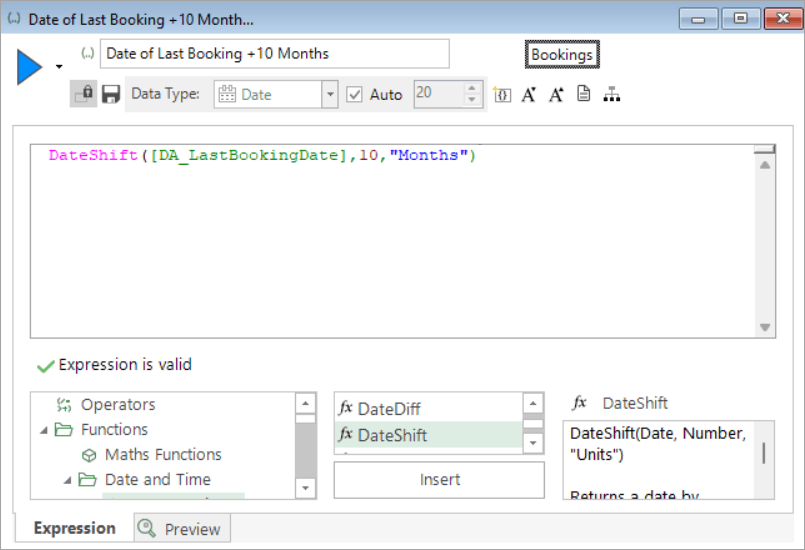
For example, let's imagine that you create an expression to identify the date at 10 months from the last booking date with the intention of sending a marketing reminder to book an annual holiday.
-
Create your date expression.
-
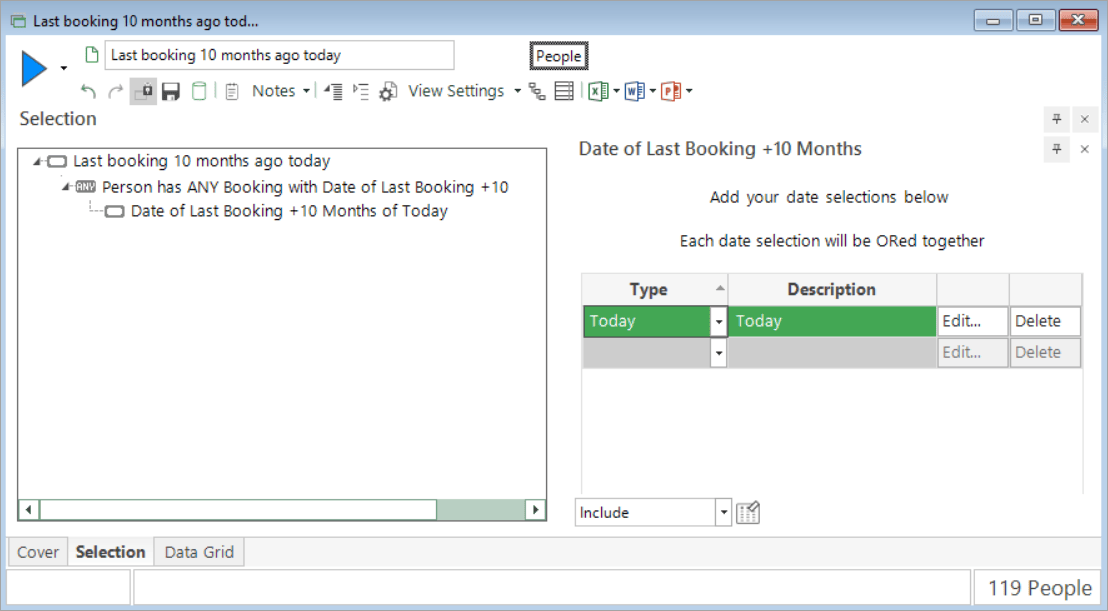
Drag and drop the expression onto a new selection window.
-
Select from the Type drop-down menu options - e.g. Today.
-
Build
You can use a data grid to verify:
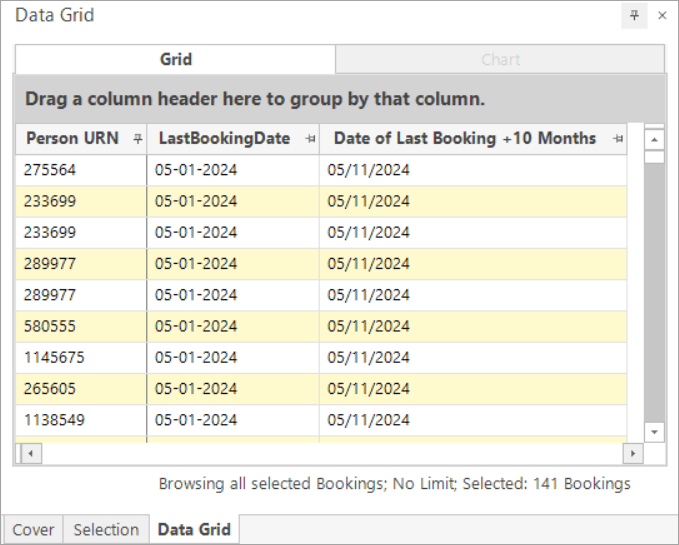
In this example, there are 119 people and 141 bookings where, based on today being 5 November 2024, their last bookings were made on 5 January 2024, and who you might choose to target in a daily campaign to promote the booking of another holiday.
Note
The ability to add date/date time expressions directly into a selection is significant because it means you don't have to create virtual variables in order to complete this type of analysis.
Related topics: