Tile editor
The tile editor is where you set up what a dashboard tile shows and how it looks. Every tile type uses the same editor, but each type shows only the settings that apply to it. This page describes each setting on the Details tab and which tile types have it.
To open the tile editor, put your dashboard in edit mode, expand the option menu on the tile, and select Edit Tile. To add a new tile, see Add your first tile.
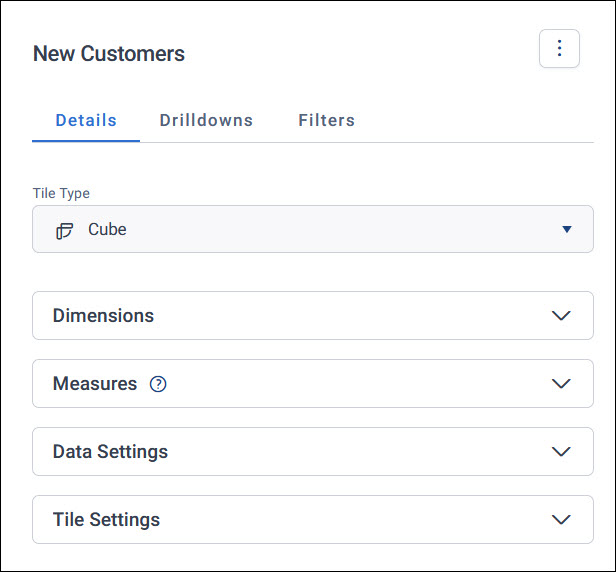
The editor has three tabs:
- Details: what the tile shows and how it looks, described on this page
- Drilldowns: further views of the data that viewers can drill into. See Drilldowns.
- Filters: filters that apply to this tile only. See Tile filters.
To rename a tile, select its title on the dashboard and edit it in place.
Sections of the Details tab
The Details tab starts with the Tile Type, followed by the sections for that type:
| Section | What it holds | Tile types |
|---|---|---|
| Dimension or Dimensions | What the tile splits your data by | Charts, tables, and cubes |
| Measure or Measures | The numbers the tile shows | Every tile type except text and data grid tiles |
| Data Settings | How the tile counts and limits its data | Every tile type except text tiles |
| Tile Settings | How the tile looks and behaves on the dashboard | Every tile type |
Some tile types have their own sections in place of dimensions:
- Text on a text tile, where you write the tile's content
- Sets on a Venn tile
- Columns on a data grid
- Map Definition on a map, where you choose the map to show
- Variables on a profile tile
You choose dimensions and measures in the same search dialogue you use across Orbit. See Searching in Orbit.
Dimension settings
A dimension splits your data into categories, such as region or gift type, and each measure gives the number for each category. Expand a dimension to see its settings. The settings depend on the type of variable you chose.
In the tables on this page, charts means single and multi dimension charts, not Pareto charts.
| Setting | What it does | Variable types |
|---|---|---|
| Display Style | Shows the categories as Codes, Descriptions, or Codes & Descriptions | Selector, text, and numeric |
| Banding | Groups dates into bands, such as Years, Business Quarters, Business Years, Month of Year, Week of Year, or Day of Week | Date |
| Number of Bands | Splits a numeric variable into bands. Set the number, then select Generate Bands, or set each band's From and To values yourself | Numeric |
| Display Title | Shows a title for the dimension on the tile. Edit the text in Title | All |
| Category Limit | Shows only some categories. Choose a Type, such as The Top or The Bottom, and a Limit, and the editor shows how many categories the tile displays, for example Displaying 5 of 15 categories. Turn on Allow the user to adjust this limit to let viewers change the limit |
Selector, text, and date |
| Display Unclassified | Includes records that don't belong to any category | All |
| Apply Filters | Filters the data for this dimension only. Select + Add Filter | Selector, text, and date |
For how date and numeric bands work, see Band dates and numbers.
On a cube, add dimensions under Rows and Columns, and select Swap Axes to switch them.
Measure settings
A measure is the number a tile shows. For what you can measure and what each function does, see Measures. Expand a measure to see its settings. Which ones you see depends on the tile type.
| Setting | What it does | Tile types |
|---|---|---|
| Function | How the measure summarises your data, such as Sum or Mean. A measure based on a whole table, an audience, or a FastStats selection is always counted | All with measures |
| Display As | Shows the value as General, Currency, or Percentage. For Currency, choose the currency from Currency Format | All with measures |
| Sort Order | Orders the categories by this measure: Natural, Ascending, or Descending | Charts |
| Display Title | Shows a title for the measure on the tile. Edit the text in Title | All with measures except ROI tiles |
| Data Labels | Shows values on the chart, with options to Auto hide labels, Abbreviate labels, Display every nth label, Apply decimal places, and Display percentage of total | Charts |
| Apply Filters | Filters the data for this measure only. Select + Add Filter | Charts, tables, cubes, number tiles, and ROI tiles |
| Apply Decimal Places | Sets the Maximum number of decimal places, up to 6 | Number tiles, ROI tiles, and Venn tiles |
| Abbreviate Count | Shortens large values, for example 7,654,321 to 7.7M | Number tiles and ROI tiles |
To combine two measures, select Calculated Measure next to + Add Measure. See Calculated measures. Number tiles also have Compare settings. See Number tiles.
Data Settings
These settings control how the tile counts its data and how much of it shows.
| Setting | What it does | Tile types |
|---|---|---|
| Select Via | The table the tile counts through. Auto uses the parent table of your dimensions, shown in brackets. See Change the Select Via table | All except text and profile tiles |
| Return All Values | Includes records from the Select Via table that have no matching records, for example people with no bookings. Shown when Select Via is a table above the tile's own table. See Include records with no matches | Tiles with Select Via |
| Value Limit | Shows only The Top or The Bottom values across the whole tile, by number | Charts, tables, cubes, and maps |
| Colour Scale | Shades each value by size. Choose a Shading type, such as Quantiles or Index Shading, the number of Equal ranges, and the Low value and High value colours | Tables, cubes, and maps |
| Display Zero Values | Includes categories with no records | Charts, tables, and cubes |
| Display Totals | Adds totals | Tables and cubes |
| Background Layer | Shows the map background under your data | Maps |
A value limit applies across the whole tile, while a category limit applies to one dimension.
Data grids and profile tiles have their own data settings. See Data grid tiles and Setting up your profile tile.
Tile Settings
These settings control how the tile looks and behaves on the dashboard.
| Setting | What it does | Tile types |
|---|---|---|
| Notes | Adds notes to the tile. See Notes | All except text tiles |
| Legend | Shows a legend Left, Right, Top, or Bottom of the tile, with an optional Legend Title | Multi dimension charts, maps, and profile tiles |
| Custom Background Colour | Changes the tile's background colour | All |
| Custom Font Size | Sets the Font Size of the value | Number tiles and ROI tiles |
| Prevent Category Selection | Stops viewers selecting categories on the tile, so they can't add them to their filters. The tile shows This tile is not selectable |
All except text, number, and ROI tiles |
| Exclude User Filters | Stops viewers' user filters affecting the tile | All except text tiles and Pareto charts |
Data grids also have Results Require User Filter and Restrict Export. See Data grid tiles.
Notes
Notes appear on the tile, to explain what it shows or how to read it. Turn on Notes and enter your content in the editor. You can:
- Make text bold, italic, underlined, or struck through
- Align text left, centre, right, or justified
- Add bulleted or numbered lists
- Add or remove links
- Insert an image
Note
For security, the notes editor only allows some HTML, so you can't add code that could harm your system.
To add a whole tile of text instead, use a text tile.
Changing a tile in view mode
Viewers can change some of these settings for themselves from the tile's option menu in view mode, such as the sort order. See Change how a tile displays.