Time Report
Having created and added your segment selections, and defined your Fixed Time Reporting Points, you can run the Time Report.
-
Click on the Time Report tab and then click the Build button
This will produce a cube that displays the number of customers in each segment for each of the reporting points.

-
Click on the Chart tab on the right hand side of the window to view the movement of numbers graphically.
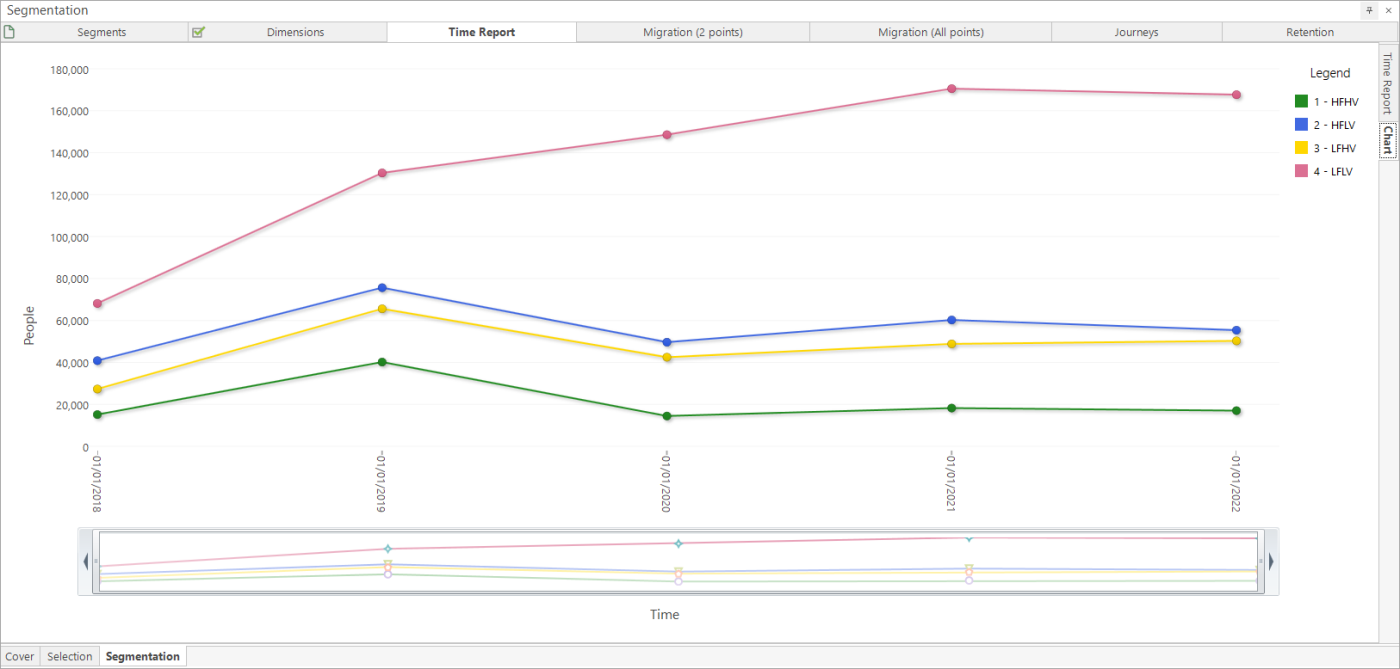
The graph above shows all 4 segments have an upward trend in 2018, but in 2019 this is replaced by a downward trend, apart from the LFLV which continues upward (not a great trend!).
Segment 5 - No Bookings is not visible in the Time Report or Chart display. Often this segment can be a large number and, as such, impacts the chart visualisation. When the segment Query Type is defined as either ‘Not a Customer’ or ‘Never a Customer’, by default it is excluded from the report and visualisation.
If you wish to include non-customers, go to Segment Settings and select the option to Show non-customers in time report.
However, to see the migration between periods more closely, we should include the segment that defines no bookings have been made. We need to do this so that we can see new and returning customers, and those who are lapsing.
See also:
Return to:
How do I explore a segmentation change over time using fixed time points?