FastStats configuration
Before configuring Facebook in FastStats, make sure you've created a Social database (see Facebook prerequisites) and installed the Facebook Response Gatherer.
FastStats Service configuration
Open the FastStats Configurator:
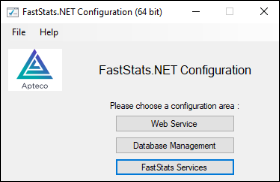
To configure the Social database connection for the FastStats Service:
- Select FastStats Services.
- Select the System tab.
-
Select the Facebook node.
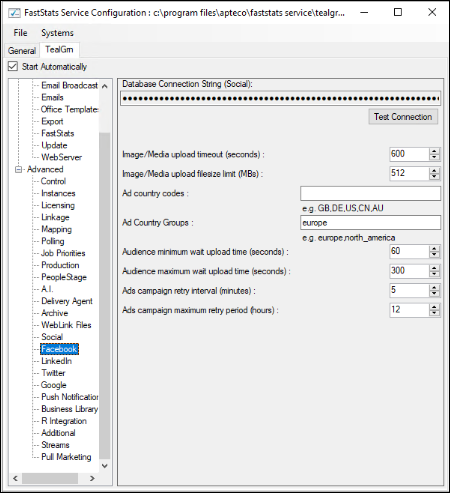
-
Select File > Save to save the changes.
| Setting | Description |
|---|---|
| Database Connection String | Pre-populated from the Social Connection String. |
| Image/Media upload timeout (seconds) | Timeout for uploading an image or video to your Facebook Page. Increase this if your network is slow or you are using large files. |
| Image/Media upload filesize limit (MBs) | Maximum size of the image/media file to upload. Don't exceed Facebook's own limits. |
| Ad country codes | Default country codes for targeting custom audiences in adverts. You can also set this per channel in PeopleStage. |
| Ad country groups | Alternative to country codes for selecting large groups such as Europe. |
| Ads campaign retry interval (minutes) | How long the FastStats Service waits between API calls to check the audience upload status. |
| Ads campaign maximum retry period (hours) | How long the FastStats Service continues retrying to get the audience upload status from Facebook. |
FastStats Web Service configuration
Define the Social database connection string for the FastStats Web Service.
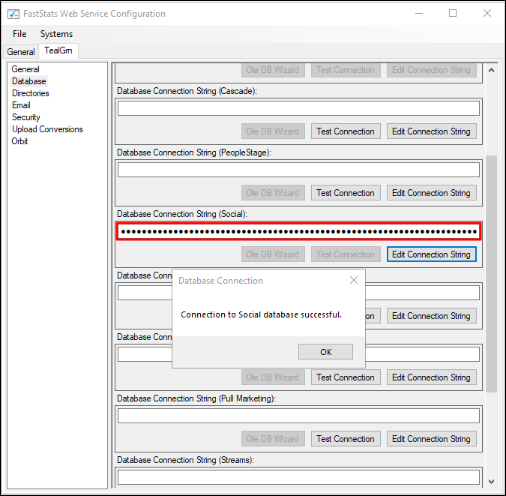
FastStats roles configuration
Roles control access to Facebook functions.
Facebook Administrator role
A Facebook Administrator can modify Apps, modify Pages, and change tokens.
- In Users Explorer, right-click on an administrator.
-
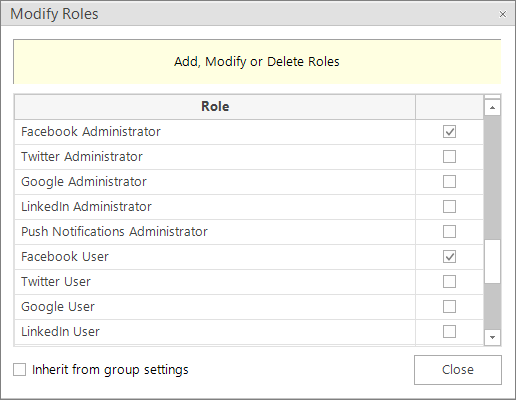
Select Modify > Modify Roles.
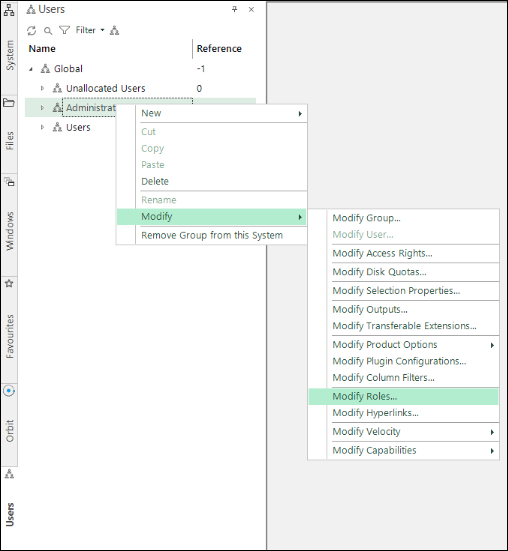
-
Select both the Facebook Administrator and Facebook User roles.
-
Select Close.
Facebook User role
A Facebook User can manage tokens within Administrative Functions.
- In Users Explorer, right-click on a username.
-
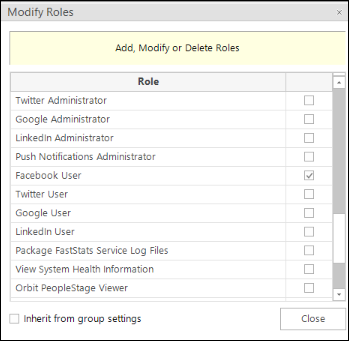
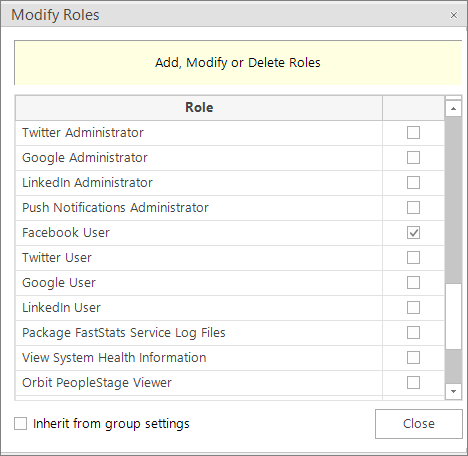
Select Modify > Modify Roles.
-
Select the Facebook User role.
-
Select Close.
Note
You must exit FastStats and log in again for role changes to take effect.