Administrative functions in FastStats
Once you have established the Roles, administrators can define the Facebook Apps and Pages, and manage the tokens. These tokens contain the user credentials that let FastStats log in to Facebook.
The administrative functions are available from File > Tools > Administrative Functions.
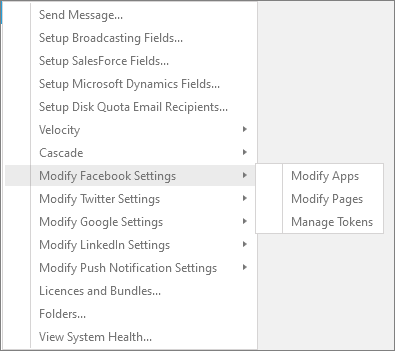
A user with the Facebook Administrator Role can Modify Apps, Modify Pages, and Manage Tokens. A user with only the Facebook User Role can only Manage Tokens.
Modify apps
To use your Facebook Apps in FastStats, add the App details in the administration suite. To register an App, FastStats requires the Facebook App Id and App Secret. These let FastStats users get the correct App and Page Tokens when logging in to Facebook through FastStats' built-in login mechanism.
To obtain your App Id and App Secret, use your Facebook Developer Dashboard at developers.facebook.com and choose the appropriate App.
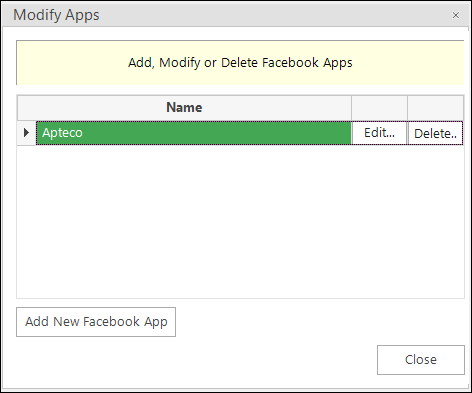
- To add a new App to FastStats, select Add New Facebook App.
- To edit an existing app, select Edit next to the App Name.
-
Using the Apteco Facebook API App:
Note
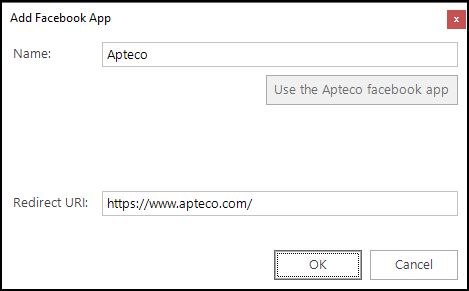
If using the Apteco Facebook App, select Use the Apteco Facebook app. The name populates automatically, and FastStats removes the App Id, Consumer Key, and Consumer Secret fields because they're not needed.
| Row item | Description |
|---|---|
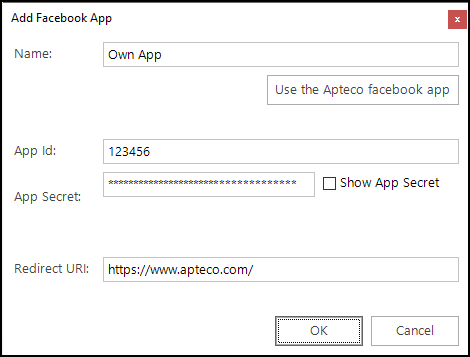
| Name | Used internally within FastStats; needs to match the app name in your Facebook Portal (Apteco if using the Apteco App) |
| App Id | The Facebook App Id (only needed if using own app) |
| App Secret | The Facebook App Secret (only needed if using own app) |
| Redirect URI | Used for click-through actions from Facebook; typically directs visitors to your brand home page |
Modify pages
To find your organisation's Facebook Page ID, visit the page, choose More > About in the More Info section near the bottom of the list.
- To add a new branded Page, select Add New Facebook Page.
- To edit an existing Page, select Edit.
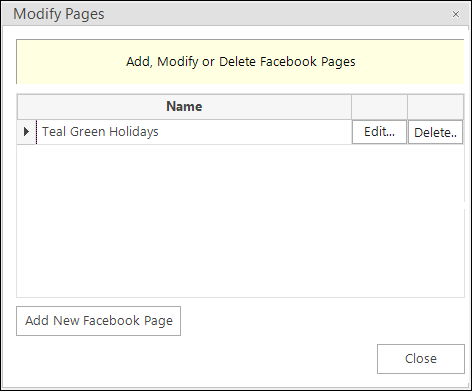
Enter your Facebook Page information.
Facebook capabilities configuration
This configuration lets a FastStats user log in to the Facebook profile and generate user access tokens for the Apps and Pages. It grants this user permission scopes to manage Ads or Page Posts using the App.
- In Users Explorer, right-click on a user.
- Select Modify > Modify Capabilities > Modify Facebook Capabilities.
Manage ads
Select the Manage Ads check-box to let the user use the specific App to:
- Publish adverts
- Upload custom audiences
- Gather adverts statistics
Posts
Select the Post check-box to let a user:
- Publish posts
- Gather responses of the pages insights, posts insights, posts comments and likes
Manage tokens
A Facebook User Role can see the Apps and Pages assigned by an administrator.
When you first access the Manage Tokens dialogue, select Generate.
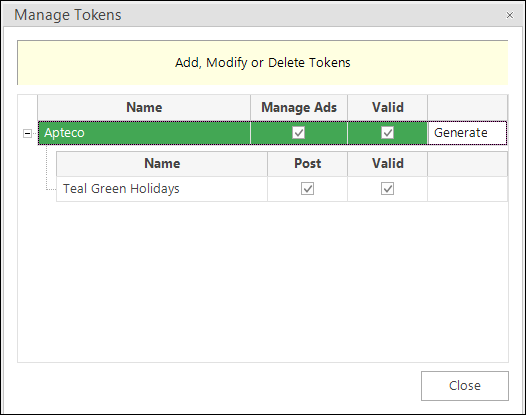
The Facebook login dialogue opens for you to provide your Facebook login credentials. A token stored in FastStats represents these credentials. Once you have logged in to Facebook successfully through FastStats, close the login dialogue.
Note
The 'Valid' check boxes of the App and branded Pages show that FastStats has validated their respective tokens.
If your tokens become invalid, select Re-Generate to log in to your Facebook App and request a new set of tokens.
Note
When FastStats generates valid Apps and Pages tokens, you'll see a tick in each box under the 'Valid' column. FastStats saves the long tokens in your Facebook database, but they aren't visible to you.
Now that you've defined the Apps, Pages, and Tokens, you can declare which ones each user can use.