WhatsApp with Syniverse
In collaboration with Syniverse, PeopleStage can send business-initiated messages directly into a WhatsApp conversation that a user has started. The user must have given consent to receiving communications via WhatsApp.
The integration supports:
- Once a user-initiated chat has started and the user has opted in, PeopleStage can send commercial business-led messages into the WhatsApp conversation within a 24-hour window.
- Messages sent at any time using approved templates in business-initiated chats, for opted-in recipients only.
WhatsApp pre-approves messages, which you can personalise using data held in your Apteco system.
You can set up WhatsApp Business API campaigns in PeopleStage as a single-stage single-channel campaign. Alternatively, set them up as part of a multi-stage multi-channel journey. Recipients can opt out at any time, and PeopleStage automatically excludes them. Statistics such as opt-out, seen, and delivered are available in PeopleStage.
Before you begin
This guide assumes you have created the Response Database, set up your FastStats Email Response Gatherer (FERG) folders, and set up your BULK insert folder. Contact your support department if you need more information.
Note
You don't need to create a Response Database if your system includes PeopleStage.
Creative template
You must have admin permissions to access this function and define the WhatsApp creative template in PeopleStage.
You need your WhatsApp Business API template information, including the:
- Template names
- Message content for each template
- List names
- The number of variables to map in the FastStats system, and their names, for example
FirstName
Note
For more information on what a template can include, see the Syniverse developer documentation for the WhatsApp Business API.
To set up your creative template in PeopleStage:
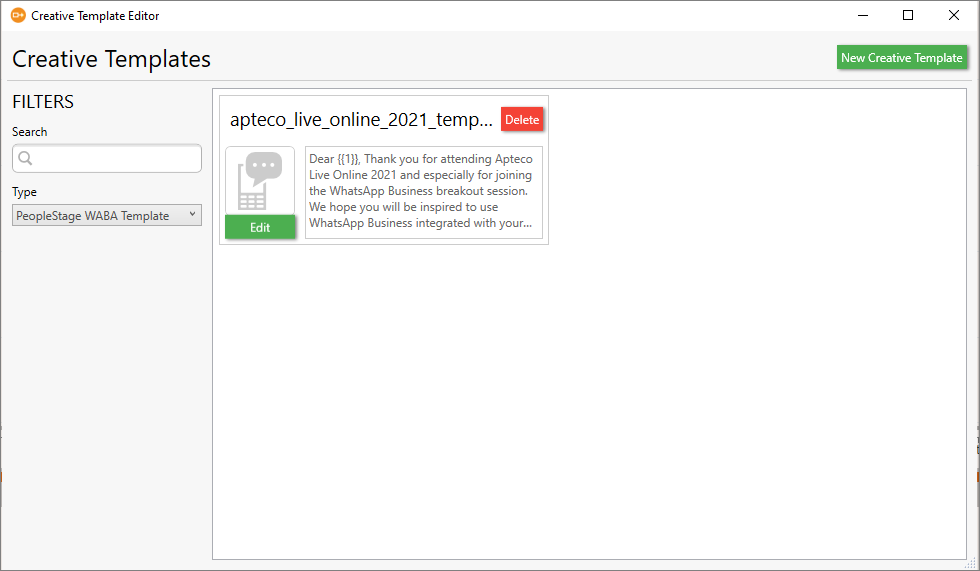
- Open the Creative Template Editor: File > Administration > Creative Template Editor.
-
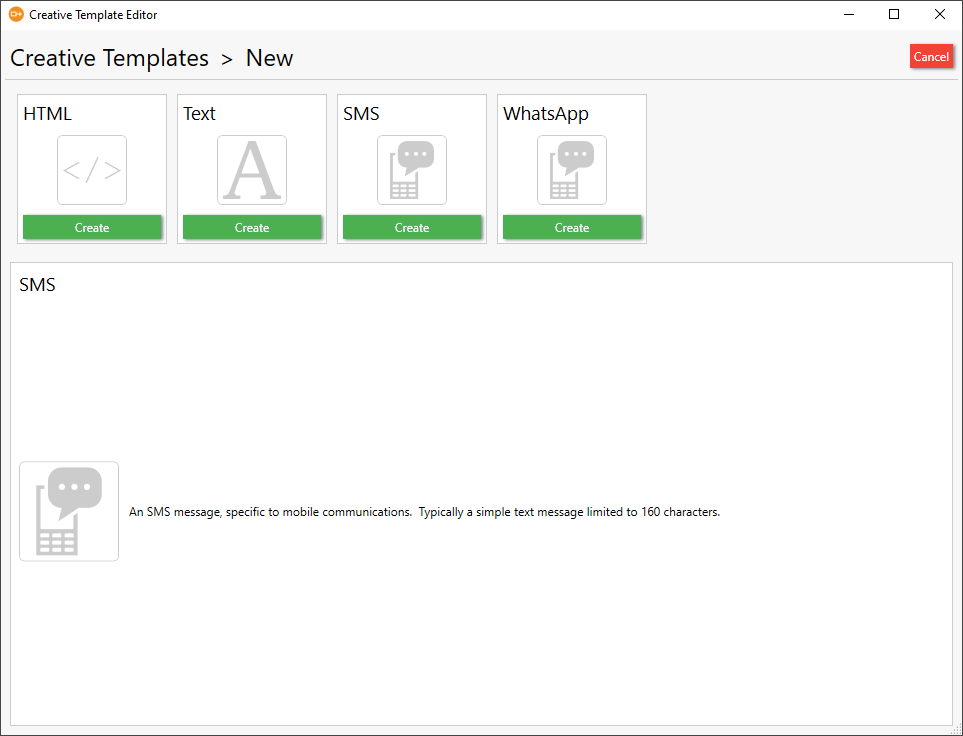
Select New Creative Template.
-
Select WhatsApp.
-
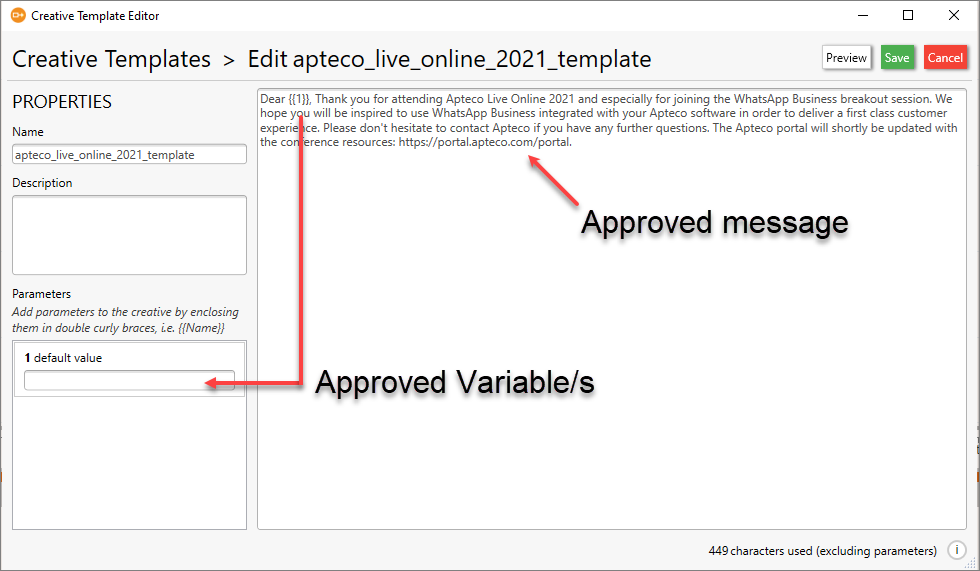
Enter the approved template name in the Name field.
- Enter the approved creative message in the content area.
- Use double curly brackets and the variable number to add a variable placeholder, for example
{{1}}. -
Select Save.
Channel configuration in PeopleStage
Note
Values shown may be examples only: options differ for each broadcaster.
A system administrator must create the WhatsApp for Business API channel. Once configured, it's available in the deliveries area of the Library.
Basic settings
| Name | Description |
|---|---|
| Channel Name (required) | Enter a name for the channel (e.g. WhatsApp Syniverse) |
| Allow In Transactional Broadcasts | Never |
| Produce output for tests | Not used |
Broadcaster settings
| Name | Description |
|---|---|
| Broadcaster (required) | Select Syniverse from the dropdown |
| Email Variable | Not used |
| Variable Description Override | Not used |
| Mobile Number Variable (required) | Select the mobile number variable from the dropdown |
| Variable Description Override | Optional |
| Reply Email Address | The reply email address used for the message |
| Reply Mobile Number (required) | The mobile number that receives notifications when you use the channel. Must include the + number format. The integration doesn't work without this number |
| Number of Retries | 0 (zero) |
| Response File Key Type | |
| Message Content Type (required) | PeopleStage WhatsApp Template |
File settings
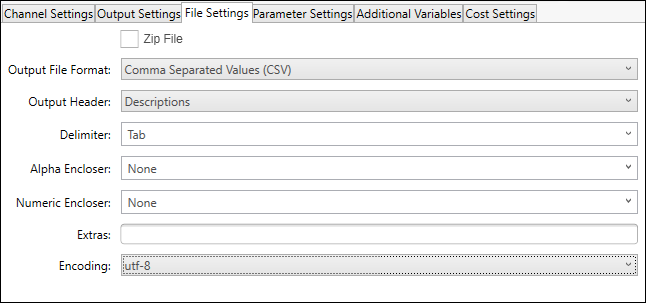
Leave the default settings on this tab.
Parameter settings
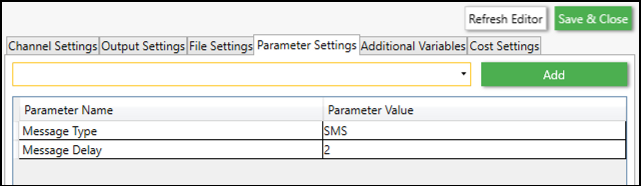
| Parameter Name | Parameter Value |
|---|---|
| Message Type (required) | Select a Syniverse messaging channel option: SMS or WhatsApp Business API (WABA) |
| Access Token (required) | The authorised access token for your Syniverse application |
| Base Url (required) | The base address of the Syniverse API (e.g. https://api.syniverse.com) |
| Base Path (required) | The base path for the Syniverse API call (e.g. scg-external-api/api/v1/) |
| WhatsApp Namespace (required) | The WhatsApp namespace for messaging via the WhatsApp Business API |
| Language Code (required) | A valid language code associated with the approved templates |
| Sender Id (required) | The sender address from your Syniverse WhatsApp Business API application |
| Auto Exclude Opt-Out | Automatically exclude recipients who have opted out of receiving messages from the WhatsApp Business number. Default: True. Not required for Syniverse SMS |
| App Id | Application ID of the Syniverse app |
| Urn Field Name | Overrides the Unique Reference Number (URN) field name used in your FastStats system |
| Communication Key Field Name | Overrides the communication key field name used in your FastStats system |
| File Mapping | A pipe-delimited list of fields (these headings overwrite any defined in your output sequence), for example Urn\|FirstName\|LastName\|Company\|Email\|Message\|Discount |
| Encoding | UTF8 |
Additional variables
Use this section to map FastStats variables to the broadcaster's variable names. For example, you may need to name the Forename variable in FastStats FirstName in the broadcaster so that templates using that variable populate correctly.
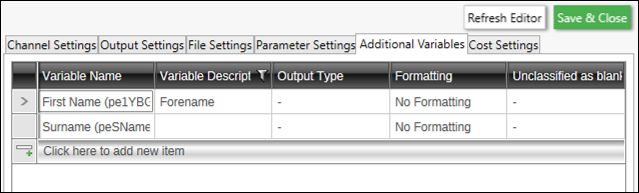
| Variable | Description |
|---|---|
| Variable | Select to search the FastStats system for the additional variable |
| Variable Description Override | Optional: override the variable header description to match the name in the broadcaster (e.g. Forename → FirstName) |
| Formatting | Default is Unformatted; options are UPPERCASE, lowercase, or TitleCase |
| Unclassified as blanks | How to handle unclassified selector data: use the system setting From Design, or send no content Empty |
| Append Additional Variables Directly | Deselected by default; select to change whether the system appends variables at the End or Beginning of the list |
Delivery step
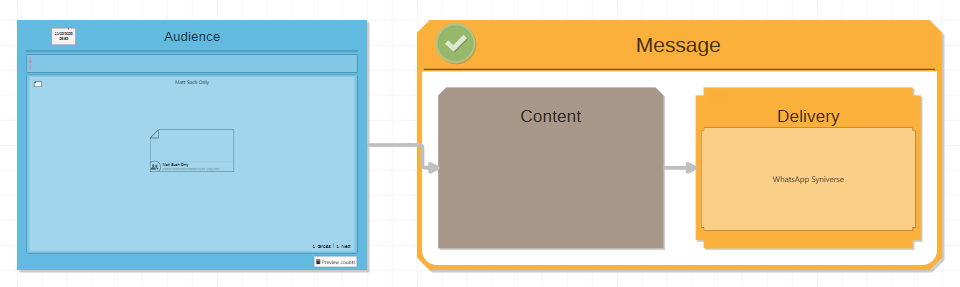
Create a campaign to use with WhatsApp, or add an additional Delivery step to an existing campaign.
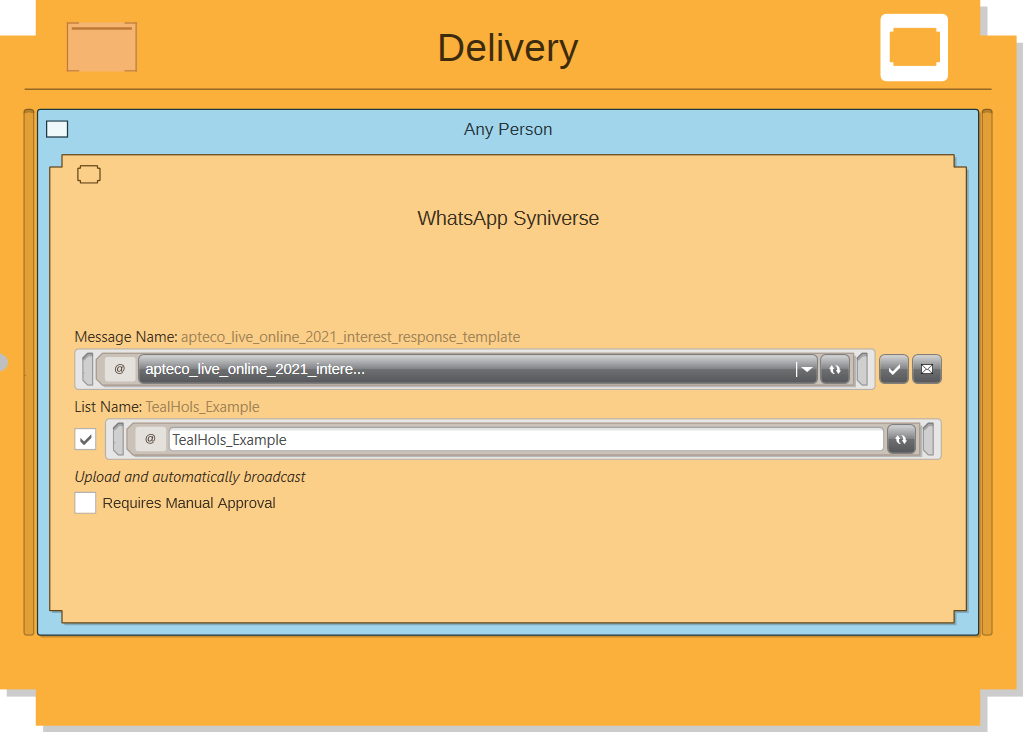
- Drag the Syniverse WABA channel onto the delivery step.
- Select Refresh Channel Message Names to select from the available WABA creative templates.
-
A separate list name isn't required for this channel.
-
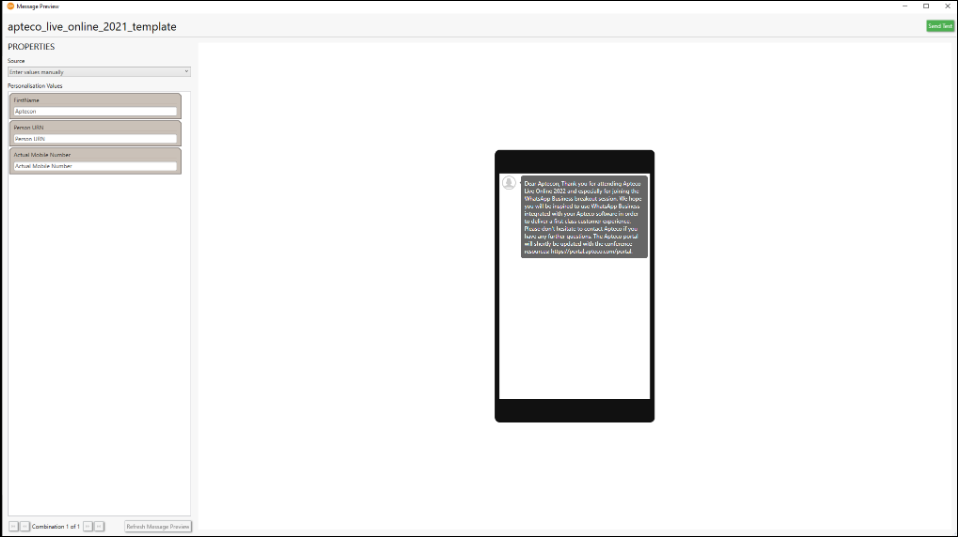
Select Preview and Test to verify that Syniverse recognises the message name and that the WhatsApp channel is working correctly before publishing.
Note
Test before publishing to confirm the message delivers as expected. PeopleStage can't validate whether the template name specified for a WhatsApp Business API message is correct and approved by WhatsApp (Meta). If you use an incorrectly named or unapproved message name, PeopleStage appears to function normally. However, Syniverse doesn't send the message, and it reports an error.
Once set up and tested, add a campaign schedule and publish the campaign as you would for any other channel in PeopleStage.
Response gatherer
You can use the FastStats Email Response Gatherer (FERG) with multiple integrations by using a separate XML and batch file for each integration.
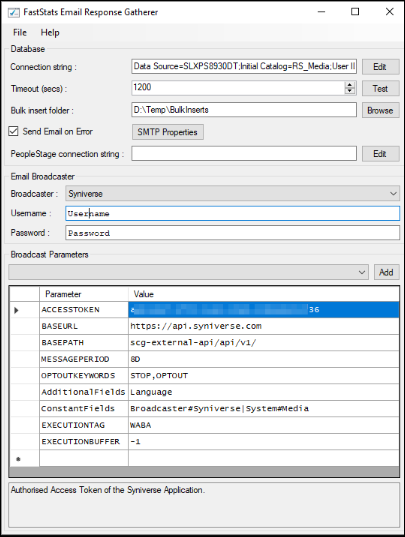
- Browse to the directory where you installed the Email Response Gatherer and open EmailResponseConfig.exe.
- Enter your Connection String and select Test.
- Select Syniverse from the Broadcaster dropdown.
- Enter the FTP Username and Password for the WABA API.
- Select Add to add all required parameters for the broadcaster.
- Use the File menu to save the XML file to the batch and XML file folder.
Connection settings
| Name | Value |
|---|---|
| Connection String (required) | Connection string to the response database for your system |
| Timeout (secs) | Timeout in seconds for connection and query steps; default is 1200 |
| Bulk insert folder (required) | Location to store results; SQL Server can BULK COLLECT from this location to optimise processing of high-volume campaigns |
| PeopleStage Connection String | Used for certain broadcasters to retrieve metadata from the PeopleStage database. Not applicable for WhatsApp |
Broadcaster parameters
| Name | Value |
|---|---|
| Broadcaster (required) | Select Syniverse from the dropdown |
| Username (required) | Your FTP/API username, available from Syniverse |
| Password (required) | Your FTP/API password |
| ACCESSTOKEN (required) | Authorised access token of the Syniverse application; unique token provided by Syniverse |
| BASEURL | Base address of the Syniverse API; default is https://api.syniverse.com |
| BASEPATH | Base path for the Syniverse API call; default is scg-external-api/api/v1/ |
| MESSAGEPERIOD | Period to check for responses, in days (xD) or months (xM); default is 7D |
| MESSAGESTARTDATE | Enter a start date for response retrieval |
| MESSAGEENDDATE | Enter an end date for response retrieval |
| OPTOUTKEYWORDS | Opt-out keywords defined for recipients to stop receiving WhatsApp messages; comma-delimited if multiple (e.g. STOP, OPTOUT) |
| AdditionalFields | Pipe-delimited list of additional fields to include in the Response Details table (acts as a filter; you can select only fields that are in the extract file). Enter Language for this integration |
| ConstantFields | Pipe-delimited key–value constants separated by # (e.g. Key1#Value1\|Key2#Value2). Enter Broadcaster#Syniverse\|System#Media for this integration |
| EXECUTIONTAG | WABA |
| EXECUTIONBUFFER | Buffer in minutes added to the start of the response window to account for delayed notifications. Use -1 for this integration |
Set FERG to run on a scheduled basis, providing it with the broadcaster's communication details in an XML configuration file. Also provide the location to output log files. This example uses Windows Task Scheduler, but any similar scheduler or command-line .cmd file works.