Orbit Updater Configurator
The Orbit Updater Configurator configures the FastStats Orbit Updater service.
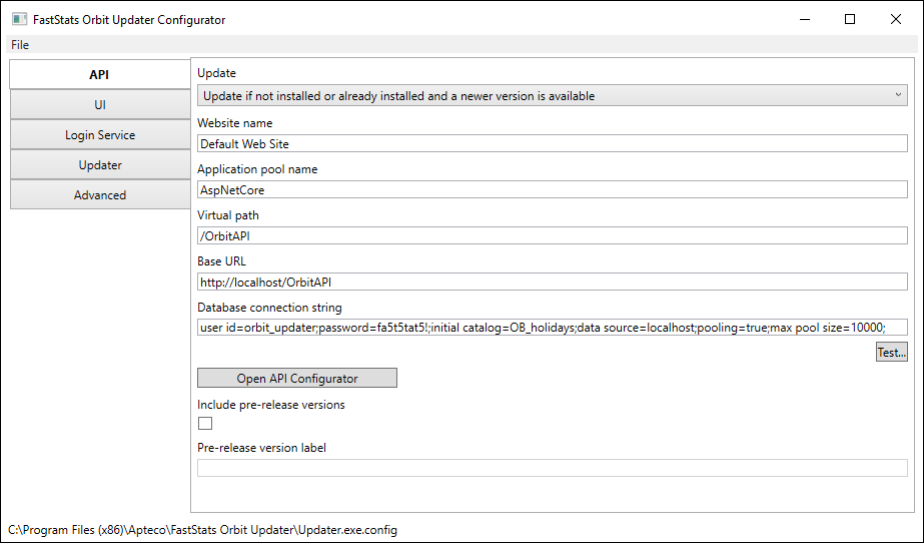
From the API page enter the appropriate details for the following settings:
Note
Copy the database connection string to use later.
API settings
| Setting | Description |
|---|---|
| Update | Choose the update strategy: Don't update, Update only if installed and a newer version is available, or Update if not installed or already installed and a newer version is available |
| Website name | The name of the website within IIS to which the Orbit API installs. This parameter is case-sensitive. If IIS is running a single website, you can leave this as Default Web Site. |
| Application pool name | The name of the application pool that will run the OrbitAPI within IIS |
| Virtual path | The virtual path of the OrbitAPI. The default /OrbitAPI refers to the physical path %SystemDrive%\inetpub\wwwroot\OrbitAPI |
| Base URL | The Base URL of the OrbitAPI, for example https://www.acmeinc.example/OrbitAPI. Use lowercase for the server name. |
| Database connection string | The connection string to the Orbit database, typically named OB_Global |
| Test | Tests the specified database connection string |
| Open API Configurator | Opens the configuration tool for the Orbit API. Not used during initial install (the API won't yet be present), but useful when making changes to an existing installation. |
| Include pre-release versions | Reserved for internal use |
| Pre-release version label | Reserved for internal use |
| Repair API | Forces a re-install of the OrbitAPI. The repair backs up the existing directory first. |
UI settings
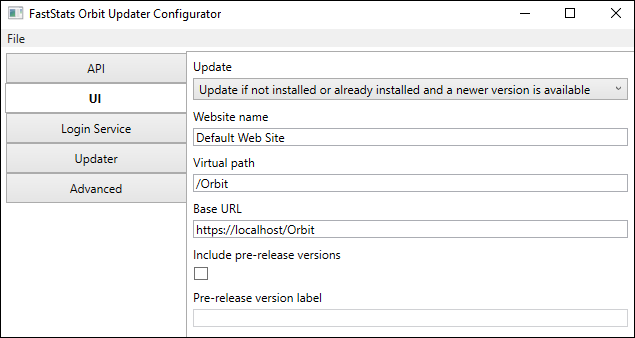
Note
Update options:
- Don't Update
- Update if not installed or already installed and a newer version is available
- Update only if already installed and a newer version is available
| Setting | Description |
|---|---|
| Website name | The name of the website within IIS to which the Orbit UI installs. This parameter is case-sensitive. If IIS is running a single website, you can leave this as Default Web Site. |
| Virtual path | The virtual path of the Orbit user interface. The default /Orbit refers to the physical path %SystemDrive%\inetpub\wwwroot\Orbit |
| Base URL | The Base URL of the Orbit UI, for example https://www.acmeinc.example/Orbit. Use lowercase for the server name. |
| Include pre-release versions | Reserved for internal use |
| Pre-release version label | Reserved for internal use |
| Repair UI | Forces a re-install of the Orbit UI. The repair backs up the existing directory first. |
Updater settings
Note
Update options:
- Don't Update
- Update only if already installed and a newer version is available
- Update if not installed or already installed and a newer version is available
| Setting | Description |
|---|---|
| Include pre-release versions | Reserved for internal use |
| Pre-release version label | Reserved for internal use |
Login service settings
Note
This section is only required if you wish to use a Single Sign-On (SSO) service for user authentication. Please contact Apteco for further information.
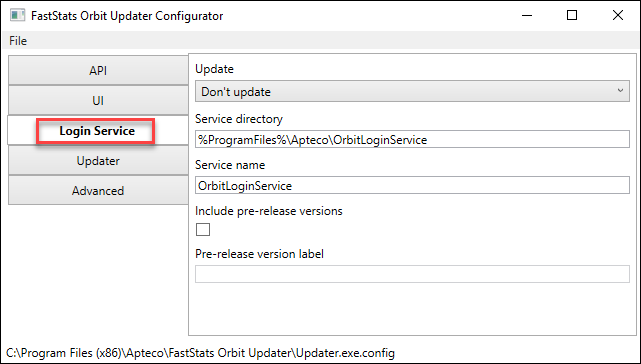
| Setting | Description |
|---|---|
| Pre-release version label | Reserved for internal use |
| Include pre-release versions | Reserved for internal use |
| Service name | The name applied to the OrbitLoginService |
| Service directory | The physical path where you install the OrbitLoginService |
| Update | Options: Don't Update, Update if not installed or already installed and a newer version is available, or Update only if already installed and a newer version is available |
Advanced settings
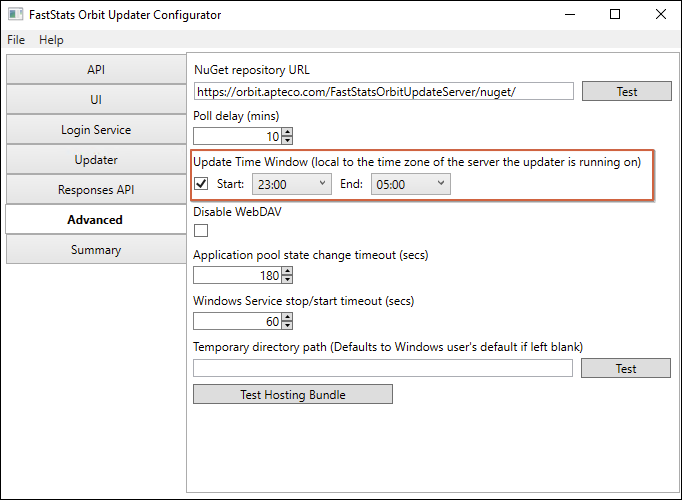
| Setting | Description |
|---|---|
| NuGet repository URL | No changes necessary. This is the public address from which the FastStats Orbit Updater downloads the Orbit UI and Orbit API. |
| Poll delay (mins) | The frequency at which the Orbit Updater checks for new software versions |
| Update Time Window | A period of time during which the updater can apply Orbit updates, so that users aren't disrupted during working hours |
| Disable WebDAV | Tick to disable the WebDAV module in areas installed by the Orbit Updater. WebDAV can interfere with correct Orbit operation. |
| Application pool state change timeout (secs) | Timeout for application pool state changes (default: 60) |
| Temporary directory path | Temporary directory used when updating components. Defaults to the Windows temp directory of the user running the Updater service when left empty. |
| Test URL Rewrite Module | Tests for the IIS URL Rewrite module |
| Test Hosting Bundle | Tests for the ASP.NET Core Hosting bundle |
Note
Contact Apteco Support if you want to host an update server.
Setting the Update Time Window
The Update Time Window lets administrators define a period for applying Orbit updates without disrupting users during working hours.
To configure the Update Time Window:
- Open the FastStats Orbit Updater Configurator.
- Select the Advanced tab.
- Tick the Update Time Window checkbox.
-
Choose Start and End hours using the drop-down menus (00:00–23:00).
The updater will start, run continuously, and complete within this window. If the updater detects an update during the window, it proceeds and updates fully.
-
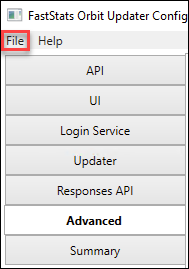
Choose File > Save to save the configuration change.
-
Restart the FastStats Orbit Updater Service for these changes to take effect. Orbit updates typically take about 5–10 minutes.
Note
The server running the Orbit Updater service measures the time window using its local time zone.
Summary tab
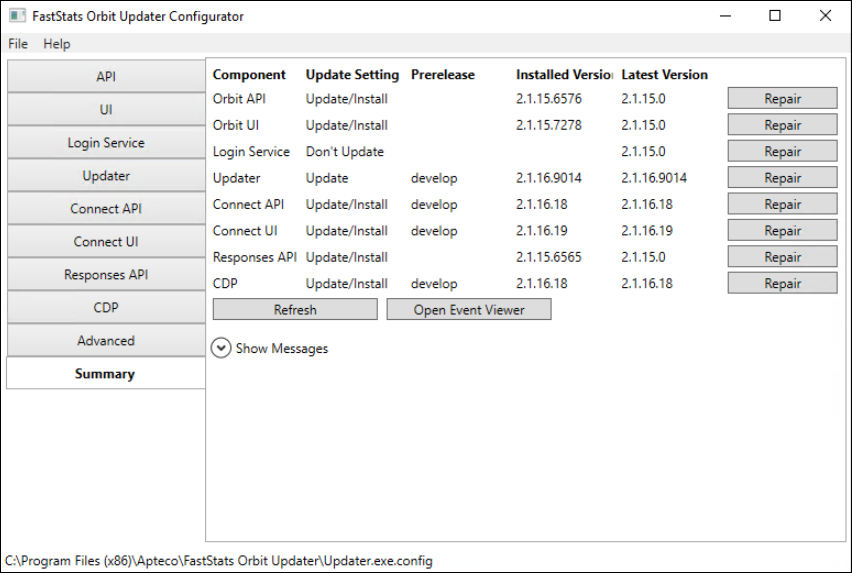
Note
The Connect API, Connect UI, Responses API, and CDP tabs aren't currently relevant to the Orbit Updater Configurator summary.
Repair
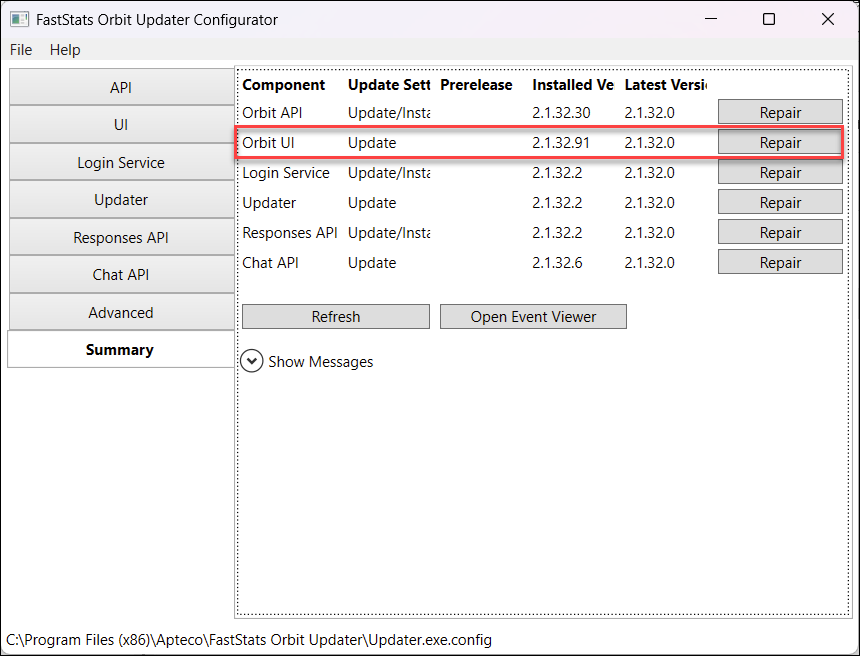
Select Repair to update any listed component from the currently installed version to the latest version.
Refresh
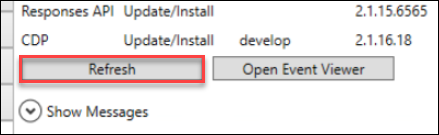
Select Refresh to update the summary page view and reflect any recent changes.
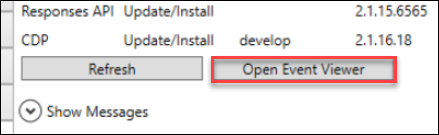
Open Event Viewer
Select Open Event Viewer to open the Windows Event Viewer filtered to Orbit Updater Service events.
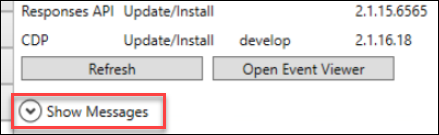
Show Messages
Expand Show Messages to view details of any ongoing refresh process.
Complete the setup
- Close the FastStats Orbit Updater Configurator.
-
Verify that the FastStats Orbit Updater service has started via Administrative Tools > Services > FastStats Orbit Updater.
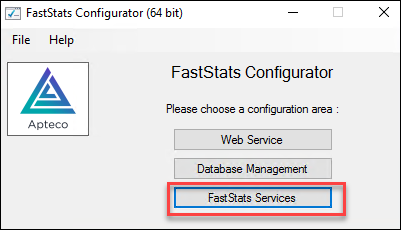
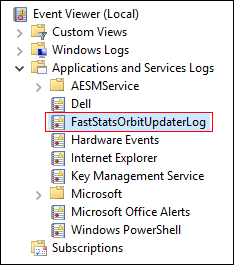
The service creates a log file viewable in Applications and Services Logs in the Windows Event Viewer.
Note
IIS may need to be reset to propagate any changes made.
Note
The first time you install the updater, you'll see warnings. It couldn't retrieve current version numbers for the Orbit UI or Orbit API. This is normal behaviour: the updater tries to retrieve version numbers from an installation that doesn't yet exist.
Once configured and running correctly, the updater creates the following directories:
%SystemDir%\inetpub\wwwroot\OrbitAPI%SystemDir%\inetpub\wwwroot\Orbit
Verify these directories exist before continuing.