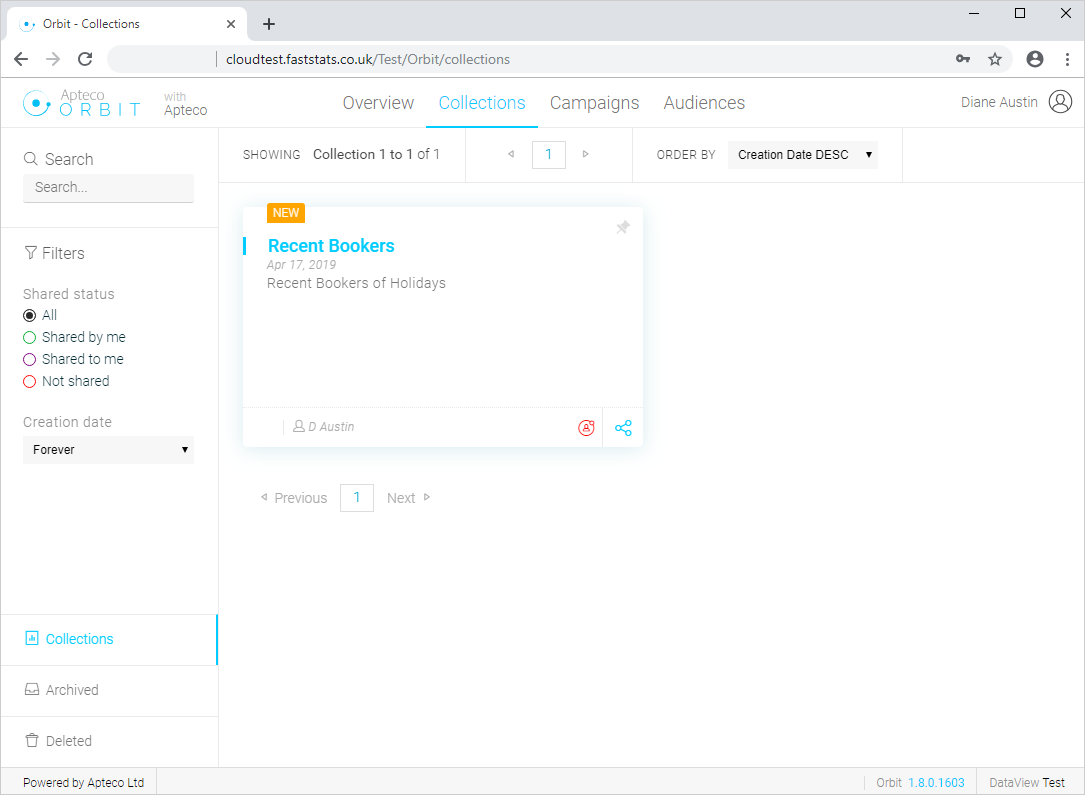
Creating a collection
You generate Orbit Collections using the Storyboard ribbon bar in FastStats. A Collection lets you share sequenced and annotated insight and results with FastStats and non-FastStats users across your organisation.
The FastStats tools you can use to create a Storyboard are:
- Data Grid
- Cube
- Venn Diagram
- Charting
To create an Orbit collection:
Prepare a storyboard in FastStats
- Create the FastStats analyses and visualisations you wish to include in the Collection, either individually, or within a FastStats workbook
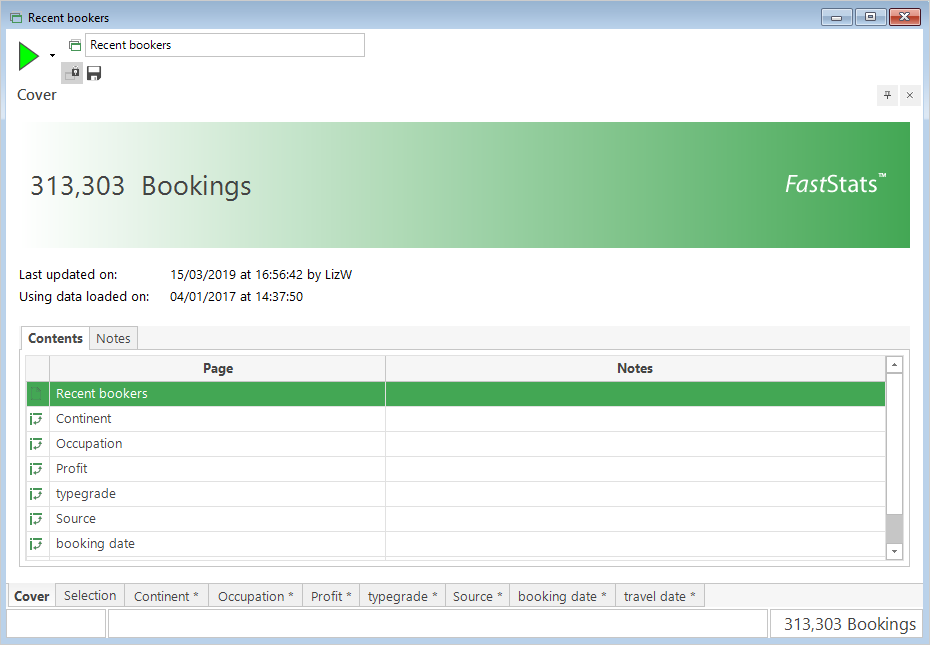
- Drag these items onto the Storyboard ribbon bar. You can also drag items within the ribbon bar to reorder them as required
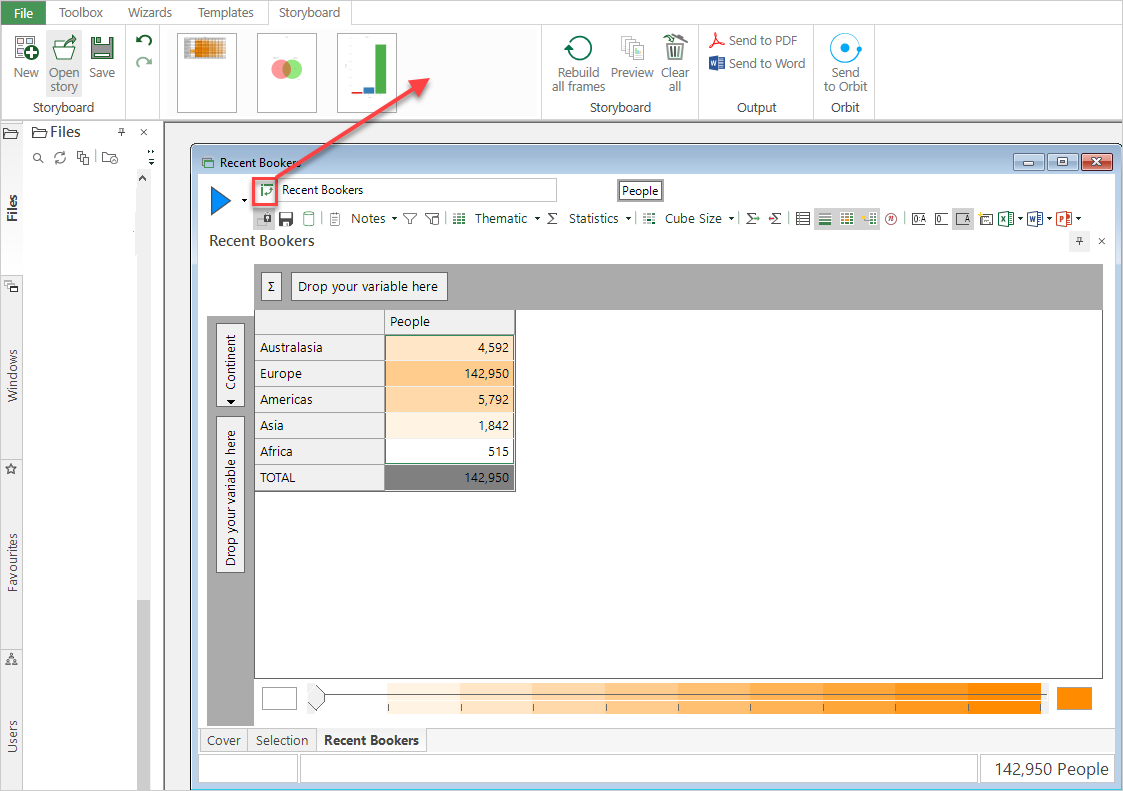
When necessary, use Rebuild all frames to refresh the Storyboard items or Clear all to remove and restart the Storyboard.
You can Preview your Storyboard before you output and share its contents. In the preview window, you have options to relabel and annotate each piece of analysis or visualisation.
Once complete:
- Select Save and navigate to your target folder, either private or public

To share the Storyboard, select either Send to PDF, Send to Word, or Send to Orbit.
- Publishing to PDF creates a ‘read only’ copy of the Storyboard
- Publishing to Word, creates an editable version
- Send to Orbit
Your administrator configures Orbit. Once configured, selecting the Send to Orbit icon opens the Save as window in the Public directory. There, you first name and save the Storyboard.
The Send to Orbit panel will open:
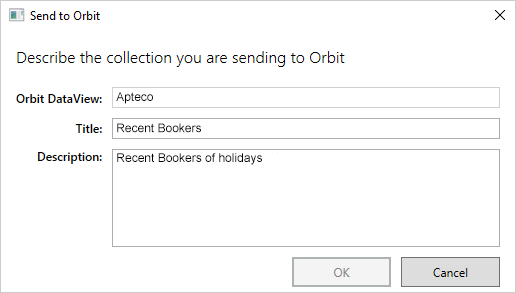
You can overtype the default (Storyboard) title with an alternative to describe the Collection, if you wish. You're also prompted to add a description before selecting OK to publish the report to Orbit.
A confirmation window displays with a hyperlink that takes you to the Orbit browser log-in page:
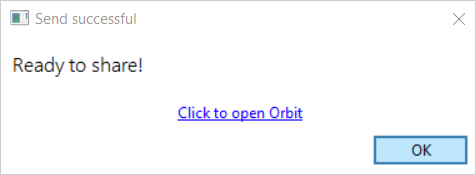
Open in Orbit
-
Log-in to Orbit to see the Overview page
-
Select View Collections or the Collections tab to access the list of Collections page