Working with your data
Dashboards, audiences, and campaigns all work from the same data: the variables, tables, audiences, files, behaviours, and expressions in your system. Whenever you filter a dashboard, build an audience, add a measure to a tile, or personalise a message, you choose that data in the same dialogue: the data picker.
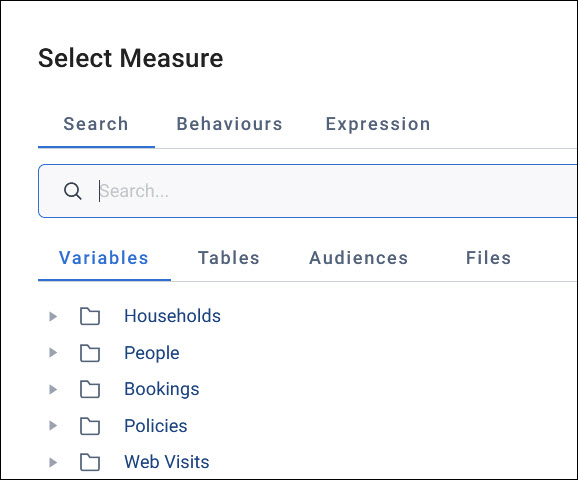
Once you know the data picker, you know how to choose data anywhere in Orbit. Two things change, depending on what you're doing:
- Its title, such as Select Filter, Select Measure, or Select Variable
- Its tabs, because not everything makes sense everywhere
Note
If something you expect isn't in the picker, check what you're adding. For example, you can't split a dashboard tile by an audience, so the picker for a tile's dimension has no Audiences tab. Check where the data picker opens for what you can choose in each place.
What you can choose
The data picker gives you six kinds of data. Some come with your system and some you create yourself.
| Choose | Description | Where it comes from |
|---|---|---|
| Variables | Fields in your data, such as Region or Donation Amount | Your system. You can also add custom variables |
| Tables | The levels of your data, such as Households, People, or Donations | Your system |
| Audiences | Groups of records saved in Orbit | Created by you, or shared with you |
| Files | URN files, FastStats selections, and files of values | Saved in your FastStats system, or uploaded in Orbit |
| Behaviours | Recency, frequency, or value statistics for each contact | Created by you, on the picker's Behaviours tab |
| Expressions | A value you calculate for each record, such as a supporter's age | Written by you, on the picker's Expression tab, or saved in FastStats |
Find what you need
Use the Search tab to find something that already exists. It has up to four tabs of its own:
- Variables: The variables in your system, in their folders
- Tables: Your system's tables, in their hierarchy
- Audiences: Your audiences, and those shared with you, each with its record count
- Files: URN files, FastStats selections, and files of values, in their folders
You can search for an item or browse to it:
-
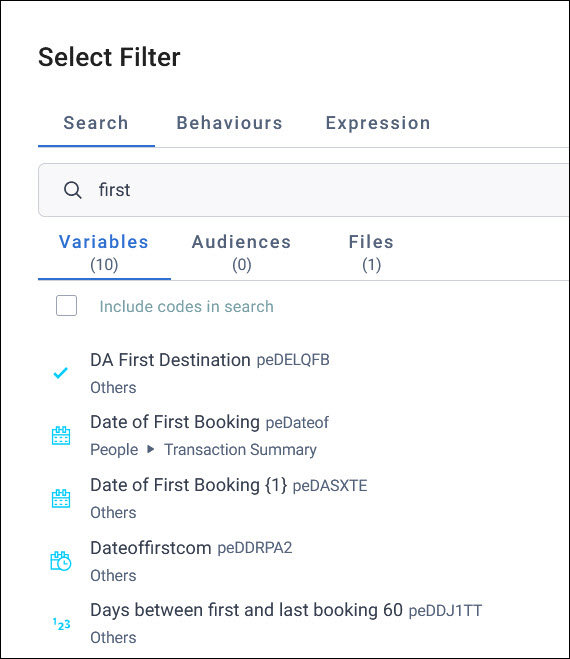
Search: Type in the search box. Each tab then shows how many results it found. Each result shows an icon for its variable type, its name, a short reference, and the folder it's in, so you can tell apart variables with similar names.
-
Browse: Expand the folders to find the item.
By default, search matches names only, not the categories within a variable. Once you've typed a search, tick Include codes in search to also match the categories within each variable, by their codes or descriptions.
Tip
Looking for a category rather than a variable, such as one region or one appeal? Tick Include codes in search, and the results include the variables that contain it.
Select an item to choose it. In some places, such as predefined filters and data grid columns, you can choose several at once. The picker shows how many you've selected, and Deselect all clears them.
When only one kind of item makes sense where you are, the picker shows it straight away, with no tabs.
Create a behaviour or an expression
As well as finding data that already exists, you can create a behaviour or an expression in the picker, and use it straight away.
Behaviours
Use the Behaviours tab to create a recency, frequency, or value behaviour, such as each supporter's most recent donation. If the tab doesn't appear, the table you're working with may not have a child table of transactions. See Behaviours for how to create each type.
Expression
Use the Expression tab to write an expression that calculates a value for each record, such as each supporter's age. Enter a Name, choose the Table it calculates for, then write the Expression, using the FastStats expression language. For how to use an expression in each context, see:
- Expressions in audiences
- Expressions as filters on dashboards
- Expression measures on dashboard tiles
- Expressions in message personalisation, where you can also search for expressions saved in FastStats
After you choose
What happens next depends on where you opened the picker:
- A filter: Asks which values to include or exclude. For a variable, that depends on its type. For an audience or a file, you choose whether its records are in or out.
- A measure: Asks how to summarise it, such as Sum or Mean
- A dimension: Asks how to split it into categories, such as by year
Example
To show total donations on a dashboard, a fundraiser adds a number tile and selects + Add Measure. In the data picker, they search for "donation", choose the Donation Amount variable, then choose the Sum function.
Where the data picker opens
These tables list the main places the data picker opens, and what you can choose there. Where you can choose several items at once, the table says so. Anywhere else the picker opens, it works in the same way.
Audiences
When you build an audience or add pages to it, the picker opens in these places:
| Where | What you can choose |
|---|---|
| + Add Filter in an audience's includes or excludes | Variables, audiences, files, behaviours, and expressions |
| Order By on a limit | Variables |
| Per on an N per limit | Variables and tables |
| A dimension on a workbook cube or chart | Variables, audiences, and behaviours |
| A measure on a workbook cube or chart | Variables, tables, audiences, files, behaviours, and expressions |
Dashboards
When you filter a dashboard or edit its tiles, the picker opens in these places:
| Where | What you can choose |
|---|---|
| User, dashboard, and analysis filters | Variables, audiences, files, behaviours, and expressions |
| Predefined filters | Variables (several at once), behaviours, and expressions |
| Search filters | Variables (several at once) |
| Tile filters | Variables, audiences, files, behaviours, and expressions |
| A tile's measure | Variables, tables, audiences, files, behaviours, and expressions |
| A tile's dimension | Variables and behaviours |
| Apply Filters on a dimension | Variables, audiences, files, and behaviours |
| Data grid columns | Variables (several at once), behaviours, and expressions |
| Set Data on a Venn tile | Variables, audiences, files, and behaviours |
| Variables on a profile tile | Variables (several at once) |
Inside a behaviour
When you create a behaviour, the picker opens again inside it, for example:
| Where | What you can choose |
|---|---|
| Transaction on a recency behaviour | Variables |
| A behaviour's + Add Filter | Variables, audiences, files, behaviours, and expressions |
Campaigns
When you set up a campaign, its messages, or its channels, the picker opens in these places:
| Where | What you can choose |
|---|---|
| A variable content field in message personalisation | Variables |
| An expression content field in message personalisation | Expressions saved in FastStats, or a new expression |
| A behaviour content field in message personalisation | Behaviours |
| A campaign goal | Variables and tables |
| Filtering a message objective by audience | Audiences and files |
| A channel's variables, such as the mobile number for Apteco SMS | Variables |
Resources and settings
The picker also opens when you create custom variables, and in some application settings:
| Where | What you can choose |
|---|---|
| A category in a combine audiences custom variable | Variables, audiences, files, and behaviours |
| The channel editor | Variables |
| Category colours | Variables and their categories |
| Data grid hyperlinks | Variables |