Sharing resources
Sharing resources in Orbit allows system administrators to grant users access to resources without changing ownership. This is particularly useful when the resource owner is temporarily unavailable but other users need access.
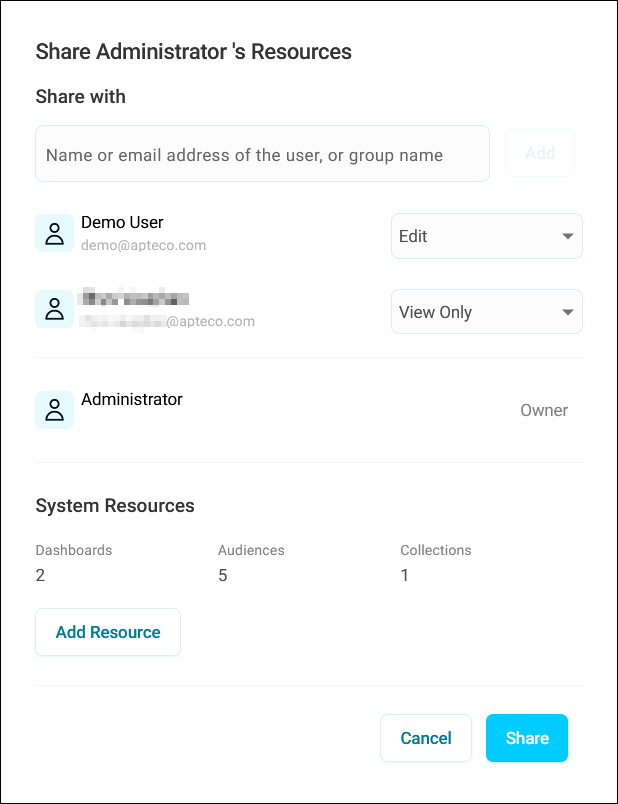
Sharing resources is useful when:
- A resource owner is temporarily unavailable (holiday, sick leave, etc.)
- You need to grant access to specific resources rather than all resources
- You want to be able to easily remove access later
-
Either Edit or View Only access may be more appropriate for a user
Note
There is no functional difference between owning a resource and having edit access to it.
Example use case
A member of a marketing team goes on holiday and another team member needs to provide cover. A system administrator grants access by sharing resources.
Sharing resources vs transferring ownership
Sharing resources in Orbit works differently to Transferring ownership, which instead permanently moves all of one users’ resources to another user.
Before transferring ownership, seriously consider the implications involved and have strong consensus within your organisation that it’s the preferred option over sharing resources, as transferring ownership is a much more final measure.
Sharing a resource with another user
To share a resource with another user:
- Click your avatar in the top-right corner.
- Click Users/Groups.
- Locate the user whose resources you want to share.
-
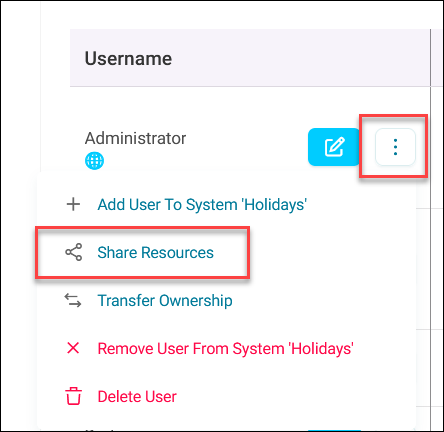
Expand the user option menu in the Username column.
-
Click Share Resources.
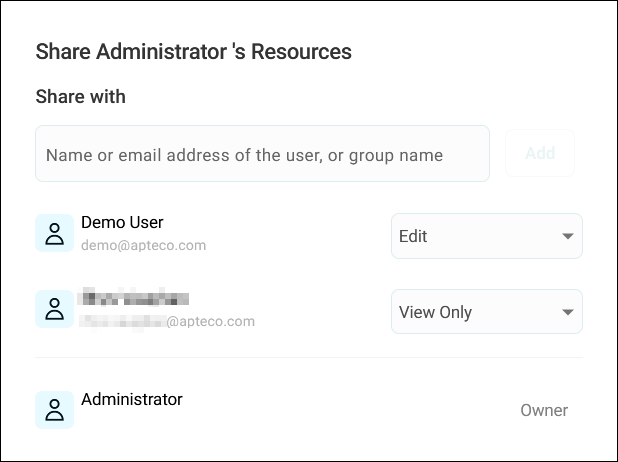
- Add the users that you want to share with by typing their names.
-
Set the access level to either:
- View Only: Users can see and use the shared resources but cannot modify them
- Edit: Users can modify the shared resources as if they were the owner
-
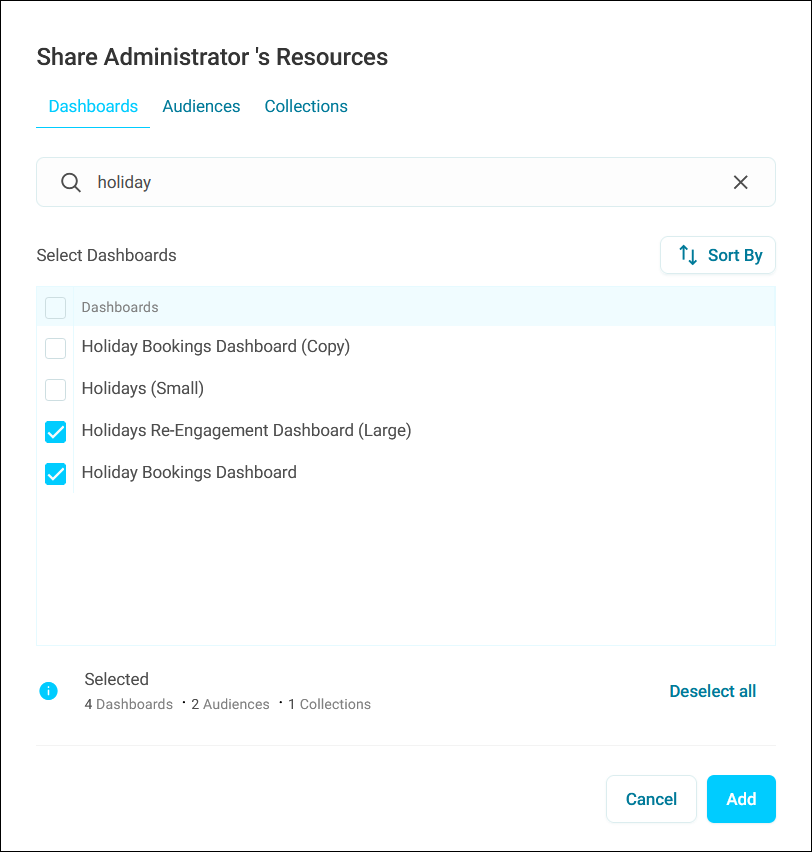
Click Add Resource to select specific resources.
-
Use the relevant tabs to choose the resource types you want to share:
- Dashboards
- Audiences
- Collections
-
Search for and select the individual resources from each category.
Note
You can use your search query across all resource types.
-
Click Add to confirm your selection.
- Click Share.
You’ve now shared resources with another user.