Branding and external links
You can change the branding assets used in Orbit.
The following options are available:
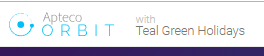
Partner brand name
The image below uses the partner brand name Teal Green Holidays as an example.
Show brand logo
When you select this option, Orbit displays the brand logo referenced in the Brand Logo cell between the application logo light and the login box.
Note
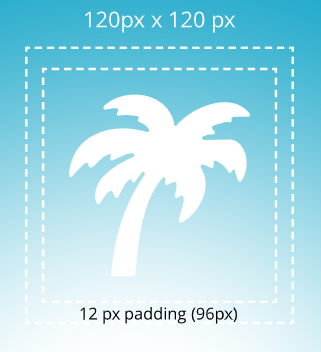
Orbit scales the image down to a maximum width or height of 96 pixels, depending on the aspect ratio. You can use any aspect ratio, and Orbit adjusts the image to fit. A smaller image isn't scaled up.
Note
When you use an SVG, set the width and height within the SVG element's own markup. For example, every SVG has a viewBox attribute, where the last two values give the width and height ratio. If the ratio isn't suitable, search online for an aspect ratio calculator to work out an appropriate width and height. You can edit an SVG using a text editor.
Application logo dark
The application logo dark appears at the top of Orbit (170 x 40 pixels).
Application logo light
The application logo light appears above the login box and brand logo (170 x 40 pixels).

To configure the branding options, use the Orbit API Configurator in your Orbit API folder on your web server.
You need administrative rights on the web server to use the Orbit API Configurator. Contact your web server administrator for help with this.
Note
By default, the location is C:\inetpub\wwwroot\OrbitAPI\OrbitAPIConfigurator.exe.
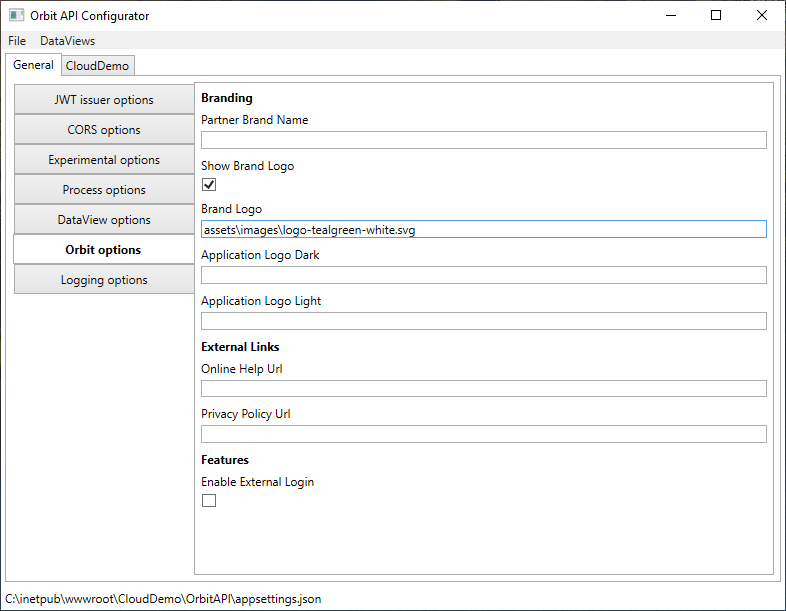
These paths are either relative to the C:\inetpub\wwwroot\Orbit\assets folder, or an absolute address, for example assets\images\brand-logo.jpg, assets\logos\logo-orbit-apteco-blue.svg, or http://www.example.com/images/my-image.svg.
External links
Online Help URL: enter an address to use your own help centre.
Privacy Policy URL: enter an address to use your own privacy policy.
Features
Enable External Login: reserved for future use with Single Sign-On (SSO).