Browse data solution
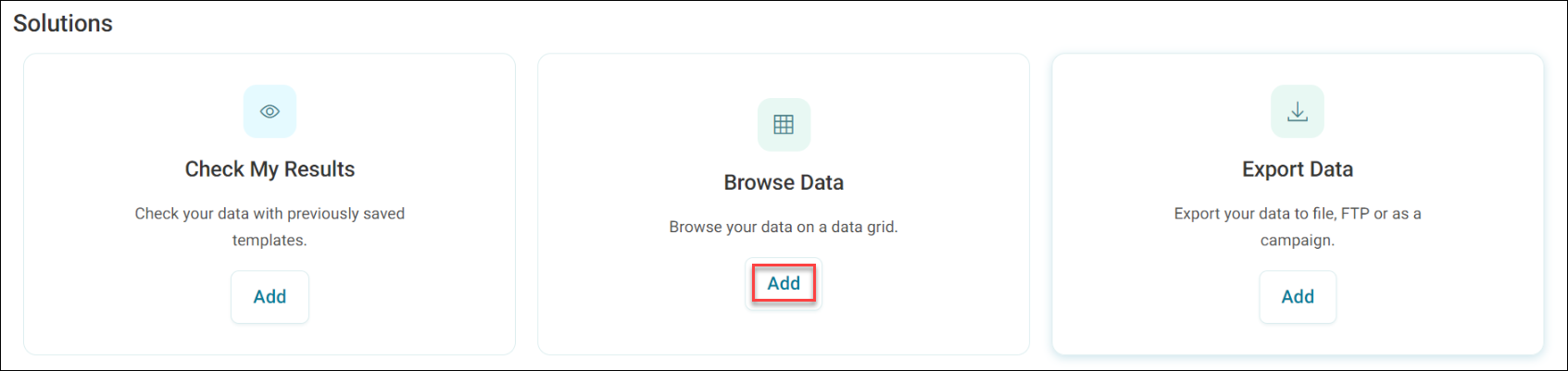
The browse data solution guides the user through the steps required to set up a datagrid, via the Add New page.
To set up a data grid:
- Click Add.
- Name your datagrid.
The datagrid page is comprised of a grid of data. You can view this data as multiple rows of data or single records on a page. The data can be exported to a file for download, but if you are exporting to a channel or via File Transfer Protocol (FTP), then use the Export Data solution instead.
To Use the Export Data solution:
- Click the Add button on the Export Data tile.
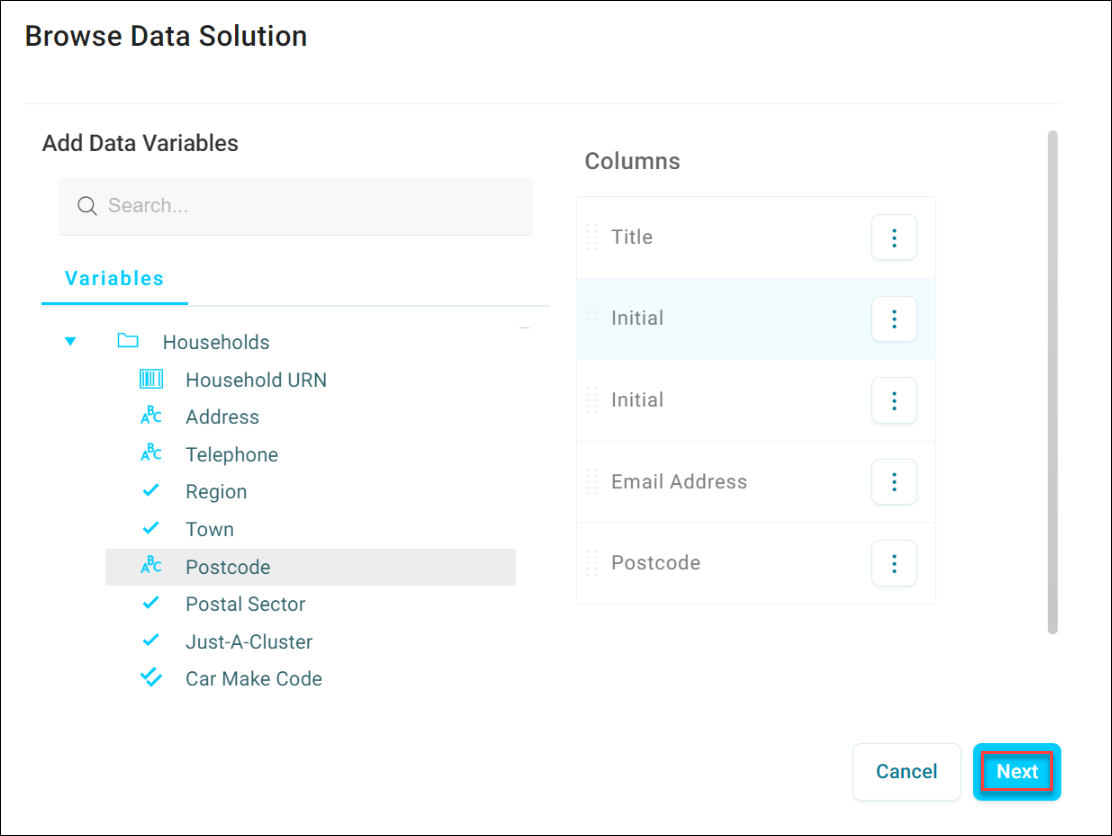
- Select the Columns for display.
- Click Next.
Once completed, you gain access to a new browse tab with a grid populated with the first thousand records in the data that you have chosen. You can navigate through the data using the pager at the bottom of the grid.
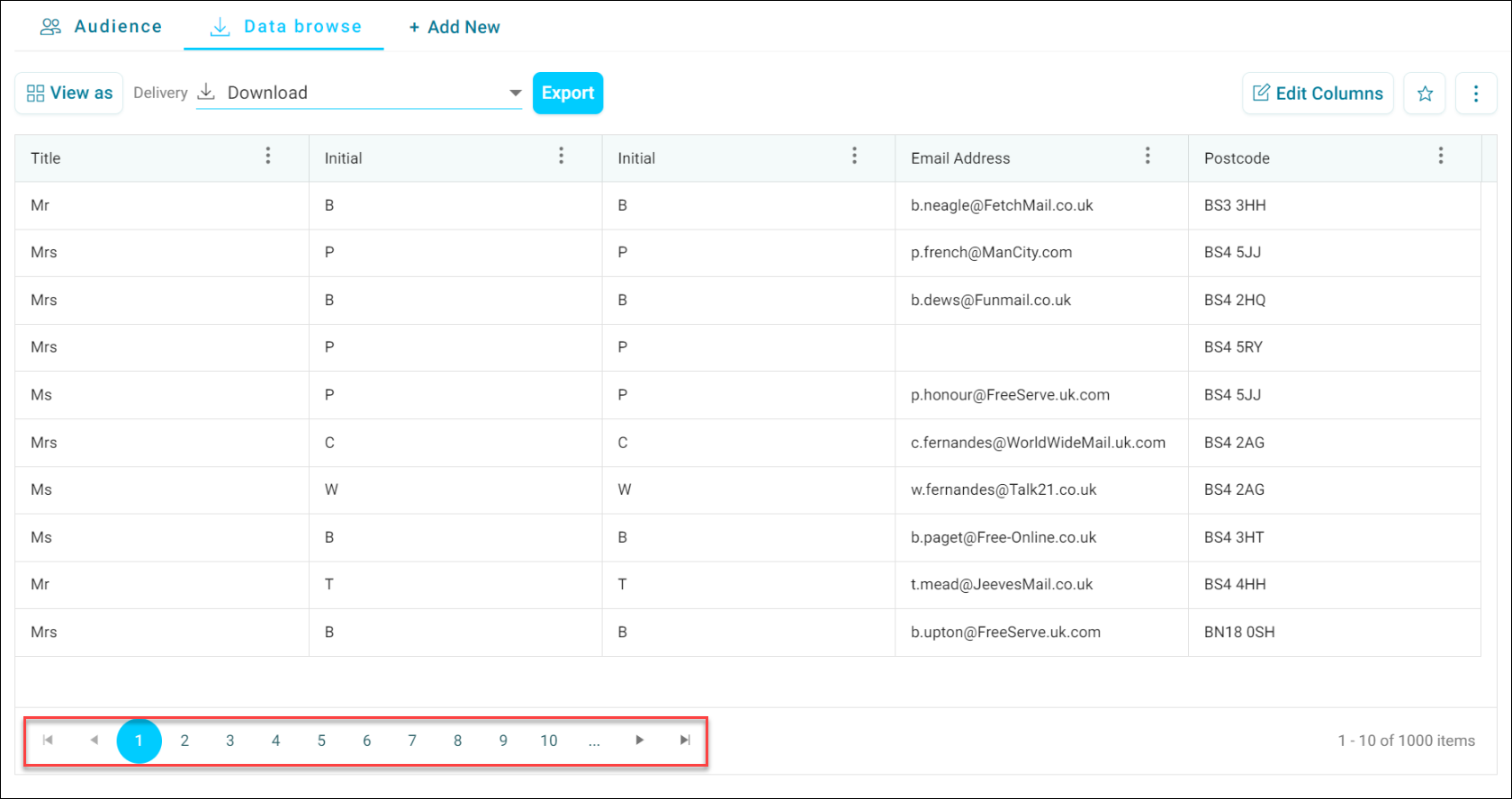
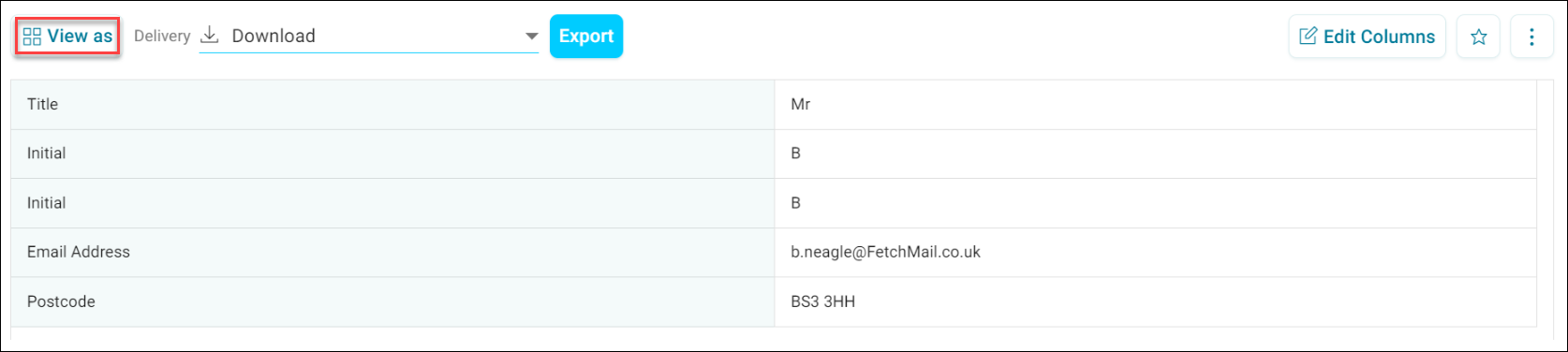
This Grid View displays multiple rows of data. Click View As to switch to Page View, which displays a single record at a time.
If you are happy with this datagrid and would like to use it again or share it, then add it to your favourites by clicking the star icon in the top right of your screen. You can access the favourited datagrid from the Add New page, from where it can then be shared.