Data flow for Apteco forms
Apteco can process large volumes of customer data, connecting different systems to help you analyse and act on insights. Apteco forms provide a way to collect user data through embedded forms on websites or Apteco Email landing pages. Once submitted, the system stores this data in a contact list, and you can process it for insights in Orbit and FastStats.
This guide explains how data flows through the Apteco system, from form submission to integration with FastStats. It also covers the role of the FastStats Email Response Gatherer (FERG) in extracting and structuring the data for further use.
Pre-requisites
- You must be an Apteco Email user.
- To use the collected data in Orbit and FastStats, you must extract and process it using the FastStats Email Response Gatherer (FERG), which structures the data and makes it available for further analysis.
Creating your form
To set up an Apteco form:
- Make sure you have configured your Apteco Email channel. See Creating your Apteco Email channel.
- Create an Apteco form. See Creating an opt-in form.
- Generate an HTML snippet. See Setting up your form.
-
Embed the HTML snippet in your website or use an Apteco landing page to collect responses. See Landing pages.
An example website with an embedded Apteco form:

Once a user submits the form and confirms via email, the system stores the data in a contact list.
Extracting data using the response gatherer
FERG is a command-line tool that automates data extraction and storage. The EmailResponseGatherer64Setup.msi installer is available as part of the Apteco software quarterly release.
FERG performs the following actions:
- Downloads new responses into the Response, ResponseDetails, and ResponseStats tables of the RS_XXX database
- Extracts new form sign-ups from the Mailjet API and stores them in dedicated tables
- Inserts contact properties and associated data into FastStats-compatible structures
Configuring the response gatherer for Apteco Email
To configure the response gatherer for use with Apteco Email:
-
Create an XML configuration file similar to the following:
XML<EmailResponseGathererConfiguration xmlns:xsd="http://www.w3.org/2001/XMLSchema" xmlns:xsi="http://www.w3.org/2001/XMLSchema-instance"> <ConnectionString>data source=localhost;initial catalog=RS_Holidays;user id=faststats_service;password=********</ConnectionString> <TimeoutSeconds>1200</TimeoutSeconds> <BulkInsertDirectory>C:\FastStats\BulkInsert</BulkInsertDirectory> <BroadcasterName>AptecoEmail</BroadcasterName> <Username>--Apteco--Email--api--key--here--</Username> <Password>--Apteco--Email--secret-key--here--</Password> <SendEmailOnError>True</SendEmailOnError> <Parameters> <Parameter><Key>URL</Key><Value>https://apteco-email.integrations.apteco.com</Value></Parameter> <Parameter><Key>UrnFieldName</Key><Value>urn</Value></Parameter> <Parameter><Key>OnlyProcessRecordsWithBroadcastId</Key><Value>true</Value></Parameter> <Parameter><Key>ConstantFields</Key><Value>Broadcaster#AptecoEmail|System#Holidays</Value></Parameter> </Parameters> <Port>25</Port> <Server>smtp.example.com</Server> <SSL>False</SSL> <Username /> <From>sender@example.com</From> <To>sender@example.com</To> </EmailResponseGathererConfiguration>Where: - The connection string points at your response database (RS_). - Set
UrnFieldto whatever you've called your Person Unique Reference Number (URN) in your system (its description, not its reference, in lowercase). -BaseUrlis the address of the Apteco Email integration server. -
Run FERG via a Windows scheduled task. Assuming you saved the XML file as
C:\FastStats\AptecoEmail.xml, create a scheduled task running:
FERG now gathers new form data into the tables below in the RS_XXX database.
Database structure for form data
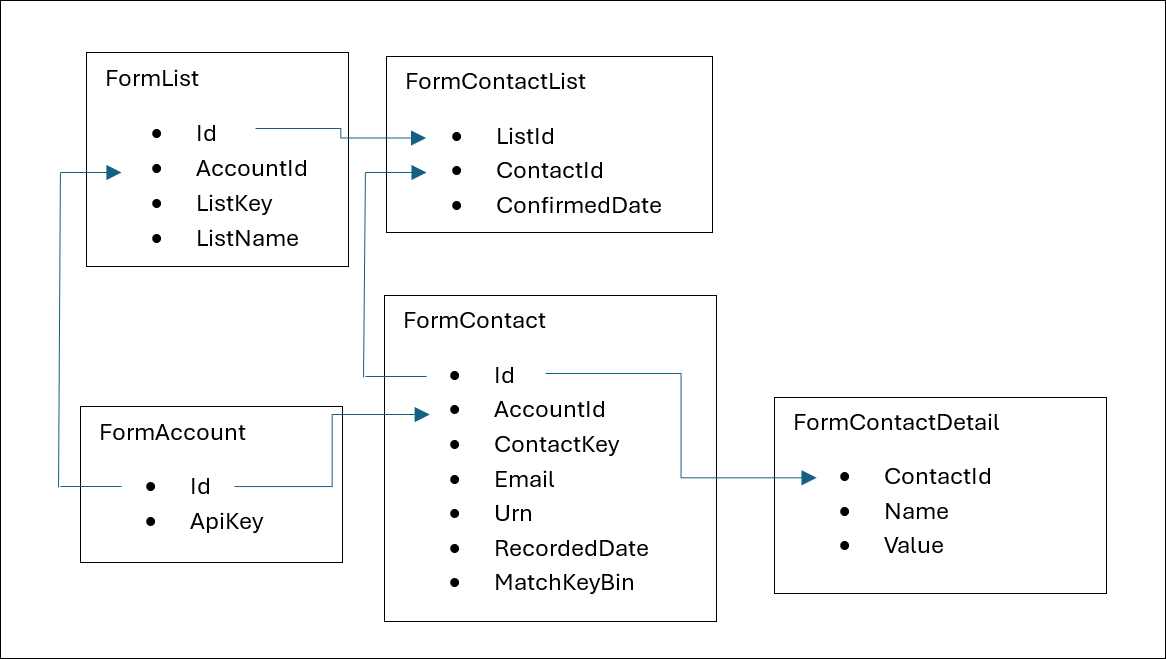
FERG processes data into the following database tables:
| Table | Description |
|---|---|
| FormList | Contains metadata for each Apteco Email Form list |
| FormContact | Holds contact details, including email and unique identifiers |
| FormContactList | Links contacts to the forms they signed up for, and records confirmation dates |
| FormContactDetail | Stores additional properties associated with each contact |
Note
If a user signs up via multiple forms, they have one entry in FormContact and multiple entries in FormContactList. The system merges additional properties collected from various forms under a single contact entry. The Urn field in FormContact is configurable and maps to a designated property.
Integrating Apteco Email form data into FastStats
To include collected data in a FastStats system, configure the design using:
- FastStats Designer or Orbit Connect to structure the data
-
Predefined PeopleStage Staging database views:
FS_Build_FormContactFS_Build_FormListsForContactFS_Decode_FormLists
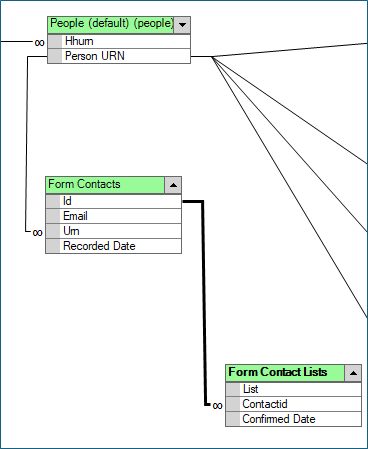
These views facilitate integration of form responses into the FastStats environment.