PeopleStage SQL maintenance
This guide explains how to set up a maintenance plan for the SQL Server database used by Apteco PeopleStage. The maintenance plan ensures the database functions on an ongoing basis, including rebuilding indexes and updating internal statistics. See Recommendations for backing up PeopleStage for backup and archiving steps, which this guide excludes.
Apteco advises having a backup plan for the PeopleStage, Web Service (control), and Response databases. These hold important information about your PeopleStage system's structure and campaign history.
Background and database layout
The following diagram illustrates the components of Apteco PeopleStage.
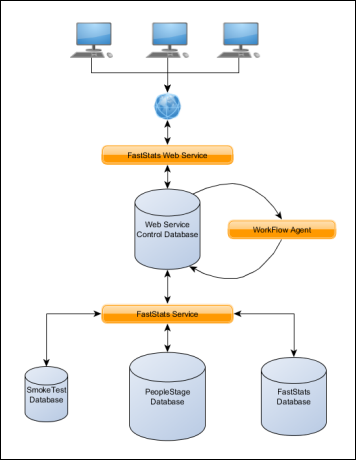
User machines running the FastStats PeopleStage client communicate with the FastStats Web Service over a network. The Web Service places jobs from the client into a control database. The Service processes the jobs and returns results to the clients.
The FastStats Service connects to the FastStats Database and the SQL Server PeopleStage, smoke test, and control databases to process PeopleStage jobs. It also uses a response database for gathering email broadcaster responses.
The PeopleStage database has three main sections:
- Model: contains information about the PeopleStage diagram shown to the user
- Schema: contains information about all live PeopleStage campaigns in a format usable by the FastStats Service
- History: records the flow of people through the diagram and the communication history for each person in every campaign
The smoke test database is similar in structure to the PeopleStage database, but serves specifically for test runs of campaigns. The control database includes tables related to the general running of FastStats, such as Users and Sessions. It also includes tables used by the Workflow Agent and Delivery Agent threads within the FastStats Service. The response database stores responses collected from email broadcasters.
Creating a maintenance plan
Prerequisites
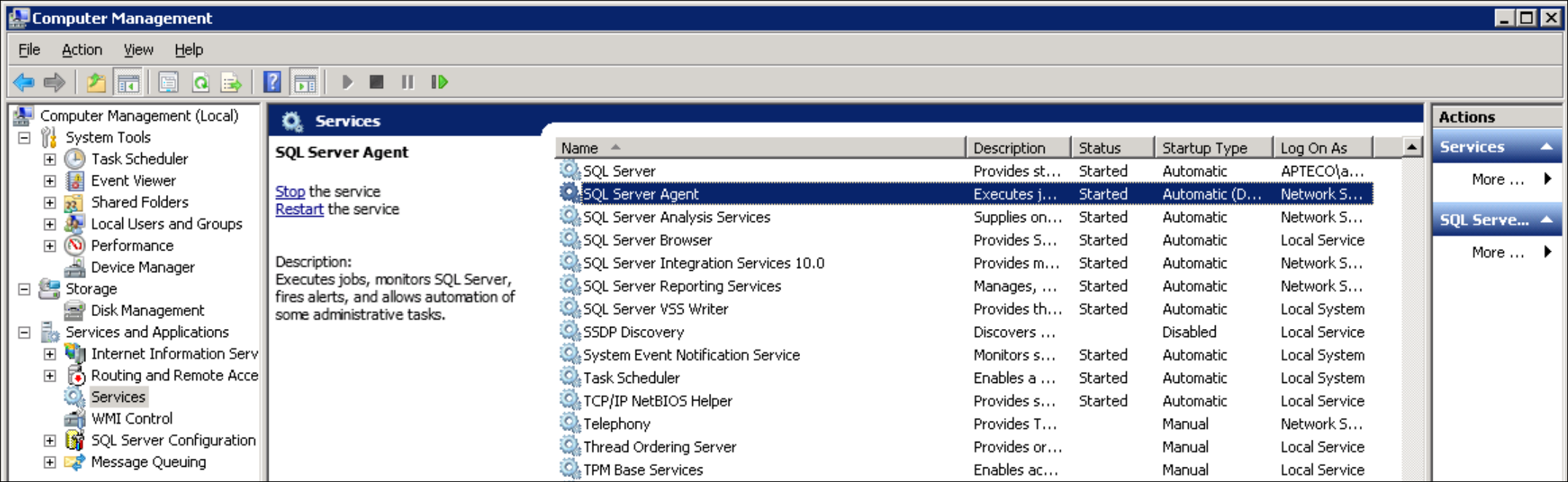
Make sure the SQL Server Agent service is running:
- Open Computer Management from Administrative Tools.
- Check that the SQL Server Agent service is running and set to start automatically with a delay.
Creating the plan
- Open SQL Server Management Studio.
- Connect to the server that has the PeopleStage databases.
-
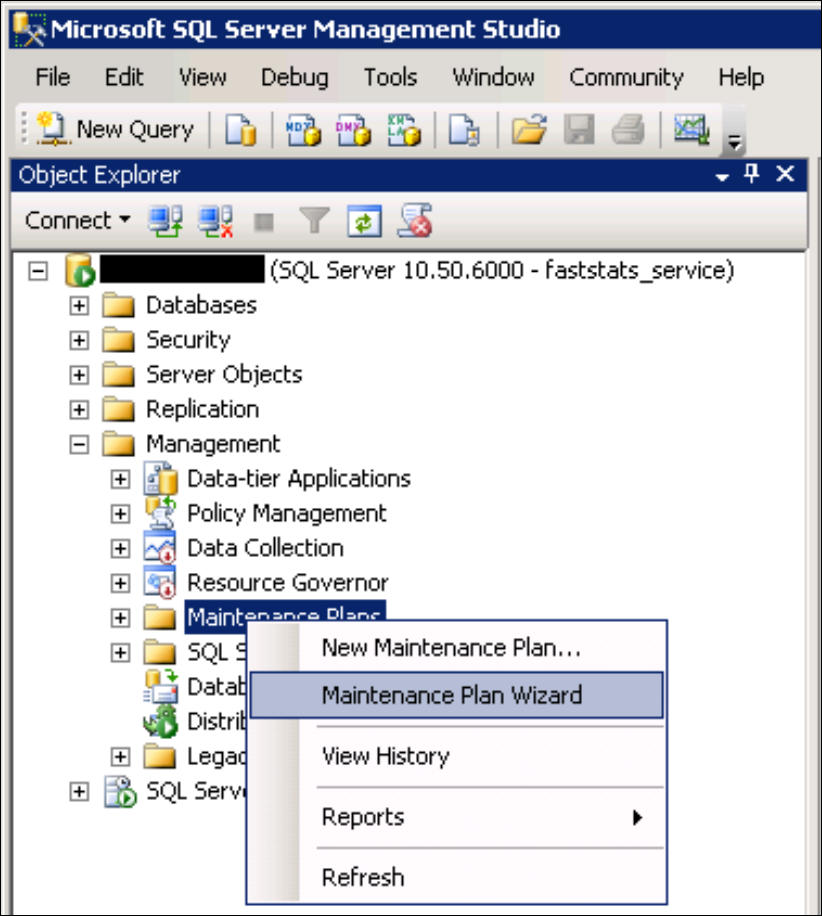
Open the Management folder, right-click on Maintenance Plans, and select Maintenance Plan Wizard.
-
Read the first page of the wizard, then select Next.
-
Enter a name for the maintenance plan (e.g.
PeopleStage Maintenance Plan) and an optional description. Keep the default option Single schedule for the entire plan or no schedule and select Change... to set up a schedule.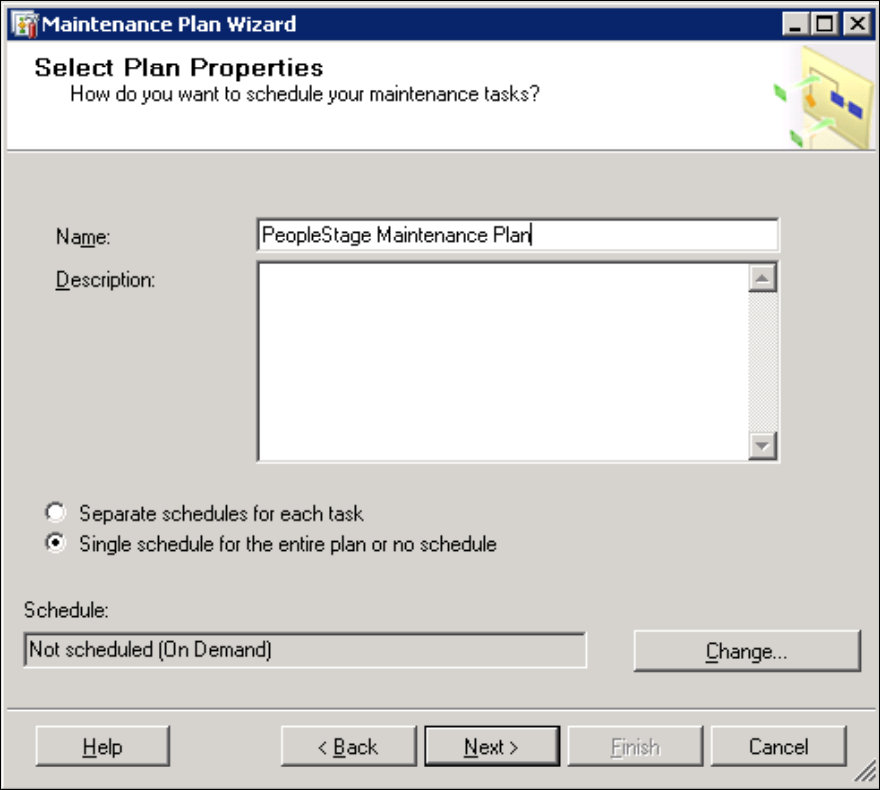
-
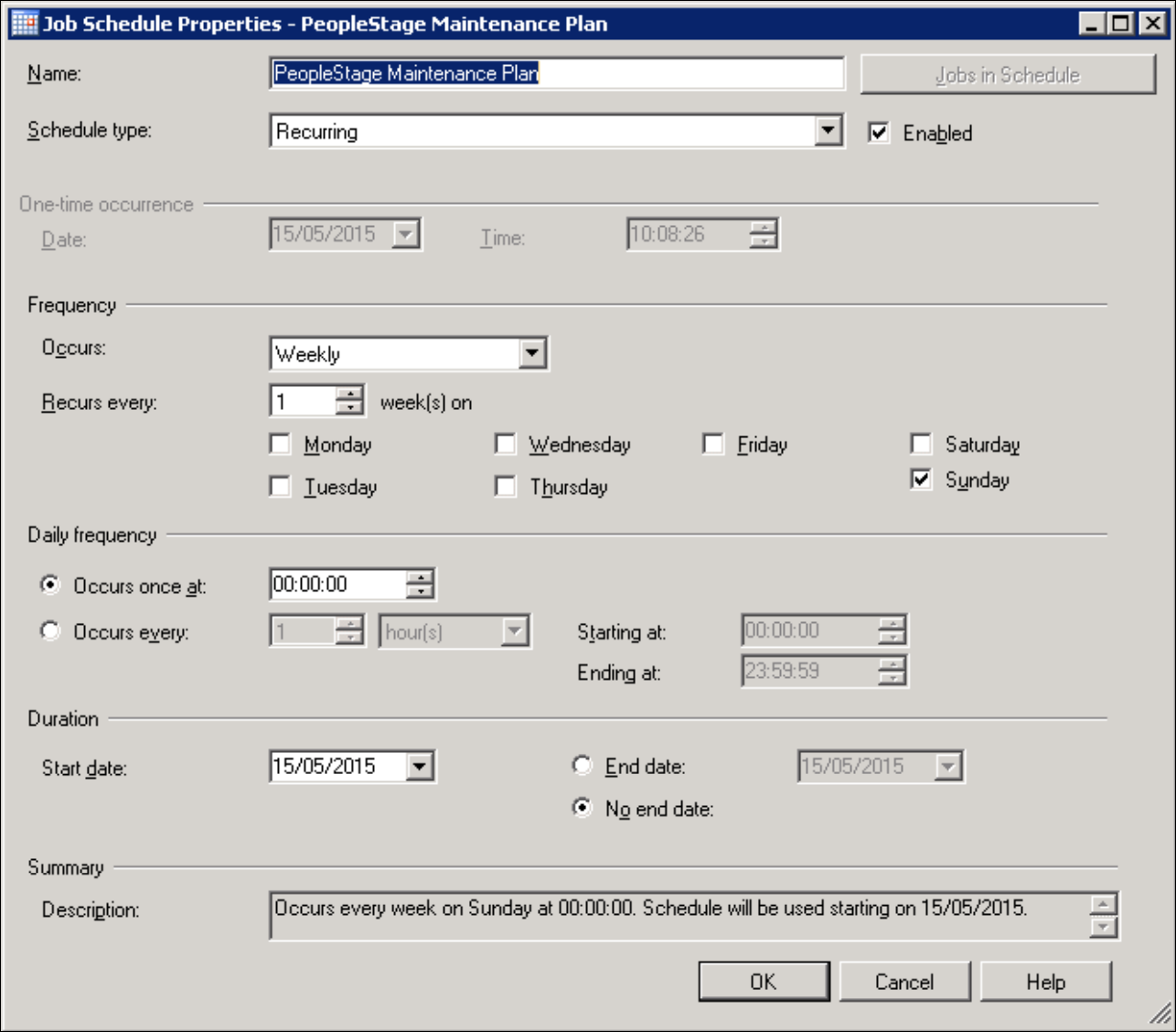
Choose a time for the plan to run: pick a time when the server isn't busy. The maintenance plan should take 10–30 minutes depending on the size of the databases. As a general guideline, run it once a week. Give the schedule a name and select OK.
-
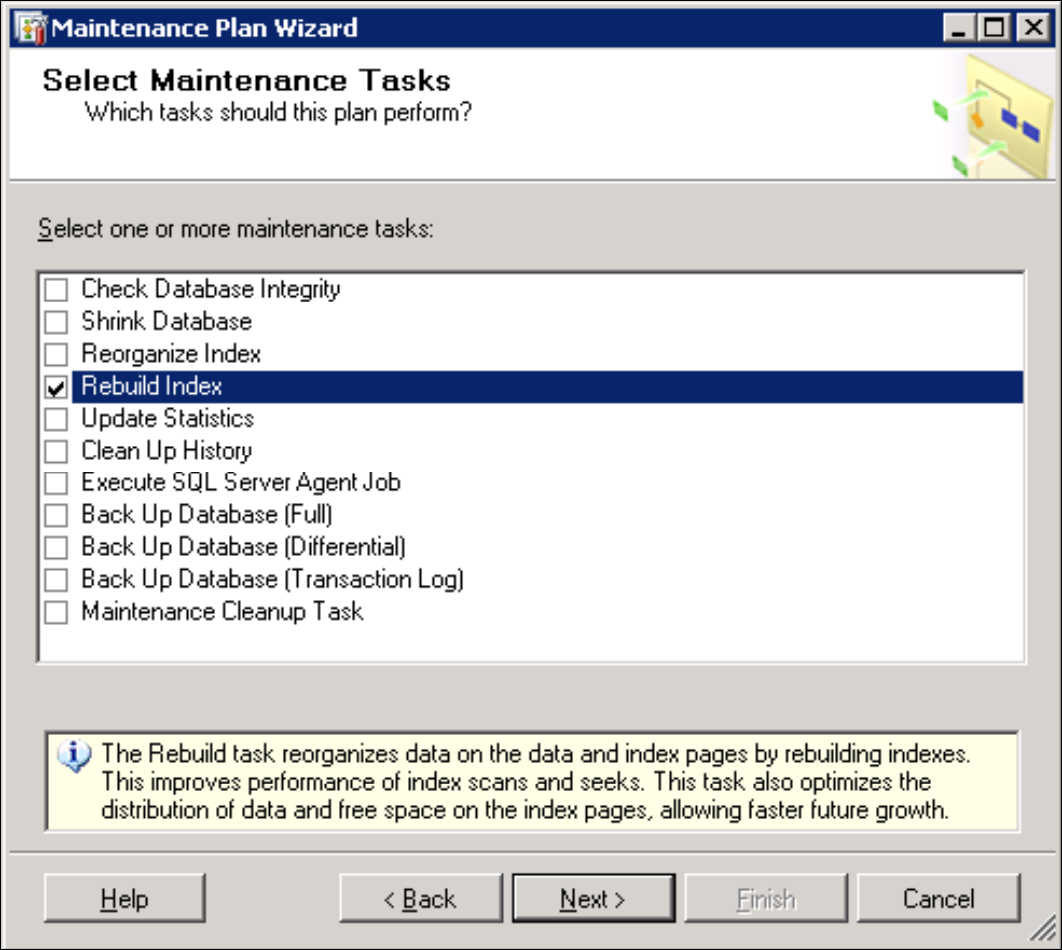
Select Next to reach the task selection page. Select the Rebuild Index task and select Next.
-
On the ordering page, accept the default option and select Next.
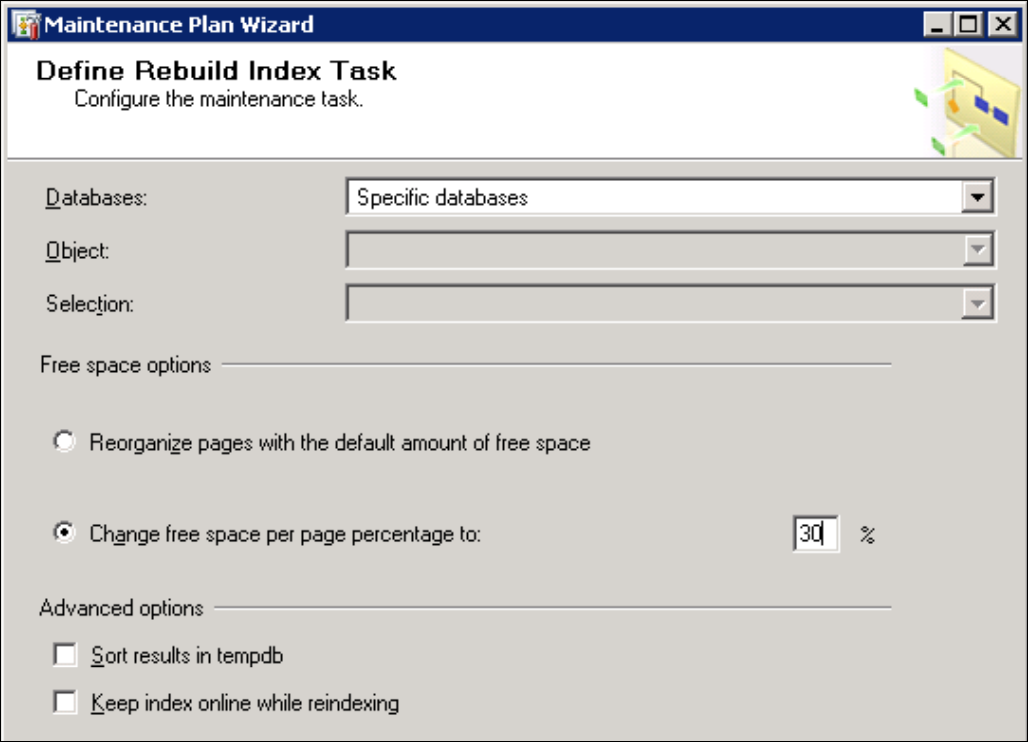
On the rebuild index task page, select the databases where you want to rebuild indexes. These should be the PeopleStage, Web Service, Response, and Smoke Test databases (named
PS_,WS_,RS_, andST_by default). Change the Free space option to keep 30% of each index page free. This ensures the database has enough space to insert new data into indexes without causing fragmentation between rebuilds.Note
Rebuilding takes some clustered index tables offline, unless you select Keep index online while reindexing. This option may not be available in all editions of SQL Server.
-
Select Next.
-
On the report page, keep the log file as its default value and select Next.
- The final page summarises your choices. Select Finish to apply the maintenance plan, then close the progress window. The plan now appears in the Maintenance Plans node in SQL Server Management Studio.
Note
Creating the plan doesn't automatically run it. Right-click on the plan and choose Execute to run it manually. Right-click and choose View History to see past runs, duration, and success.
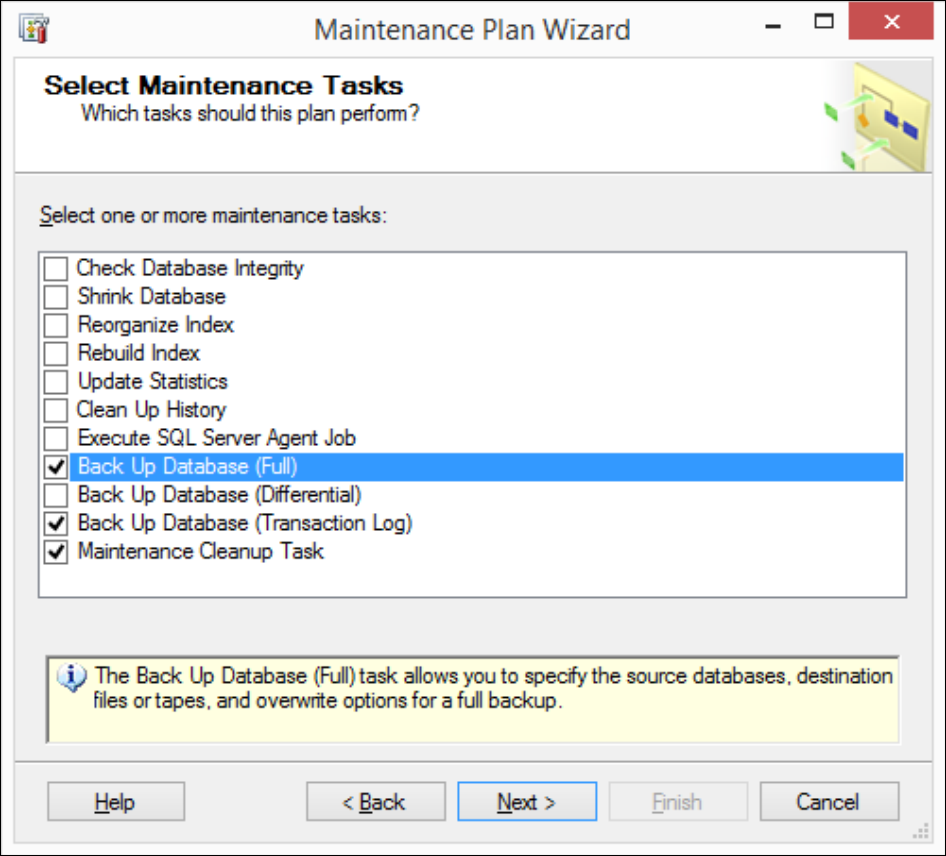
You can also expand this maintenance plan to include backup tasks. For more detailed recommendations, see Recommendations for backing up PeopleStage.
Recommendations for backing up PeopleStage
Without a backup in place, you could lose all PeopleStage data in the event of a hardware or database software failure. This data includes your PeopleStage system's structure and communication and response history for your campaigns.
Discuss the PeopleStage backup plan with your Database Administrator (DBA). Key considerations:
-
By default, the PeopleStage database operates in Full recovery mode, which supports restoration to any point in time but means the transaction log grows with all data changes. To manage the size of the transaction log, back it up regularly. As a starting point, consider:
- Full database backup every 24 hours
- Transaction log (
.ldffile) backup every 4 hours, kept for 24 hours
Note that taking transaction log backups during normal operational hours shouldn't cause performance issues. Sometimes, Microsoft and others recommend backups every 10 minutes or more frequently.
-
The same considerations apply to other FastStats databases: the Web Service (control), smoke test, and Response databases. Note that the smoke test database doesn't contain live data, but holds information on test campaigns.
If you use the Backup options in the SQL Server maintenance plan, you can also use the Maintenance Cleanup Task to delete old backup files. For example, delete transaction log backups older than 24 hours.