Searching in Orbit
Search for customer attributes (variables) when building audiences to target the right people, or when building dashboard visualisations to analyse behavioural and transactional trends.
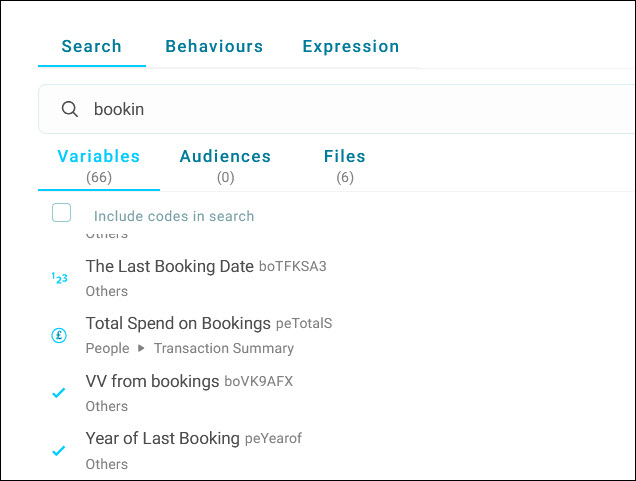
Variables with similar names can use different formats, for example text or numeric. A symbol next to each result shows its variable type, so you can be sure you're selecting the correct format.
Types of variables
- Selector
- Multi-Response
- Date
- Numeric
- Text
- Currency
- Date Time
- Unique Reference Number (URN) (when Applying Limits to an Audience or creating an Export Template)
By default, search matches variable names only, not the codes and descriptions within each variable. Tick Include codes in search to also match on those.
Some functions, such as adding a measure to a dashboard tile or applying limits, let you select a table directly from the search results. This saves you from browsing to the table manually.
Searching or browsing data
After selecting + Add Filter anywhere in Orbit:
-
Start typing your variable name in the search bar. Each result shows its folder path, so you can see exactly where a variable lives without browsing manually.
-
Tick Include codes in search to show the defined codes.
- Or browse your system folders directly to find what you need.
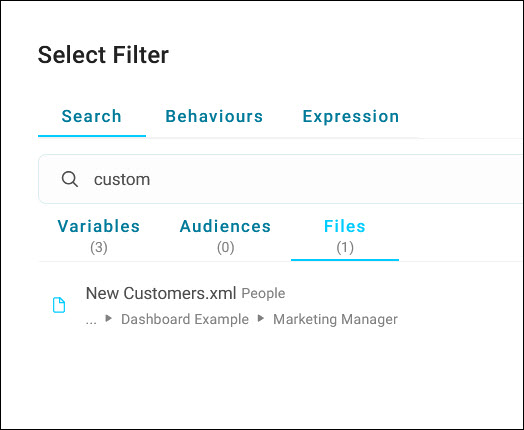
Search also covers your audiences and files.