Managing resources
You can use the workspaces menu to add, filter, or remove resources in your workspace.
Add resources
To add resources:
-
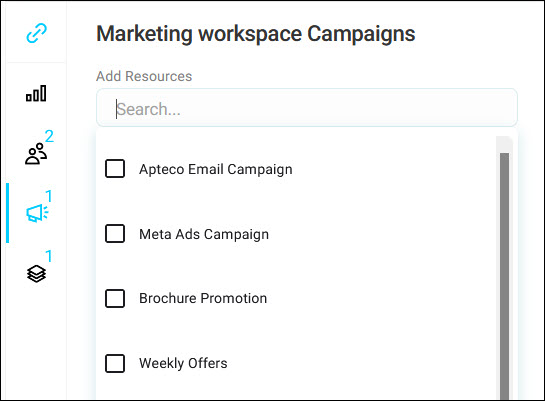
Select the Dashboards, Audiences, Campaigns, or Collections icon to search and select the resources you want to add.
-
Select + To Workspace.
Your workspace menu counts the resources added.
Note
Your administrator may have turned off one or more of these resource types. Turned-off types won't appear as icons in the workspaces menu.
Add the current resource
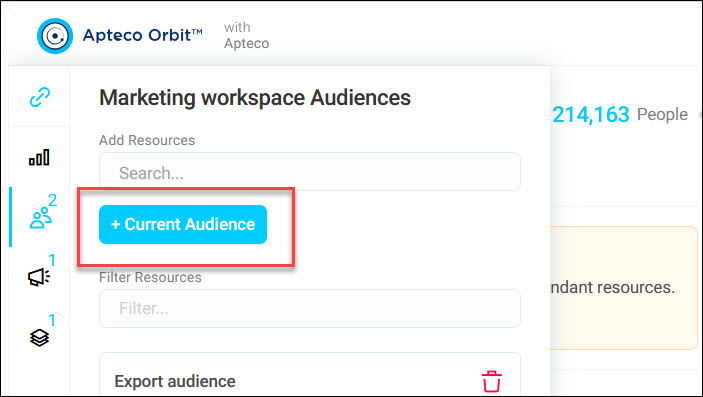
If you have a dashboard, audience, campaign, or collection open, a + Current [Resource] button appears in the workspaces menu. This lets you add it directly without searching.
Note
This button only shows if the resource isn't already in the workspace.
Filter resources
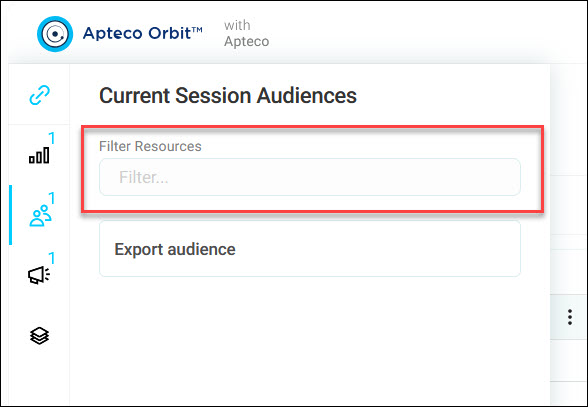
Use Filter Resources to narrow down the resources shown for the current type, without needing to search across your whole workspace.
Remove resources
To remove a linked resource, select the bin icon next to the resource.
This removes the link between the resource and the workspace.
Note
You aren't deleting any saved work by removing a linked resource from a workspace.