Email builder
Use the email builder to create email templates for your Apteco Email channel. You can open it from the Orbit homepage, the Campaigns screen, or an email step in the journey builder.
Accessing the email builder
You can access the email builder in the following ways:
-
Orbit homepage
If you're an administrator, select Email Builder in the Quick Actions panel on the Orbit homepage.
-
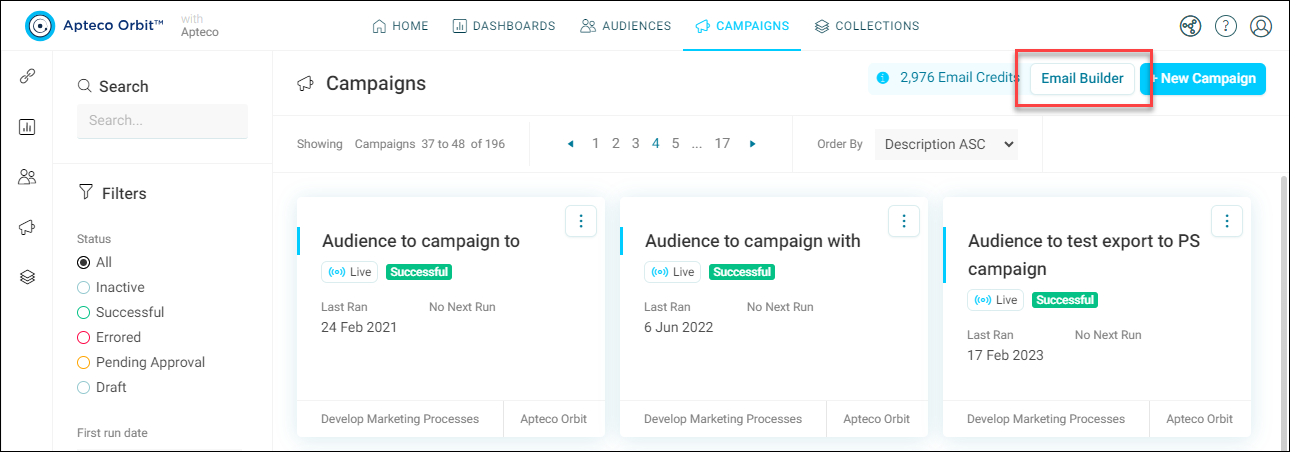
Campaigns overview screen
From the Orbit homepage, select Campaigns, then select Email Builder at the top right.
-
Journey builder
If you're using the journey builder to create and manage your marketing campaigns, you can access the email builder directly from within the journey builder interface.
Homepage or Campaigns screen
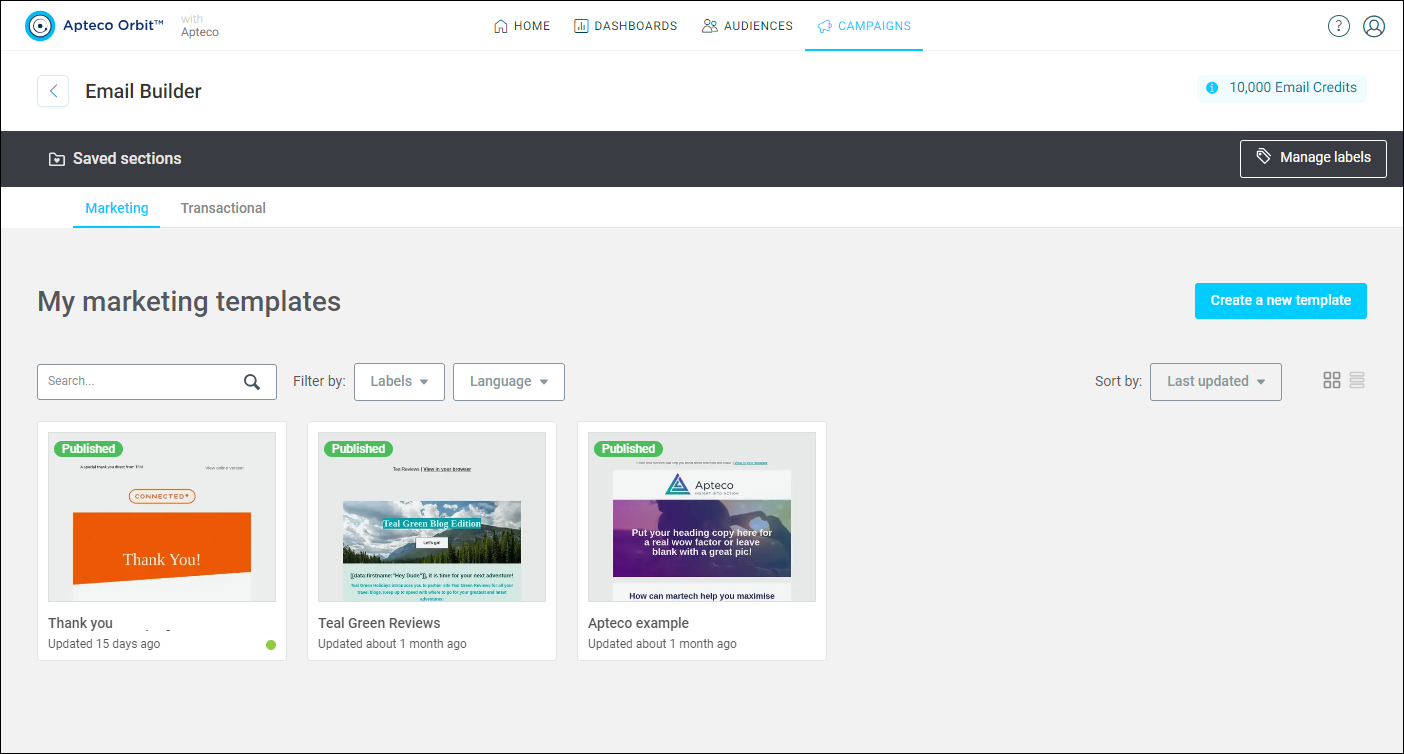
To launch the email builder, select Email Builder.
The content displayed on the screen depends on whether you have set up the Apteco Email channel to allow both Transactional and Marketing email templates.
Note
If you have set up your Apteco Email channel for contractual use, then only transactional email templates appear in the email builder. This is because you can choose to add an Unsubscribe link in the email or not. For marketing emails, an Unsubscribe link is automatically added.
Journey builder
You can also access the email builder during campaign setup, allowing you to choose whether to create the email first or combine the process of making the email and setting up the campaign journey.
To access the email builder from the journey builder:
- Set up a campaign journey as with Creating a campaign.
- Add an email journey step.
-
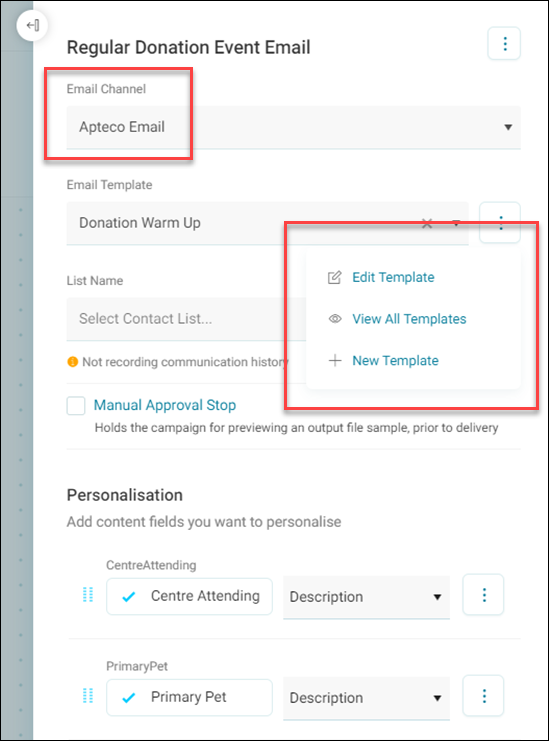
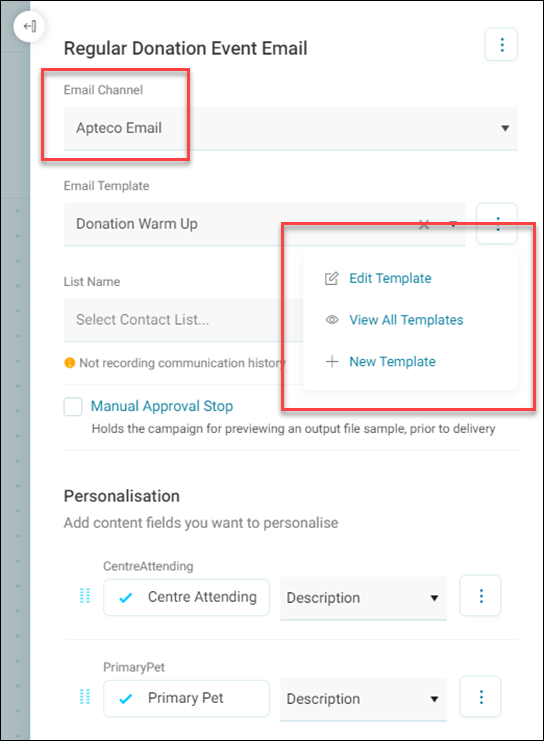
Select Apteco Email as the email channel.
An options menu appears on the right side of the email template. This contains options for editing, viewing, and creating new templates:
-
Select New Template.
-
You can now choose whether you wish to create a marketing or transactional template. Select the template you need, then select Create.
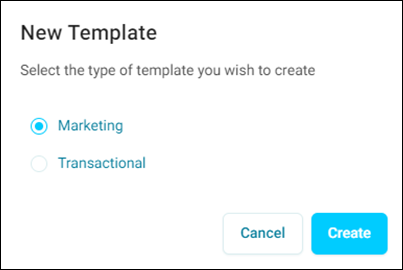
This takes you into the email builder on the correct tab for you to begin creating the relevant template.