Journey templates
Journey templates provide pre-built starting points for your marketing campaigns.
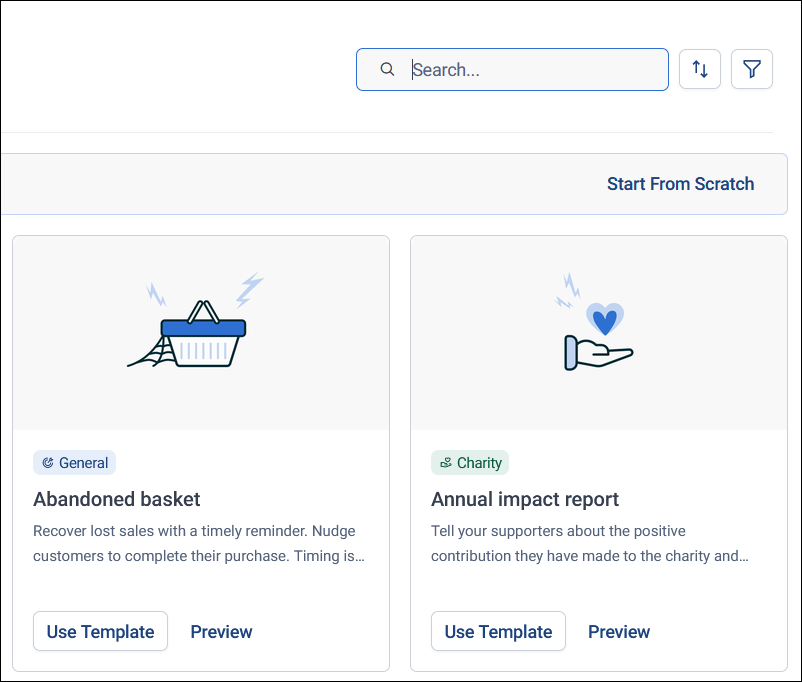
Orbit offers two types of journey templates:
-
Predefined templates: Professionally designed templates covering common scenarios, from single-stage campaigns to complex multi-stage journeys. Each one has a badge showing its category:
- General: Common marketing scenarios, such as an abandoned basket or a product launch
- Charity: 16 supporter journeys for the charity sector, such as regular giving or an emergency appeal
-
Custom templates: Templates you create by saving your own campaigns for reuse, or that others have shared with you. Custom template tiles show the table the campaign targets, such as People or Households, who created the template, and its sharing status.
Template availability by licence type
You can preview every predefined template, but the Use Template button only appears for templates included in your licence bundle. Campaigner and Orchestrator licences include every Broadcaster template, plus more.
General templates
Broadcaster:
- Birthday Campaign
- Newsletter
- Social
- Year 1 Thank You
Campaigner and Orchestrator also include:
- Abandoned Basket
- Birthday Campaign with Engagement Focus
- Event Campaign with Latecomers
- Event Campaign with Sequenced Comms
- Newsletter Campaign with Interactions
- Product Launch
- Purchase Acknowledgement
- Re-engagement Campaign
- Renewal
- Weekly Product Showcase
- Welcome
Charity templates
Broadcaster:
- Annual impact report
Campaigner and Orchestrator also include:
- Corporate giving
- Emergency appeal
- Event journey
- Events calendar
- Fundraising joy
- Get creative for our cause
- Legacy motivations
- Pledge and Donate
- Re-engaging supporters
- Regular giving
- Stewardship moments
- Supporter milestones
- Supporter motivations
- Volunteering push
- Welcome
Creating a campaign from a template
To create a campaign from a template:
-
Go to Campaigns and navigate to your desired folder location.
Tip
Orbit creates campaigns in your current folder location, so always navigate to your target folder before creating a new campaign.
-
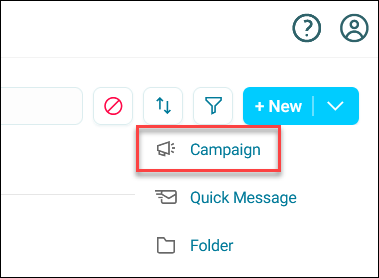
Select + New.
-
Select Campaign.
-
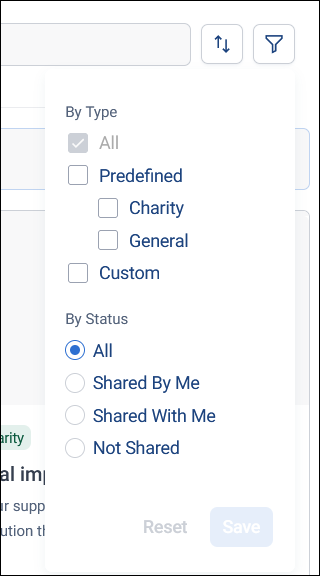
Find your desired template. Use the search box, the sort icon, or the filter icon to narrow the list. Sort options include Last Edited, Date Created, and Last Used.
In the filter, choose:
- By Type: All, Predefined (or just Charity or General), or Custom
- By Status: All, Shared By Me, Shared With Me, or Not Shared
Orbit applies the filter as soon as you choose an option. Select Save to keep the filter for the rest of your session. Select Reset to go back to your last saved filter.
Note
If templates don't meet your needs, select Start From Scratch to create a new blank journey in the journey builder.
-
Select Use Template.
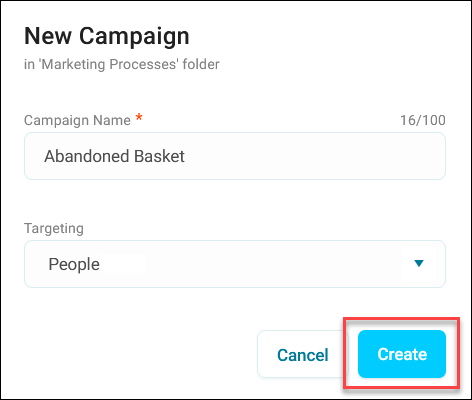
- Enter a name for your new campaign.
-
Expand the Targeting drop-down list to choose whether to target individuals or use transactional data to target transactional activity.
For more detail, see Transactional campaigns.
-
Select Create.
Your new journey opens in the journey builder. Follow the Journey ToDos to finish setting up your journey and add any additional steps you need.
Tip
Treat templates as starting points rather than finished campaigns. Review each element and customise them for your specific needs.
Previewing templates
Before applying a template, you can preview its structure and understand its features.
To preview a template:
- Go to Campaigns and navigate to your desired folder location.
- Select + New.
- Select Campaign.
-
Find your desired template and select Preview.
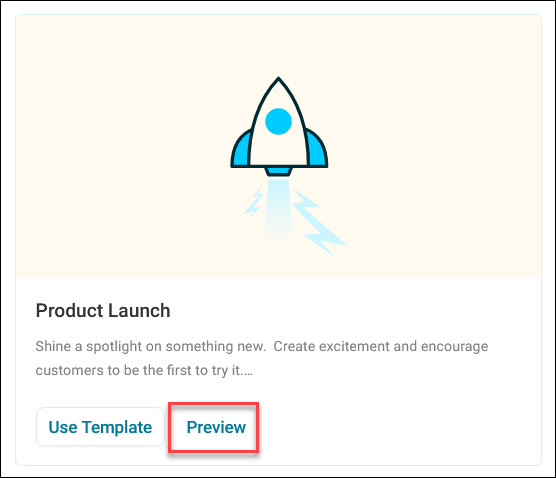
-
The preview screen contains three key sections:
- Title and description: Explains the template's purpose and target scenario. Key Orbit features used in the template appear in bold text
- Useful Links: Provides direct links to help documentation for features used in the template
- Journey preview: Displays a visual representation of the journey showing all steps, splits, and sections
Tip
Use the zoom controls in the bottom-right corner to fully view more complex journeys.
Creating custom templates
Custom journey templates let you standardise campaign structures across your team or clients. Save your successful campaigns as custom templates, then share them with the people who need them.
To create a custom template:
- Go to your campaign tile or open the campaign journey.
-
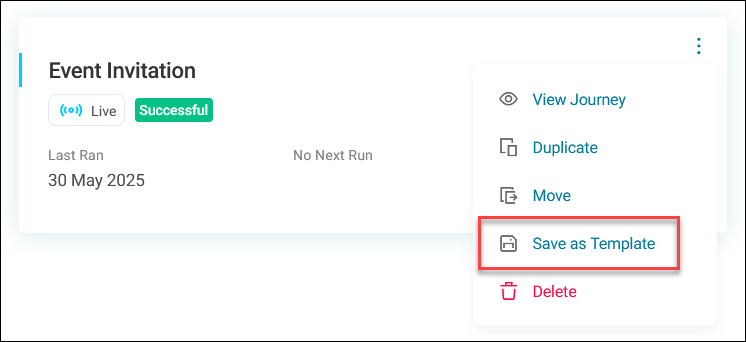
Expand the options menu and select Save as Template.
-
Enter a descriptive name under Template Name.
-
Under Notes, enter a template description.
Tip
Clearly explain the purpose of the journey, any key features, and when to use it.
-
Select Save.
Your custom template appears in the New Campaign dialog. Filter By Type > Custom to show only custom templates. In the confirmation message, select View Template to open it on the Templates page in the Resources area, where you can rename, describe, share, or delete it.