Templates
The Templates page lists the custom campaign templates you've created and the ones others have shared with you. Use it to find a template, start a campaign from it, or manage existing templates.
Note
The page doesn't list predefined templates. To use one of those, see Journey templates.
Access templates
To open templates:
- Select the Account and settings icon in the top-right corner.
- Select Resources.
- Select Templates.
Campaign templates appear under Campaigns, with the number of templates next to the heading. Each campaign template tile shows the table its campaign targets, such as People or Households.
Find a template
Narrow the list in any of these ways:
- Search: Enter text in the search box.
- Sort: Select the sort icon and choose an order. Options include Last Edited, Date Created, and Last Used.
- Filter: Select the filter icon, then choose All, Shared By Me, Shared With Me, or Not Shared under By Status. Orbit applies the filter straight away. Select Save to keep it for the rest of your session, or Reset to go back to your last saved filter.
Use or preview a template
Each template has the same options as in the New Campaign dialog:
- Select Use Template to create a campaign from it.
- Select Preview to see its description, useful links, and journey.
See Creating a campaign from a template.
Manage a template
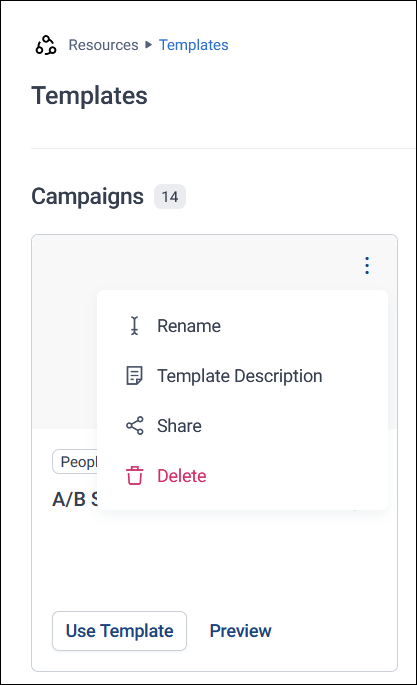
To manage a template, open the options menu on its tile, then select one of the following:
- Rename: Change the template's name
- Template Description: Edit the description shown on the tile and in the preview
- Share: Share the template with other users. See Share a template
- Delete: Delete the template
Share a template
To share a template:
- Open the options menu on the template's tile, then select Share.
- Enter the name or email address of a user, or a group name, then select Add.
- Choose an access level for each user or group: View Only or Edit. To share with everyone, set an access level next to All users.
- Optionally, select Send email notification.
-
Select Save & Share.
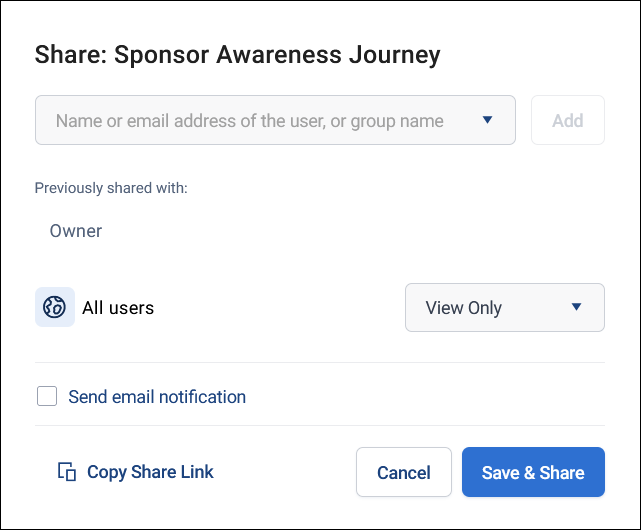
To send someone a direct link to the template, select Copy Share Link.
Note
Custom templates created before Orbit 2.5.2 don't have an owner. Everyone can see and use them, but only administrators can rename, edit the description of, share, or delete them. An administrator who renames, edits the description of, or shares one becomes its owner.