Filtering and searching campaigns
The navigation bar at the top-right of the campaigns screen lets you search for and filter your folders and campaigns. This helps you quickly locate specific items based on criteria such as name or status.
Searching for a campaign or folder
To search for a campaign or folder:
- Start typing the name of what you’re looking for in the search.
- The list of campaigns and folders narrows as you type, showing only those that match the search term.
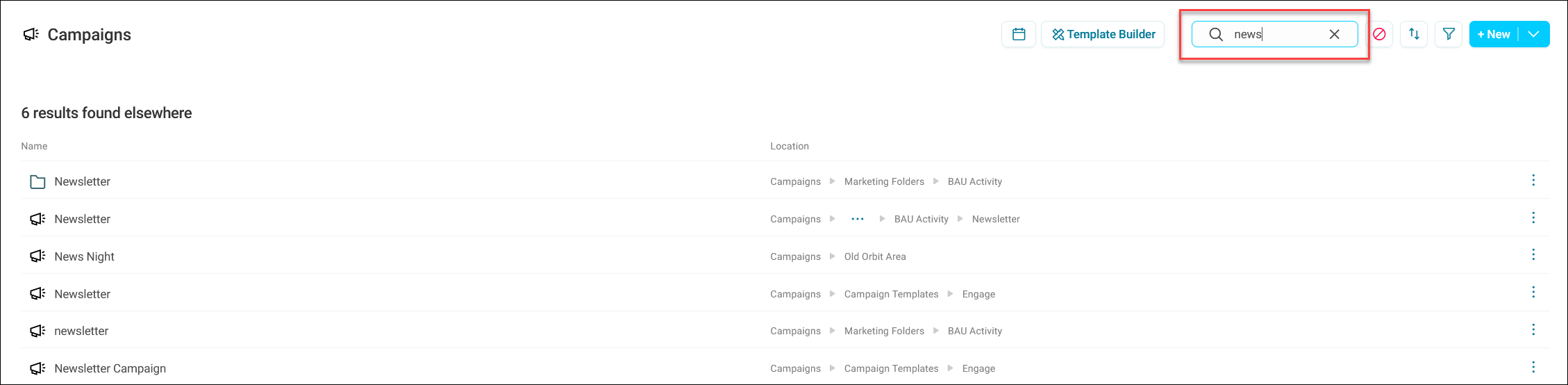
Search results show:
- Campaigns and folders matching your search in the current folder.
- Campaigns and folders matching your search elsewhere in your Orbit system.
Tip
To clear a search, click X to the right in the search field.
Note
Folders and campaign search results are indicated by their icon.
Filtering campaigns and folders
You can filter your campaigns and folders by:
- Status: All, Inactive, Successful, Errored, Pending Approval, or Draft
- First run date
- Last run date
- Next run date
-
Last opened date
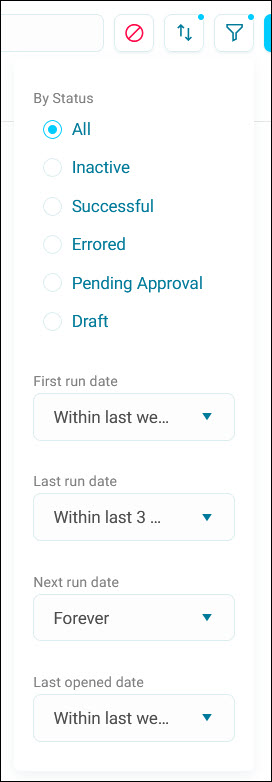
Each date field has its own drop-down, defaulting to Forever until you choose a specific range.
Applying a filter
To apply any filters:
-
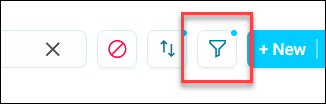
Click the filter icon.
-
Select the desired Status.
- Use the drop-down menus to filter by run dates to help focus on campaigns within a specific timeframe.
You’ve now applied filters to your search.
Tip
You can use both search and filter options simultaneously to further narrow down results.
To clear every filter you've applied in one go, click Reset. Reset is only available once at least one filter is active.
Sorting campaigns and folders
You can order your search results using the sort dropdown, by Name, First Run, Last Run, Next Run, or Last Opened.
Choosing Name sorts alphabetically (A-Z or Z-A). Choosing any of the other fields sorts by date (Newest First or Oldest First).
Note
Orbit remembers your last-used sort order and grid or list view choice, so you don't need to reselect them each time you return to the Campaigns screen.