Custom queries
A custom query lets you define exactly what a data source imports, instead of selecting a single table or view. Write a query to choose columns, filter rows, join related tables, or reshape data before it reaches Orbit Connect. You don't need to wait for your database team to create a view for you.
You can use custom queries with these data sources:
- Database connections: PostgreSQL, Amazon Redshift, Snowflake, and Microsoft SQL Server, including Azure SQL. You write the query in SQL.
- Salesforce: You write the query in Salesforce Object Query Language (SOQL).
Before you begin
Custom queries run directly against your source system, so check you have:
- A credential for the data source. For a database source, use one with read-only access.
- Knowledge of the query language for your source. Orbit Connect doesn't include a query builder, so develop and test your query in your usual database or Salesforce tools first.
Warning
For a database source, Orbit Connect runs your query exactly as you write it, with the permissions of the credential you choose. It runs the query when you preview the data, as well as when you import it. If the credential allows it, a query can change or delete data in your database, for example with a DROP TABLE statement. Always use a database account with read-only access for custom queries.
Use a custom query with a database source
Add a custom query when you set up a database data source, in place of choosing a table or view.
To use a custom query with a database source:
- In Orbit Connect, go to Data Sources and select + New Data Source.
- Next to your database type, select Connect.
- Enter a Data Source Name and select Create.
- From the Credential list, choose a read-only credential, or select + New Credential to add one.
-
If you're adding a credential, enter the Credential Name and Connection String, then select Add.
For connection string formats, see Database connections.
-
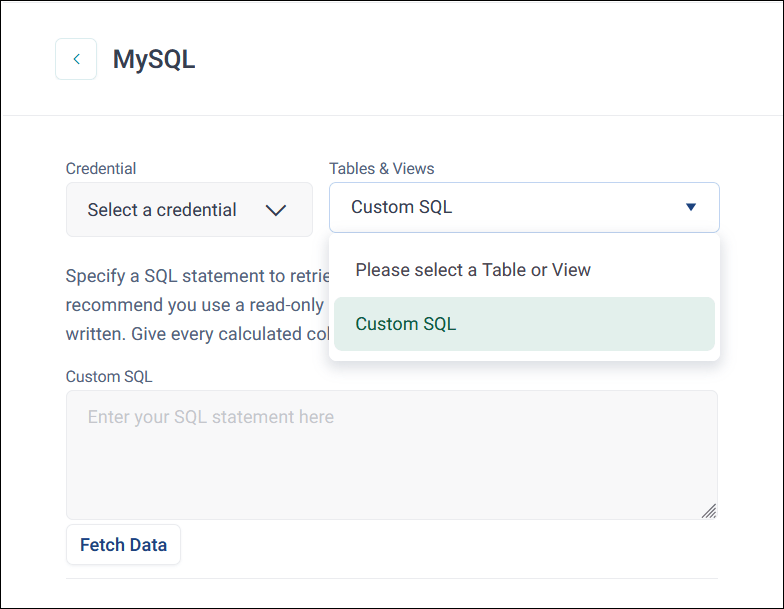
From the Tables & Views list, select Custom SQL.
-
In the Custom SQL box, enter a single SQL statement. Give every calculated column an alias, using
ASor your database's equivalent. -
Select Fetch Data to run the query.
A preview of the results appears.
-
Select Import.
You can now map your data to a User Defined Table or, if you use the Apteco CDP, to a Customer Data Table.
Database query examples
These examples use a charity's supporter database. Change the table and column names to match your own, and adjust the syntax for your database type where it differs.
Choose columns and filter rows
This query imports contact details for active supporters only:
Join related tables
This query imports each donation along with the name of the campaign it came from:
SELECT d.DonationID, d.SupporterID, d.Amount, d.DonationDate, c.CampaignName
FROM Donations d
JOIN Campaigns c ON c.CampaignID = d.CampaignID
Summarise data
This query imports one row per supporter, with their giving history totalled:
SELECT SupporterID,
       COUNT(*) AS DonationCount,
       SUM(Amount) AS TotalDonated,
       MAX(DonationDate) AS LastDonationDate
FROM Donations
GROUP BY SupporterID
Use a custom query with Salesforce
For a Salesforce data source, you write your query in SOQL. Your system administrator must first set up Salesforce for access by Orbit Connect. For more information, see Salesforce.
To use a custom query with Salesforce:
- In Orbit Connect, go to Data Sources and select + New Data Source.
- Next to Salesforce, select Connect.
- Enter a Data Source Name and select Create.
-
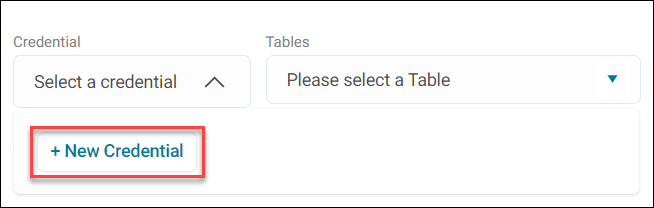
From the Credential list, choose an existing credential, or select + New Credential to add one.
-
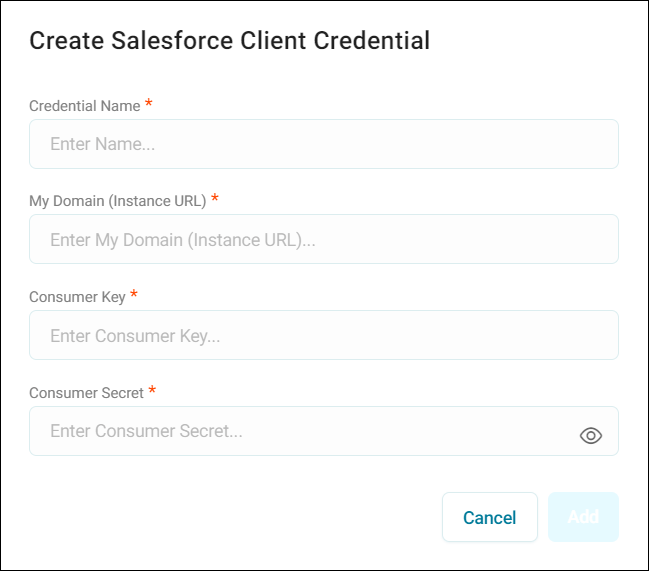
If you're adding a credential, enter the Credential Name, My Domain (Instance URL), Consumer Key, and Consumer Secret, then select Add.
-
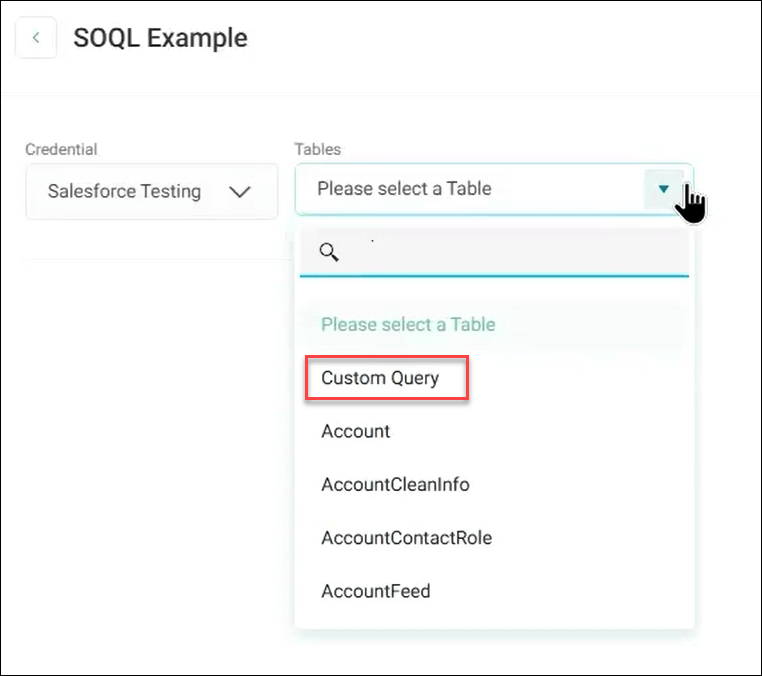
From the Tables list, select Custom Query.
-
Enter your SOQL query in the text box.
-
Select Fetch Data to run the query.
A preview of the results appears.
-
Select Import.
You can now map your data to a User Defined Table or, if you use the Apteco CDP, to a Customer Data Table.
Salesforce query examples
These examples import data from the Salesforce Contact table and its parent Account table.
Retrieve data from the Contact table
This query imports names and mailing addresses for all contacts:
SELECT Salutation, LastName, FirstName, Name,
MailingStreet, MailingCity, MailingState, MailingPostalCode
FROM Contact
Retrieve data from the Contact and Account tables
Account is a parent table of Contact, so you can include its columns in a query on Contact:
SELECT Id, Salutation, FirstName, LastName, Email,
MailingStreet, MailingCity, MailingState, MailingPostalCode,
Account.Name, Account.Type, Account.Industry, Account.BillingStreet,
Account.BillingCity, Account.BillingState
FROM Contact
Retrieve filtered data from the Contact and Account tables
This query imports the same columns, filtered to contacts that aren't deleted and whose account is billed in California:
SELECT Id, Salutation, FirstName, LastName, Email,
MailingStreet, MailingCity, MailingState, MailingPostalCode,
Account.Name, Account.Type, Account.Industry, Account.BillingStreet,
Account.BillingCity, Account.BillingState
FROM Contact WHERE IsDeleted = false AND Account.BillingState = 'CA'
Salesforce query limitations
Orbit Connect runs SOQL queries through the Salesforce Bulk API 2.0, which doesn't support queries that include any of these items:
GROUP BY,OFFSET, orTYPEOFclauses- Aggregate functions such as
COUNT() - Date functions in
GROUP BYclauses. Date functions inWHEREclauses are supported. - Compound address fields or compound geolocation fields. Query the individual components of compound fields instead.
- Parent-to-child relationship queries. Child-to-parent relationship queries are supported, so you can use columns from parent tables up to five levels above, but not from child tables.
For more information, see Bulk API 2.0 queries in the Salesforce documentation.
Tools for writing Salesforce queries
Use these Salesforce resources to develop and test your SOQL query before you enter it in Orbit Connect: