UTM code tracking
UTM codes are unique parameters appended to your campaign links. These codes help you track performance by identifying the source, medium, and specific campaign driving traffic to your website.
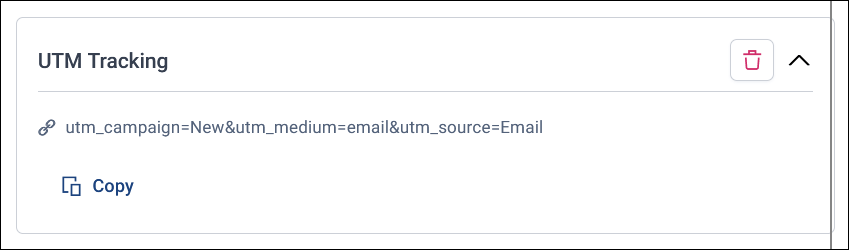
The three primary UTM parameters are:
- UTM Campaign: Identifies the name of your campaign
- UTM Medium: Specifies the marketing medium, such as email or WhatsApp
- UTM Source: Identifies the source of the traffic, such as the message name
Note
UTM tracking is available for Apteco Email, Apteco SMS, and WhatsApp messages.
Add UTM tracking to a message
You turn on UTM tracking for each message in your campaign journey by adding a UTM Tracking section to it.
To add UTM tracking:
- Open your campaign journey.
-
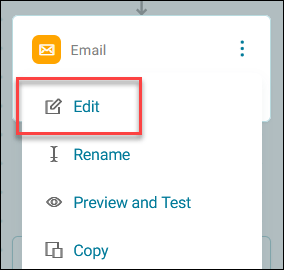
Select the option menu on your message step, then select Edit.
-
Select + Add, then UTM Tracking.
The UTM Tracking section shows the parameters Orbit adds to your links. To use them somewhere else, select Copy.
Default UTM code mapping:
- UTM Campaign: The name of your Orbit campaign
- UTM Medium: Always set to either
email,sms, orWhatsApp - UTM Source: The message name as it appears in Orbit
Orbit appends UTM parameters automatically to all links in your message. To turn off UTM tracking for the message, select the delete icon on the UTM Tracking section.
Reporting with UTM codes
To analyse campaign performance with UTM codes, you need a tracking tool set up on your website, such as Google Analytics. When you've added UTM tracking to a campaign's messages, the Campaign Overview tab provides a summary of Google Analytics statistics at the campaign level. For more granular details, you can link directly to your Google Analytics account using the button provided on the Overview tab.