Configure Orbit for campaign reporting
Orbit's message objectives need specific tables and tagged fields in your FastStats system. So do the campaign report metrics that depend on objectives, such as responses, revenue, and ROI. If these tables or tags are missing, objectives report nothing, even when the campaign itself is running correctly.
Required tables
The standard PeopleStage design includes the following tables:
- Communications
- Content
- Journey History
- Responses Attributed
- Communication Responsible
- Areas For Campaign
Adding the standard design
If your system doesn't include these tables yet, merge the standard PeopleStage design into your FastStats design. It's the fastest way to add them.
To add the standard design:
-
Locate
PeopleStage Standard Design.xml. It's included inWebService.zipfor your release, at: -
Extract and copy the XML file onto your build machine.
- Open your design in FastStats Designer.
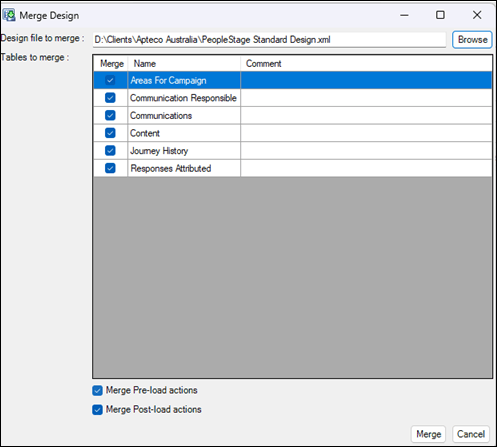
- From the File menu, choose Merge.
-
Select Browse, then choose the XML file you copied.
-
Leave Merge Pre-load actions and Merge Post-load actions checked.
- Select Merge.
This adds the six tables to your Data Sources and Table Relationships. The joining lines initially display in red, as the relationships aren't yet valid.
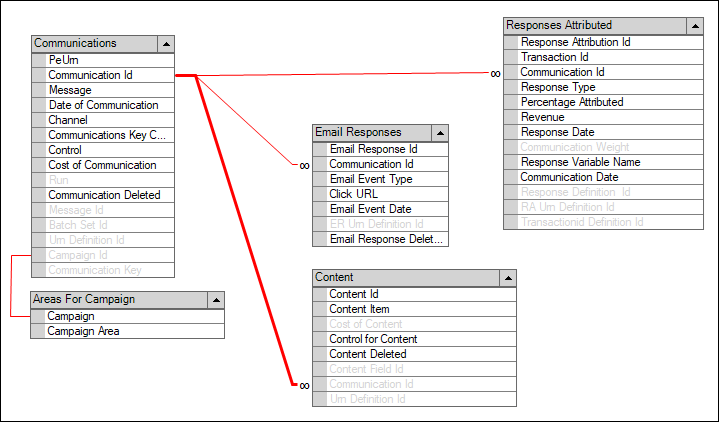
Join the Communications table to the relevant contact ID in your design to complete these relationships.
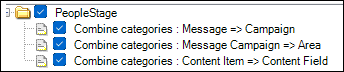
The merge also adds the required Post Load Actions automatically:
Using your own tables
If you're not using the standard tables, you can tag your own equivalent tables and fields instead.
Tables to tag
Tag each of your equivalent tables with the matching tag:
| Your table | Tag |
|---|---|
| Communications equivalent | Communications |
| Responses Attributed equivalent | AttributedResponses |
| Email Responses equivalent | EmailResponses |
Fields to tag
Tag each field in your equivalent tables with the matching tag:
| Field | Table | Tag |
|---|---|---|
| Date of Communication | Communications | CommunicationDate |
| Cost of Communication | Communications | CommunicationCost |
| Communication Channel | Communications | CommunicationChannel |
| Message | Communications | CommunicationMessage |
| Campaign Name | Communications | CampaignName |
| Control | Communications | CommunicationControl |
| Attributed Response Type | AttributedResponses | ResponseType |
| Percentage Attributed | AttributedResponses | ResponsePercentage |
| Response Revenue | AttributedResponses | ResponseRevenue |
| Response Date | AttributedResponses | ResponseDate |
| Response Event Trigger Date | EmailResponses | EmailResponseDate |
| Email Response Type | EmailResponses | EmailResponseEvent |
Tagging a table
To tag a table:
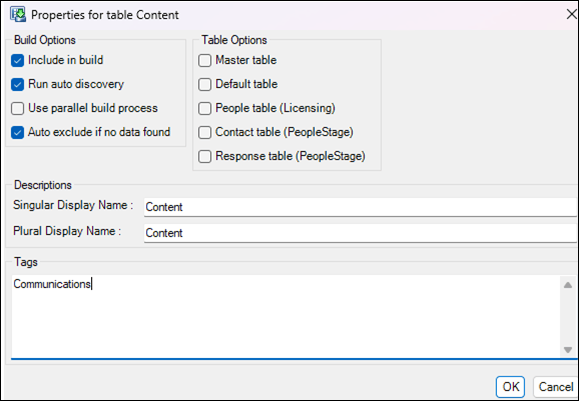
- In Table Relationships, right-click the table header.
- Select Properties.
-
Enter the tag name into the Tags box.
-
Select OK.
Tagging a variable
To tag a variable:
- Go to Define Variables.
- Select the Tags cell for the variable.
- Select the ellipsis button that appears.
-
Enter the tag name in the dialog.
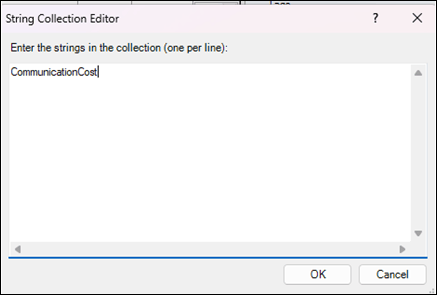
-
Select OK.
Keeping the Responses Attributed table up to date
The Responses Attributed table comes from PeopleStage's Response Attribution process, which runs automatically on every rebuild and deployment. A PeopleStage administrator can also run it manually.
If the Responses Attributed table isn't included in a rebuild, message objectives report 0 responses, even though the campaign is otherwise working as expected.