Setting up Apteco SMS webhooks for responses
Webhooks are the preferred method for collecting responses from SMS providers because they provide real-time updates without the need for scheduled polling.
Warning
If your system uses cloud hosting and often shuts down, SMS webhooks may not be ideal. Sinch (Apteco's SMS provider) retries sending webhook data for up to 24 hours, then discards unsent data.
For more detail on using Apteco SMS, see Apteco SMS.
How the Apteco SMS webhook works
When a recipient responds to an Apteco SMS message, Apteco forwards the response as a .json request to the webhook. Responses are temporarily stored in:
- If processed successfully, the system inserts responses into the Response and ResponseDetails tables in the RS database.
- If an error occurs, the system generates
.errfiles in the same directory for troubleshooting.
Pre-requisites
- The API Key and API Secret used to configure the SMS channel
- A configured and running Orbit instance with the Apteco SMS channel set up
- An email response database (RS_) with connection details available
- The OrbitResponsesAPI downloaded and ready to use
Verification steps
-
Run FastStats Orbit Updater Configurator (
UpdaterConfigurator.exe) as Administrator: -
Select the Responses API tab.
- Check that the Base URL points to the correct OrbitResponsesAPI and select Test.
- If not installed, change the Update option to Update if not installed or if a newer version is available.
- If the update option was previously set to Don't Update or the API was missing, restart the FastStats Orbit Updater service.
-
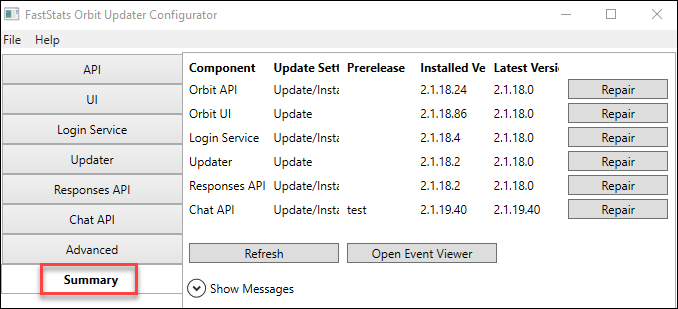
Use the Summary page to confirm the Responses API installation status.
-
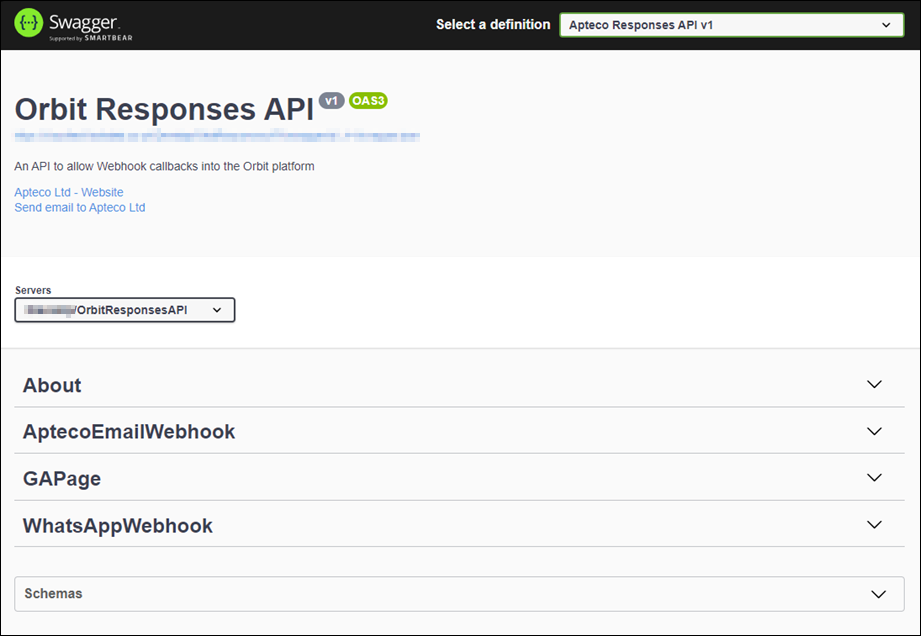
Test the OrbitResponsesAPI via Swagger by navigating to:
Configure the Apteco SMS section
Add the following to your appsettings.json configuration for the OrbitResponsesAPI:
"AptecoSMS": {
  "ConnectionString": "user id=faststats_service;password=;initial catalog=RS_DB01;data source=localhost;pooling=true;max pool size=10000;",
  "SystemConnectionString": "user id=faststats_service;password=;initial catalog=WS_DB01;data source=localhost;pooling=true;max pool size=10000;",
  "OrbitApiUrl": "",
  "OrbitDataViewName": "DB01",
  "ApiKey": "",
  "ApiSecret": "",
  "OptOutKeywords": "OPTOUT,STOP,UNSUBSCRIBE"
}
Where:
OrbitApiUrl: the address for the Orbit API, found in the API section of FastStats Orbit Updater ConfiguratorOrbitDataViewName: the Data View name configured for Apteco SMS
Save the file after making changes.
Obtain the webhook URL
- Open the Swagger page:
OrbitResponsesAPI/swagger/ui/index.html - Expand the AptecoSmsWebhook section.
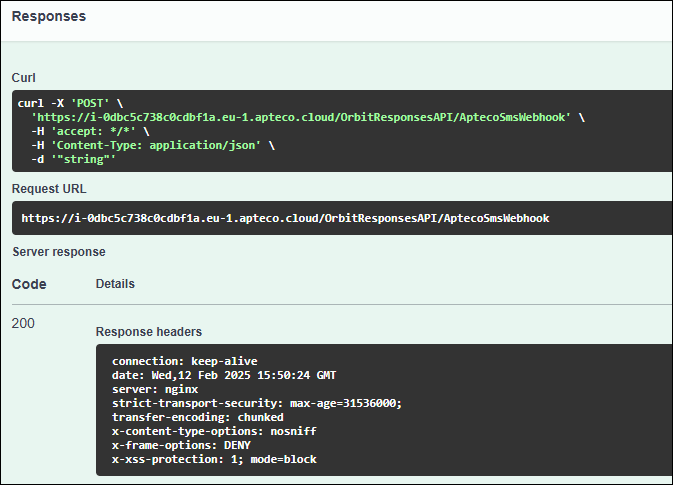
- Select Try It Out and then Execute.
-
The Request URL displayed is the Apteco SMS webhook URL.