Undo, redo, and reset journey changes
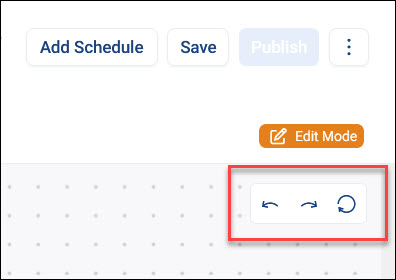
While editing a campaign journey, three controls in the top-right corner let you step back and forward through your recent changes: Undo, Redo, and Reset.
Note
These controls are only available in Edit mode, and only become active once you've made at least one change to the journey.
Undo and redo
- Undo reverts your most recent edit one at a time, such as adding a step, renaming a step, or changing a step's settings. Keep clicking it to step back further through your edit history.
- Redo reapplies a change you've just stepped back from using Undo.
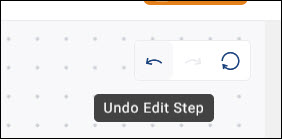
Hovering over either button shows a tooltip naming the specific action it affects, so you always know what you're about to undo or redo before you click.
Reset
Reset reverts every change you've made since you last saved, in a single action.
Note
Reset isn't the same as Discard Changes. A reset is tracked in your undo/redo history, so you can undo it to bring your changes back, then redo it again if you change your mind. Discard Changes also reverts to your last saved version, but permanently. Once discarded, you can't recover those changes.