Custom variables
A custom variable is a user-defined variable. You can derive it from other data variables in your system, or from data you import. Once created, it behaves like any other variable in Orbit, whether as a dimension on a dashboard tile or a filter on an audience.
Examples
- Scores or codes from an external file
- A variable that groups other data together based on rules you define
Custom variables bring together every variable in one place, whether built directly in Orbit or created in your underlying FastStats system. If you change or delete a variable in FastStats, that change reflects in Orbit automatically.
Note
Variables built through the FastStats system, rather than by an Orbit user, stay read-only.
Access custom variables
To open custom variables:
- Select the Account and settings icon in the top-right corner.
- Select Resources.
-
Select Custom Variables.
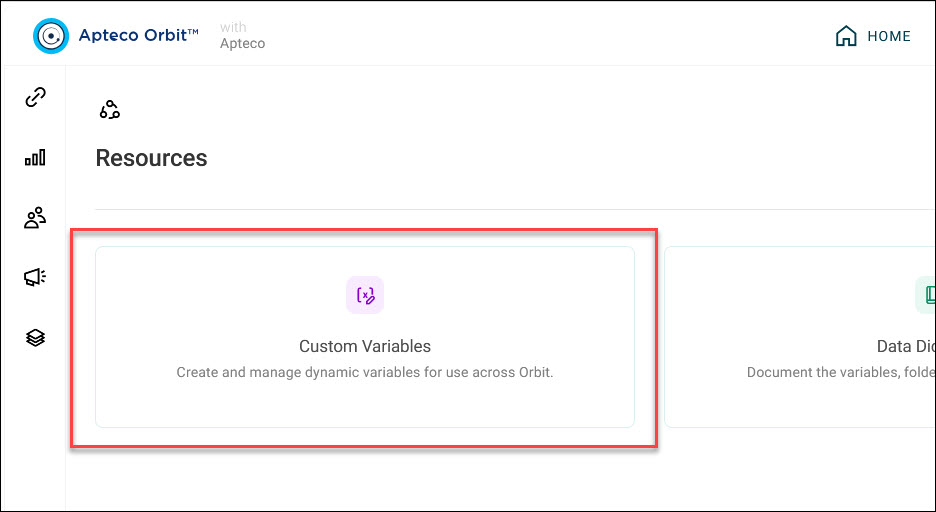
Create a variable
Select + New Variable from the Custom Variables list, then choose a type:
- Upload data: build a variable from a
CSVorTXTfile you upload. - Combine audiences: build a variable from your existing audiences, variables, and behaviours.
Manage variables
The list shows every custom variable in your system, split across two tabs: Custom Variables (active) and Archived.
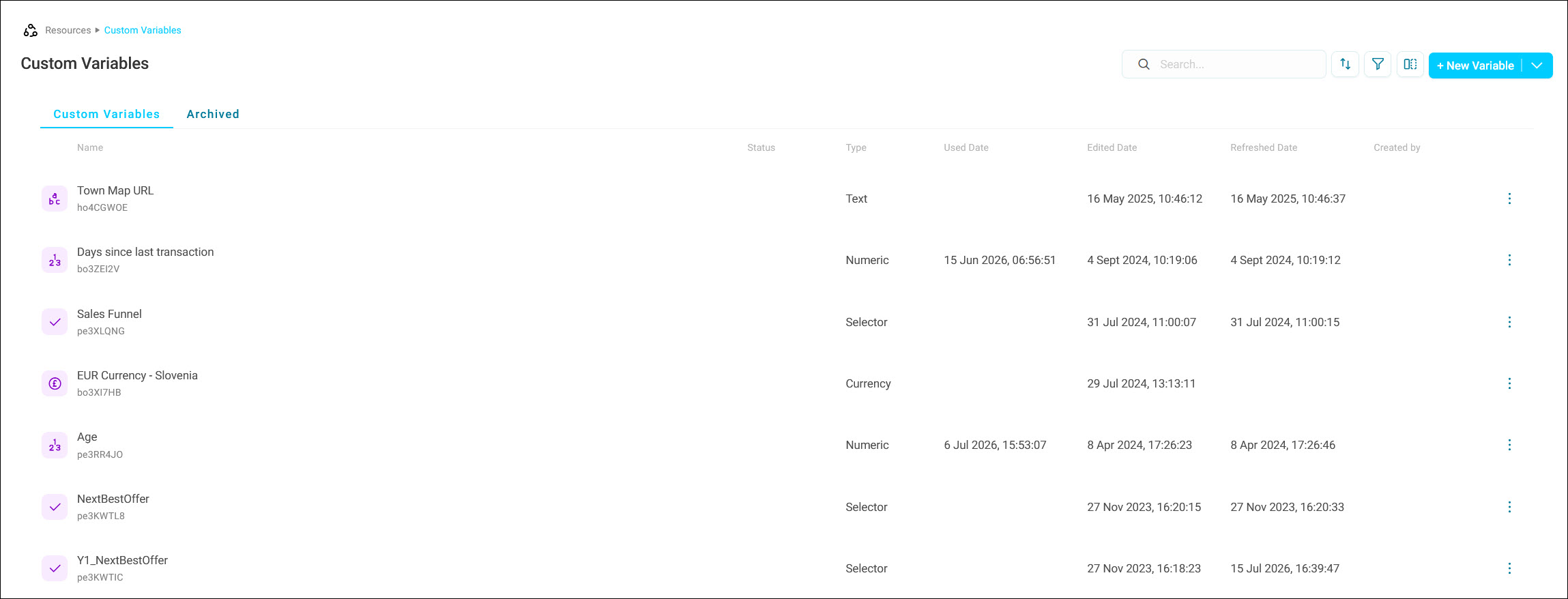
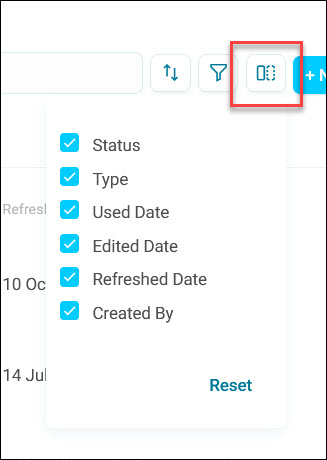
By default, the Custom Variables tab shows the Status, Type, Used Date, Edited Date, Refreshed Date, and Created By columns.
You can:
-
Search for a variable
-
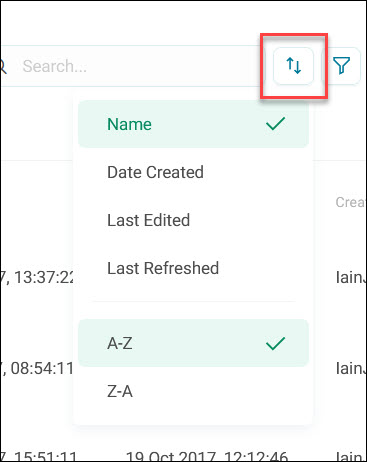
Sort the list by name, date created, last edited, or last refreshed, in ascending or descending order
-
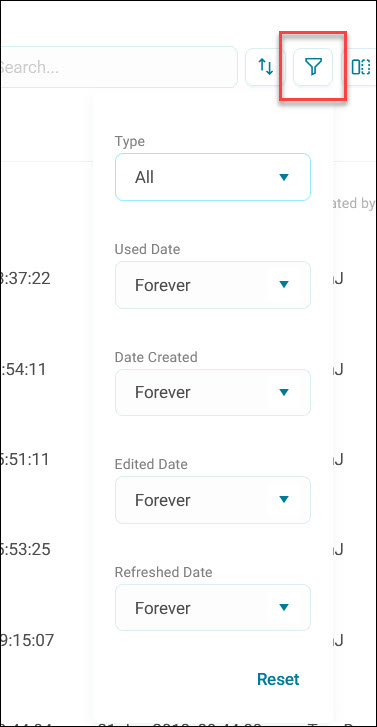
Filter the list by type, or by used, created, edited, or refreshed date
-
Choose which columns to show
-
View the details of a variable using the options menu, then View Details
-
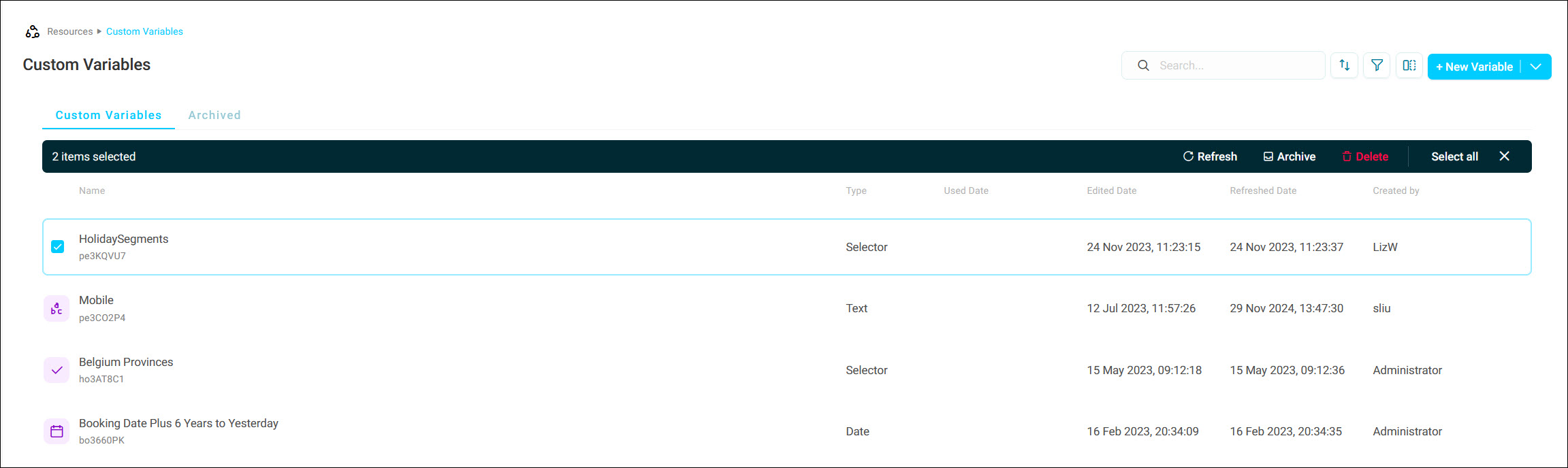
Select multiple variables at once to refresh, archive, or delete them together
Refresh a variable
Refresh recreates a custom variable using its original definition, picking up any changes to the underlying data since you created it. You'll see a confirmation notification once it's done.
If other custom variables depend on the one you're refreshing, you're offered the option to refresh those dependents too. Select multiple variables to refresh at once, and Orbit removes any duplicates from the dependent list automatically, so each variable only refreshes once.
Edit a variable
Use the options menu on a variable, then Edit, to reopen the dialog you created it with, pre-populated with its current settings. You'll see a confirmation notification once your changes take effect.
Archive and restore variables
- Archive a custom variable to remove it from the active list without permanently deleting it. You're asked to confirm before it's archived.
-
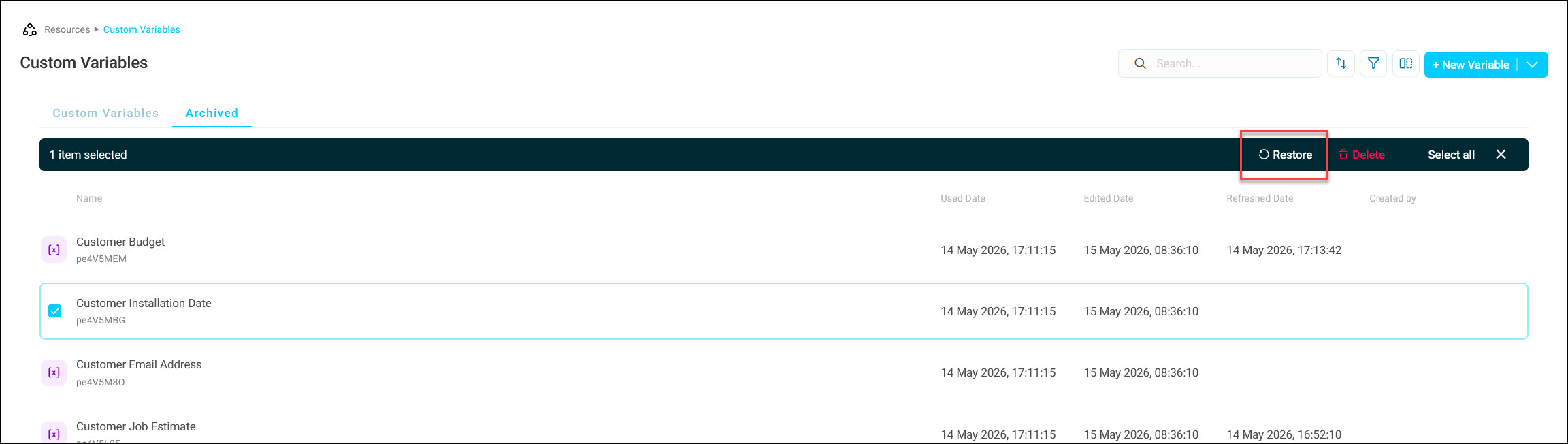
Restore an archived custom variable, from the Archived tab, to bring it back.
Delete a variable
- Delete a custom variable to remove it permanently. You're asked to confirm before it's deleted, and this can't be undone.
Permissions
Access works in two parts. The first is whether you can see the Custom Variables area at all. The second is what you can do with an individual variable once you're there.
Accessing the Custom Variables area
This depends on whether your system has permissions switched on:
| Permissions | Role | Access |
|---|---|---|
| Off | Non-admin | No access |
| Off | Admin | Access |
| On | Non-admin, without the permission | No access |
| On | Admin, without the permission | No access |
| On | Non-admin, with the permission | Access |
| On | Admin, with the permission | Access |
Once you switch on permissions, being an admin doesn't grant access on its own. You must also apply the permission to your profile.
Working with an individual variable
What you can do with a specific custom variable depends on the standard FastStats permissions for that variable, not a separate Custom Variables permission:
| Action | FastStats permission required |
|---|---|
| View | Read |
| Refresh | Update |
| Edit | Update |
| Archive | Delete |
| Delete | Delete |
Note
These permissions only apply once you've refreshed a variable at least once and it's active. An unrefreshed variable has no restrictions.
See Permissions for more detail on setting up roles and rights.