Setting up single sign-on with OneLogin
This article takes an administrator through the process of setting up Single Sign-On (SSO) with OneLogin using Security Assertion Markup Language (SAML).
You can start a free OneLogin trial at onelogin.com/free-trial.
Create an app in OneLogin
- Log in to the OneLogin portal.
- Select Administration.
-
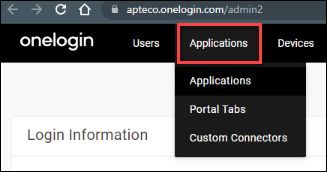
Select Applications, then select Applications from the drop-down menu.
-
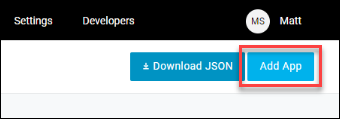
Select Add App.
-
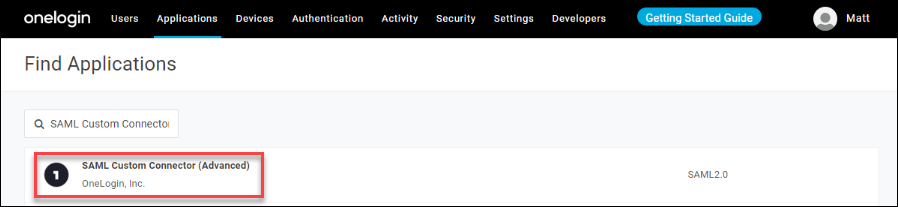
Search for "SAML Custom Connector" and select SAML Custom Connector (Advanced).
-
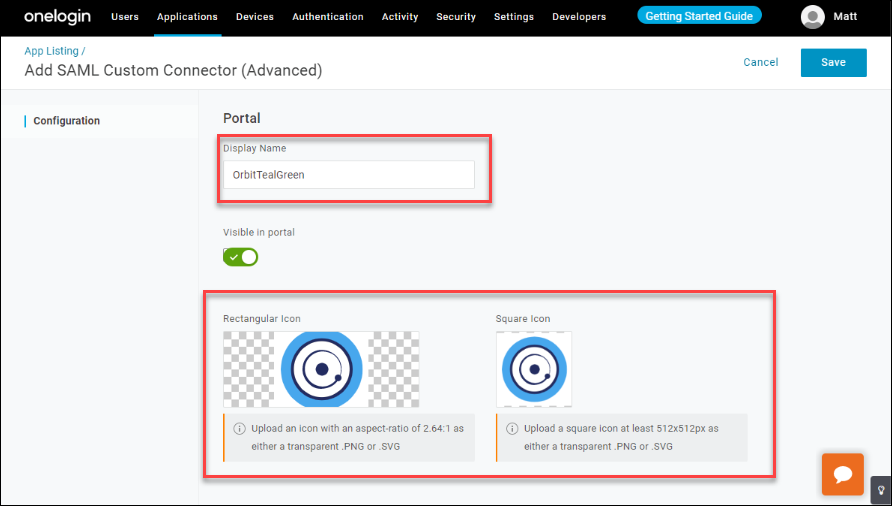
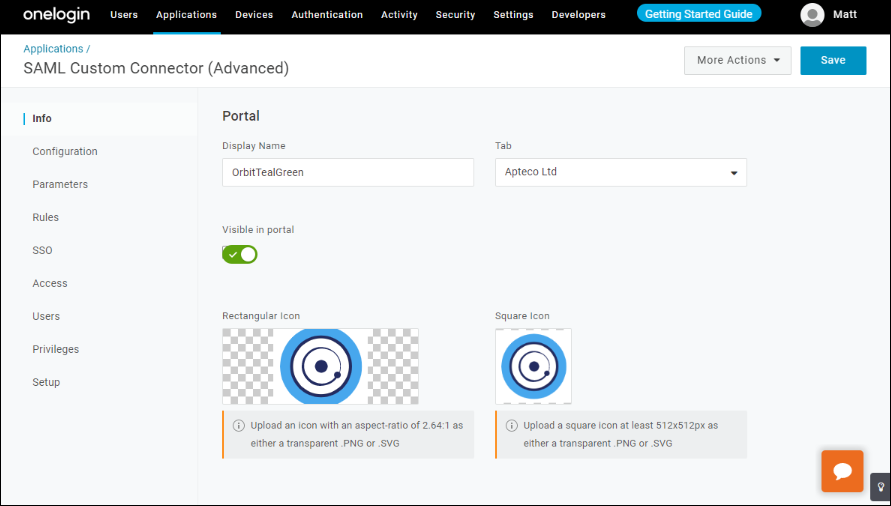
Change the Display Name and add icons.
-
Select Save. Add the icons again after saving.
Configuration tab
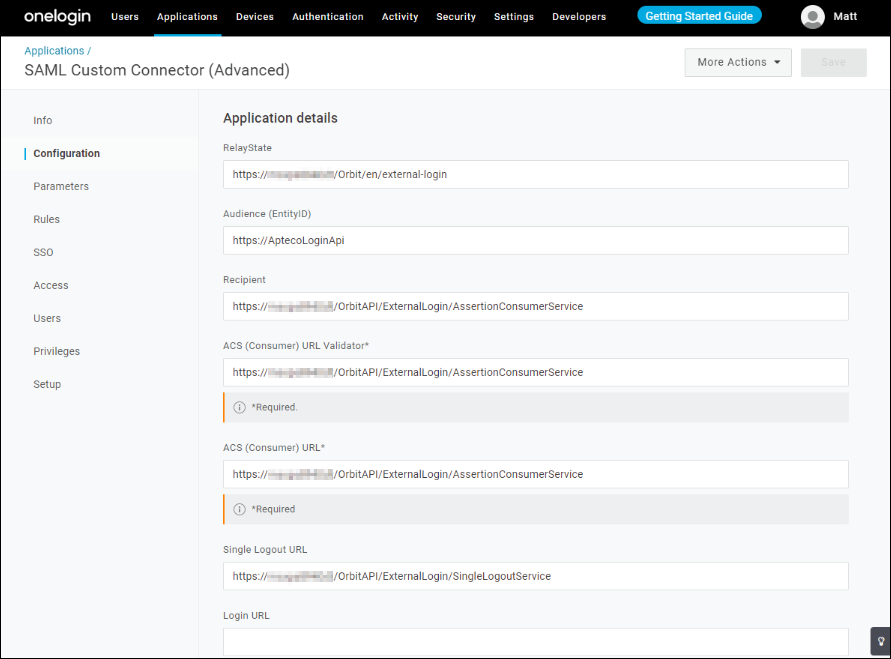
Enter the following details on the Configuration tab:
| Field | Value |
|---|---|
| RelayState | https://[your-server]/Orbit/en/external-login |
| Audience (EntityID) | https://AptecoLoginApi |
| Recipient | https://[your-server]/OrbitAPI/ExternalLogin/AssertionConsumerService |
| ACS (Consumer) URL Validator | https://[your-server]/OrbitAPI/ExternalLogin/AssertionConsumerService |
| ACS (Consumer) URL | https://[your-server]/OrbitAPI/ExternalLogin/AssertionConsumerService |
Single sign-on tab
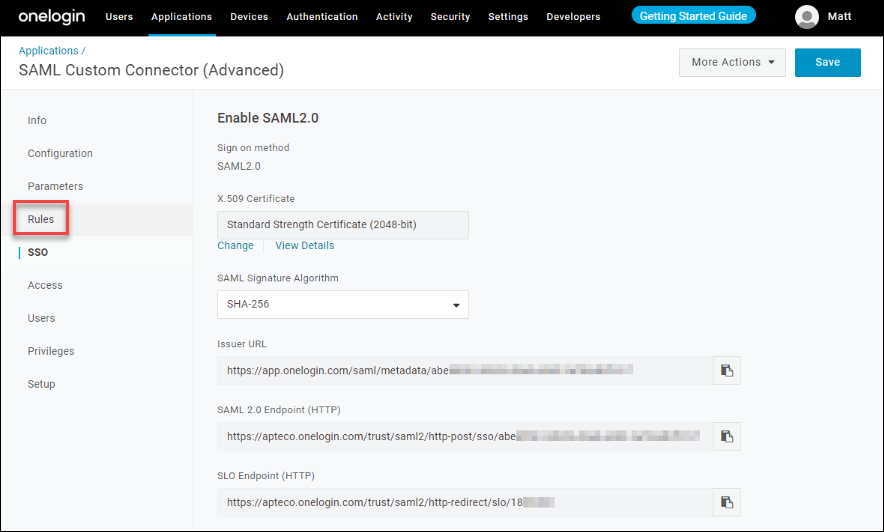
- Create a certificate and endpoint at OneLogin.
-
For SAML Signature Algorithm, select at least SHA-256. The Orbit Login Service configuration uses the Issuer URL/SAML/SLO endpoint.
-
Select Save.
Certificates
-
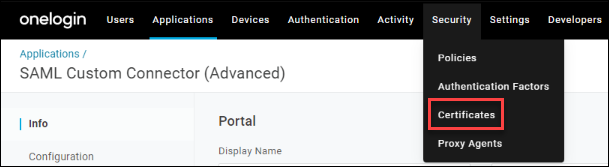
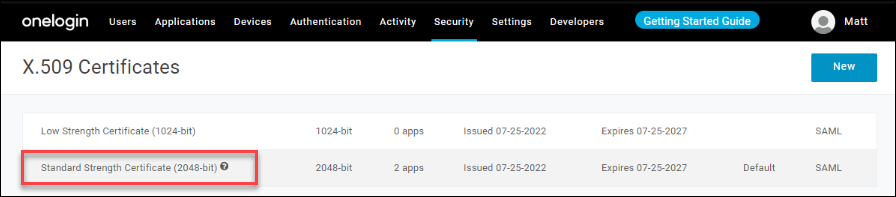
Select Security, then Certificates.
-
Select the Standard Strength Certificate (2048-bit).
-
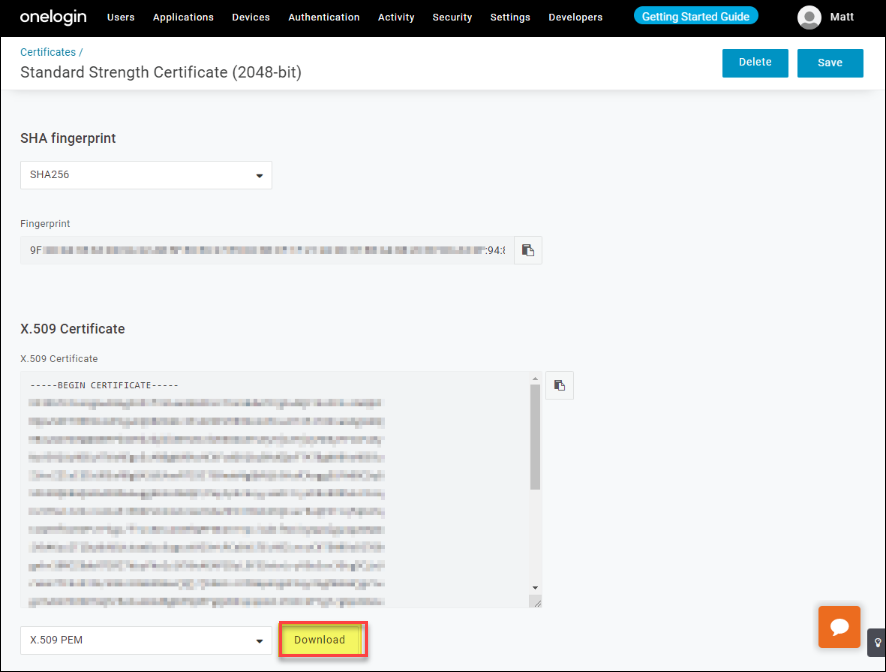
Change the SHA fingerprint to match the SAML Signature Algorithm (at least SHA-256).
-
Select Download.
-
Move the
onelogin.pemcertificate to the OrbitLoginService Certificates directory: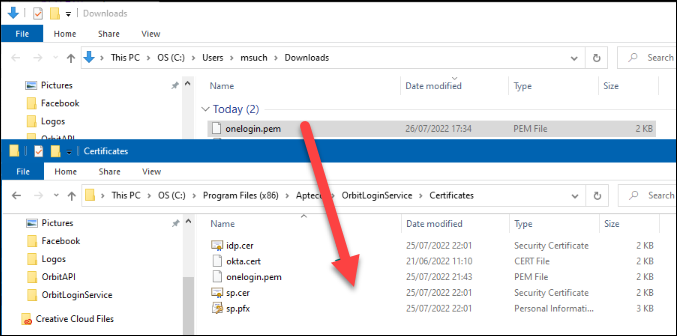
Configure the Orbit Login Service
See Orbit login service to install and configure the Login Service first.
Configure the Local Service Provider using the following values:
| Field | Value |
|---|---|
| Name | https://AptecoLoginApi (must exactly match Audience (Entity ID) in OneLogin) |
| AssertionConsumerServiceUrl | https://[your-server]/OrbitAPI/ExternalLogin/AssertionConsumerService (must exactly match Recipient in OneLogin) |
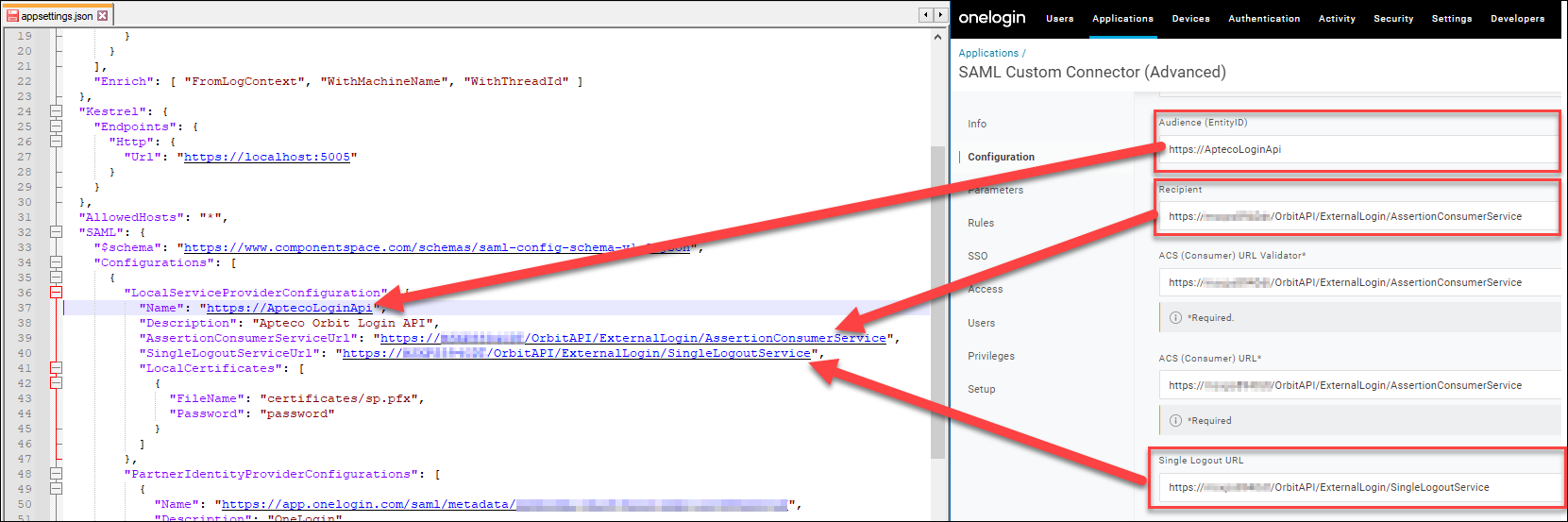
Configure the Partner Identity Provider using:
| Field | Value |
|---|---|
| Name | https://app.onelogin.com/saml/metadata/[OneLoginGUID] (must exactly match Issuer URL in OneLogin) |
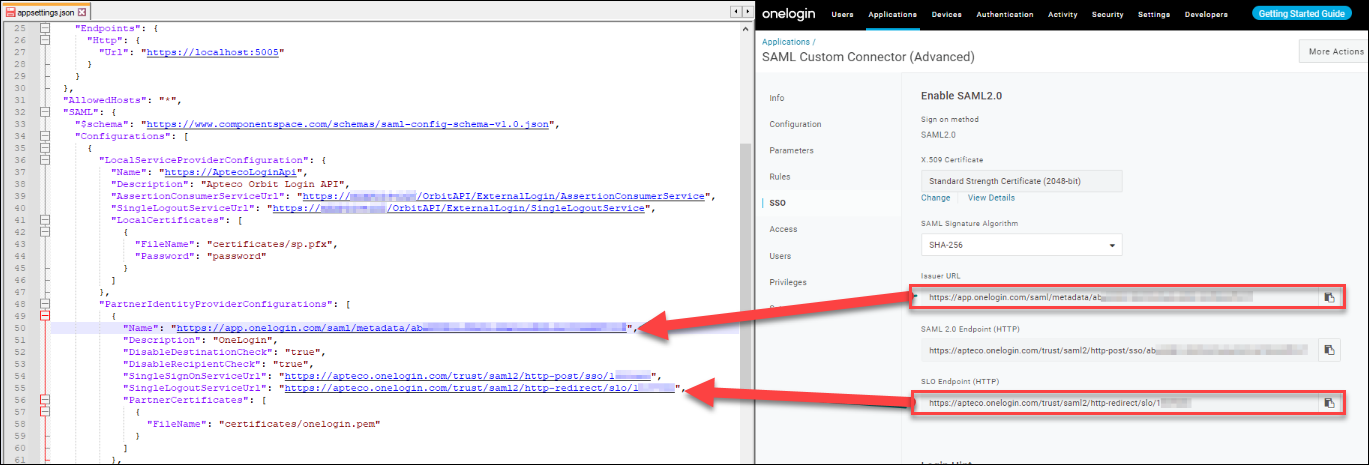
Under PartnerName, update the address to match the Name set in PartnerIdentityProviderConfigurations. Update AllowedReturnUrlOrigins to the name of the web server.

Example configuration
{
  "Serilog": {
    "MinimumLevel": {
      "Default": "Debug",
      "Override": {
        "Microsoft": "Warning",
        "System": "Warning",
        "ComponentSpace.Saml2": "Warning"
      }
    },
    "WriteTo": [
      { "Name": "Trace" },
      {
        "Name": "RollingFile",
        "Args": { "pathFormat": "C:\\temp\\Orbit\\Logs\\OrbitLogin-{Date}.txt" }
      }
    ],
    "Enrich": ["FromLogContext", "WithMachineName", "WithThreadId"]
  },
  "Kestrel": {
    "Endpoints": {
      "Http": { "Url": "http://localhost:5005" }
    }
  },
  "AllowedHosts": "*",
  "SAML": {
    "$schema": "https://www.componentspace.com/schemas/saml-config-schema-v1.0.json",
    "Configurations": [
      {
        "LocalServiceProviderConfiguration": {
          "Name": "https://AptecoLoginApi",
          "Description": "Apteco Orbit Login API",
          "AssertionConsumerServiceUrl": "https://<WebServer>/OrbitAPI/ExternalLogin/AssertionConsumerService",
          "LocalCertificates": [
            { "FileName": "certificates/sp.pfx", "Password": "password" }
          ]
        },
        "PartnerIdentityProviderConfigurations": [
          {
            "Name": "https://app.onelogin.com/saml/metadata/<OneLoginGUID>",
            "Description": "OneLogin",
            "DisableDestinationCheck": "true",
            "DisableRecipientCheck": "true",
            "SingleSignOnServiceUrl": "https://apteco.onelogin.com/trust/saml2/http-post/sso/<OneLoginId>",
            "PartnerCertificates": [
              { "FileName": "certificates/onelogin.pem" }
            ]
          }
        ]
      }
    ]
  },
  "PartnerName": "https://app.onelogin.com/saml/metadata/<OneLoginGUID>",
  "JWT": {
    "Key": "VerySecretAptecoJWTKey",
    "Issuer": "https://AptecoLoginApi"
  },
  "AllowedReturnUrlOrigins": "https://<WebServer>"
}