Apply limits
Apply limits to your audience to control how many records it includes and how they're spread. For example, you might:
- Select a set number of records for a test mailing
- Contact one person per household, so no household is contacted twice
There are two kinds of limit, and you set both by selecting Apply Limits at the top of your audience:
- Sample limit: Limits the total number of records, such as 10,000
- N per limit: Limits the number of records for each group, such as one person per household or per email address
Sample limit
A sample limit sets the total number of records in your audience.
To apply a sample limit:
-
In your audience, select Apply Limits.
-
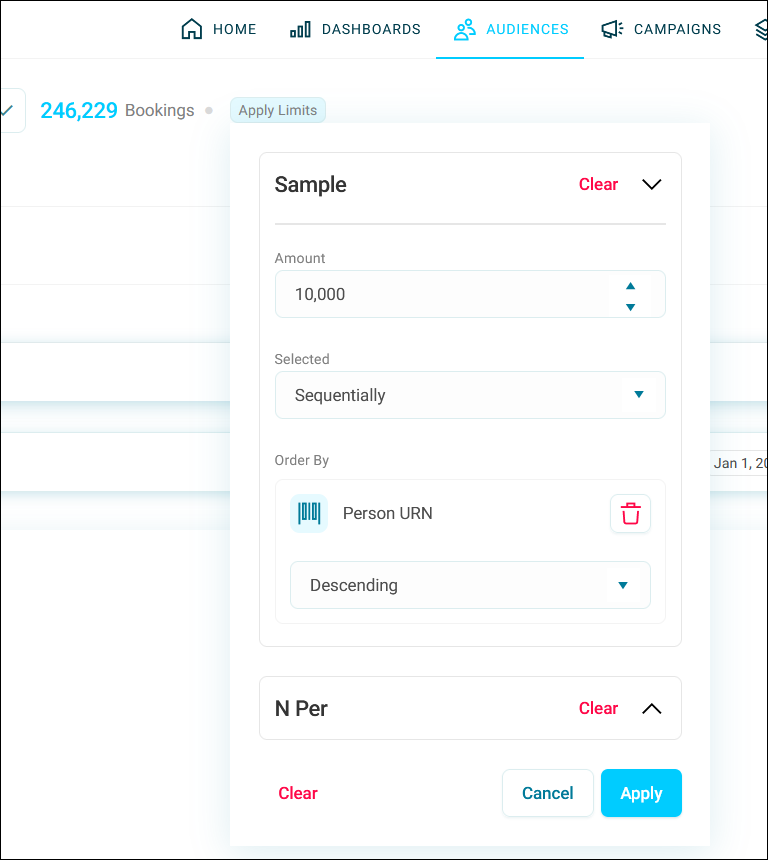
Expand the Sample section.
-
Enter the Amount of records you want to include.
-
Choose how records are Selected:
- Randomly: Orbit picks records at random
- Sequentially: Orbit picks records in the order you set under Order By
-
If you chose Sequentially, under Order By, select + Add Variable, and choose the variable that sets the order. Then choose Ascending or Descending.
Tip
You can use a reference variable, such as a URN (unique reference number), to set the order.
-
Select Apply.
N per limit
An N per limit restricts the number of records for each group, such as each household, email address, or income band. Use it to apply contact rules, such as not contacting the same household twice.
Example use case
Invite supporters to a regional event
You want two supporters from each income band, preferring those who live in the host town. Apply an N per limit of two per income band, ordered by town, with the host town first. Orbit selects two supporters from each income band, choosing people from the host town where it can, and filling any remaining places with supporters from other towns.
To apply an N per limit:
-
In your audience, select Apply Limits.
-
Expand the N Per section.
-
Enter the Amount, often 1.
-
Under Per, select + Add Variable, and choose the variable or table that defines each group, such as Household URN or Email Address.
-
Under Order By, select + Add Variable, and choose the variable that decides which records in each group come first. Then choose Ascending or Descending.
You can order by a variable whose categories have a natural order, such as age bands or income ranges, or one whose categories don't, such as town, region, or mobile provider.
-
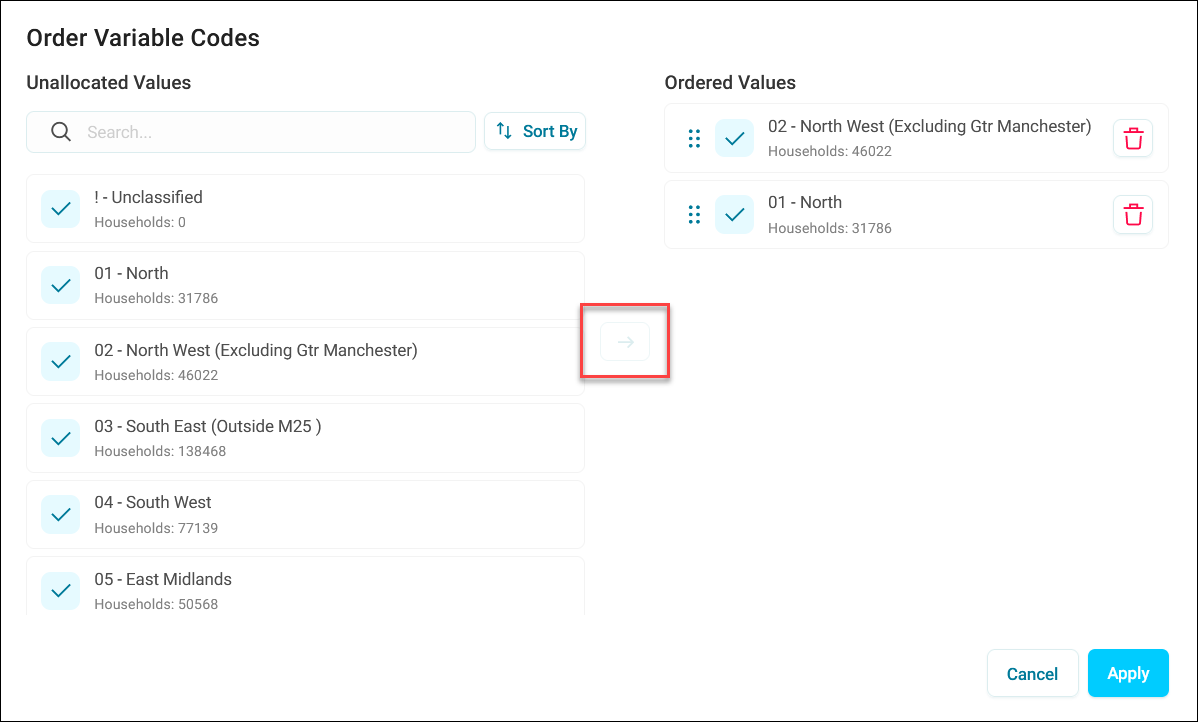
If you chose a variable without a natural order, set your own priority order in the Order Variable Codes dialogue that opens:
-
Select the categories you want to prioritise, and select the right arrow to move them to Ordered Values.
Tip
Consider whether you need several priority categories, or just one.
-
Drag the Ordered Values into your priority order.
-
Select Apply to close the dialogue.
-
Set the order direction to Descending.
Note
Descending order puts your priority categories first. Ascending order may put unclassified records first.
-
-
Select Apply to apply the limit.
Orbit now selects records in each group in your priority order, so your most important categories come first.
Tip
Test your ordering on a small audience first, to check the results are what you expect.
Note
Ordering affects which records Orbit prefers, not which it allows. Records in other categories are still selected when there aren't enough in your priority categories.