Building an audience
On the Audience tab, build your audience by including and excluding characteristics, also known as variables. For example, you might include your high value customers but exclude anyone who's recently made a purchase or opted out of communication.
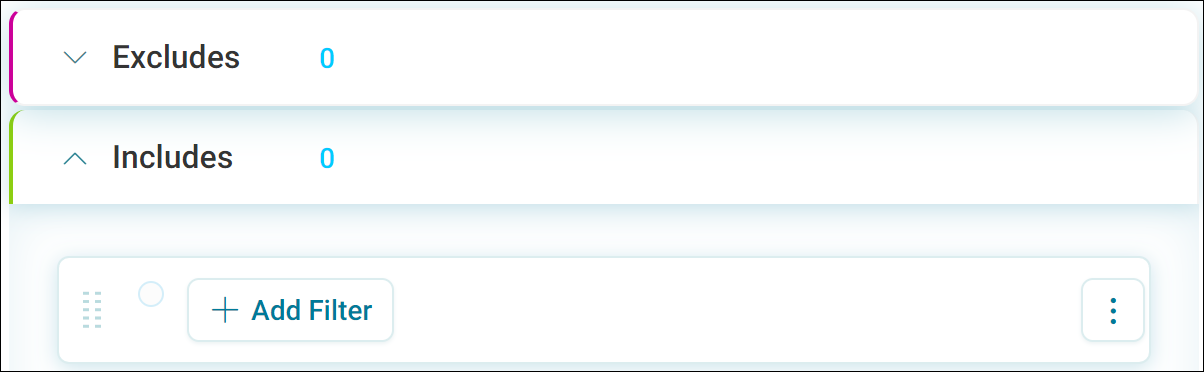
Click Add Filter to build up sections of your audience and choose how their characteristics combine.
Choosing a table level
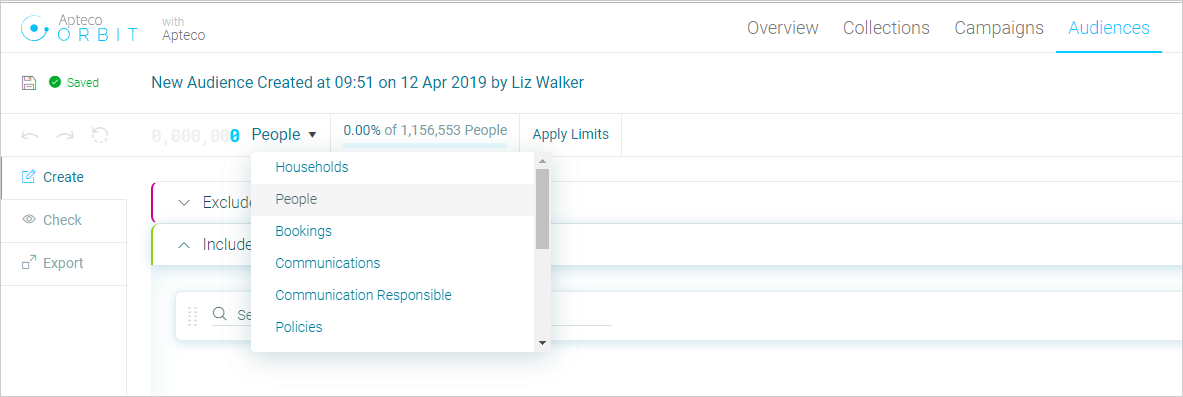
Decide what you're trying to count, such as people or transactions, then use the drop-down menu at the top of the display to select the table level for your audience:
Note
Your administrator sets a system default table level. On Apteco's Holidays system, this is People.
Naming your audience
Orbit gives your new audience a default name. Click the name and type over it to give it your own description.
You can also rename an audience while it's open for editing: click the audience name, then click away or press Enter to confirm.
Note
Orbit automatically saves any changes you make to an audience. The icon to the left of the audience name shows the current save status.
Undo, redo, and reset
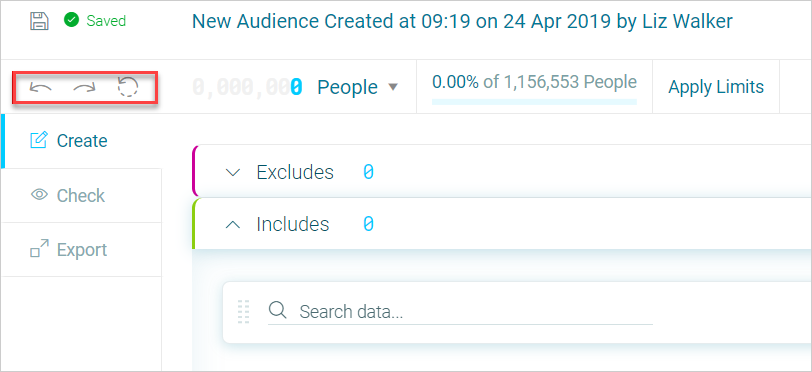
Use the Undo, Redo, and Reset options below the save icon to revert to a previous state, even though Orbit saves your changes automatically.
Adding a campaign brief
Click Show Brief on the right of the audience window, then copy and paste your campaign brief into the Brief panel:
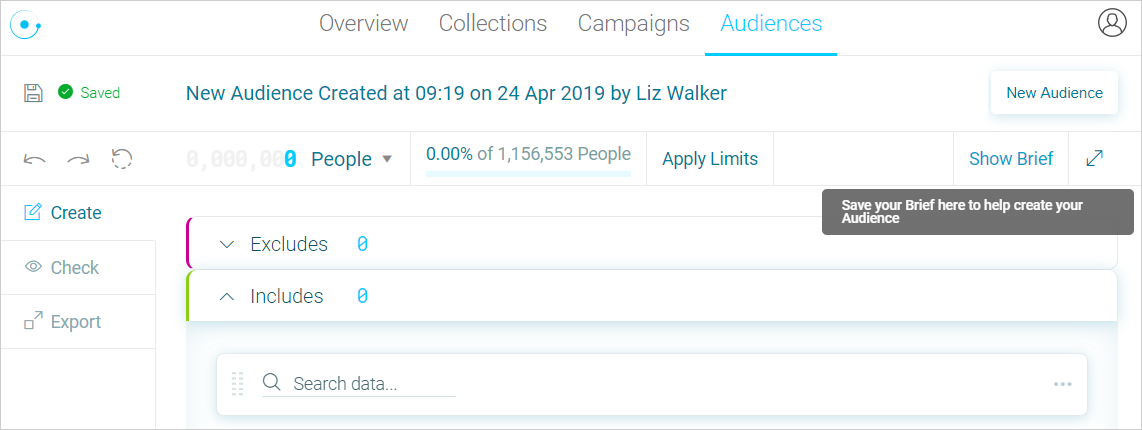
Leave the panel open for reference while you build your audience, or click Hide Brief to collapse it again.