Exporting an audience
You export an audience from a data grid page in your audience workbook. You can download the records as a file, send them to an FTP site or file server folder, or send them to a campaign channel.
To add a data grid page, use the Export data solution or the Browse data solution. Both create a data grid you can export.
Before you begin
To export an audience:
- You must have permission to export the data in the data grid
- To export to a channel, you must have permission to use that channel
- To export to a file server folder, an administrator must turn on Allow Export to File Server (Public Folder) or Allow Export to File Server (Private Folder). See Audience settings.
Export a data grid
To export a data grid as a file, or to an FTP site or file server folder:
- Open the data grid page in your audience.
-
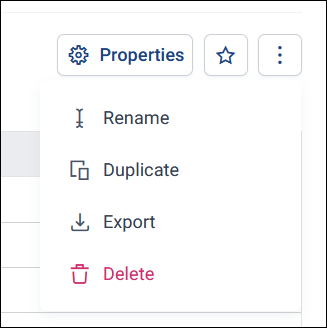
Open the page's option menu, at the top right next to Properties, then select Export.
-
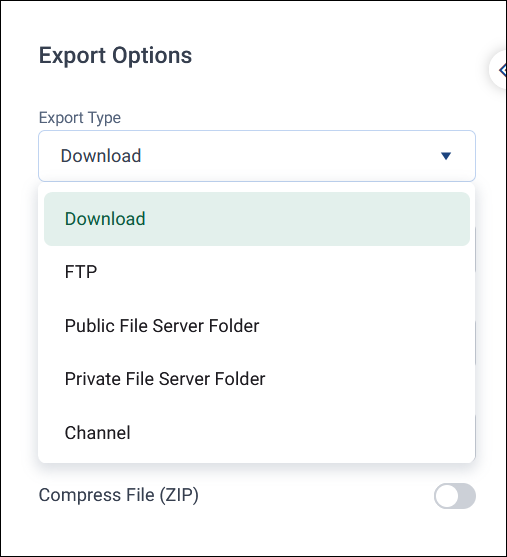
Choose an Export Type:
- Download
- FTP
- Public File Server Folder
- Private File Server Folder
- Channel: See Export to a channel
-
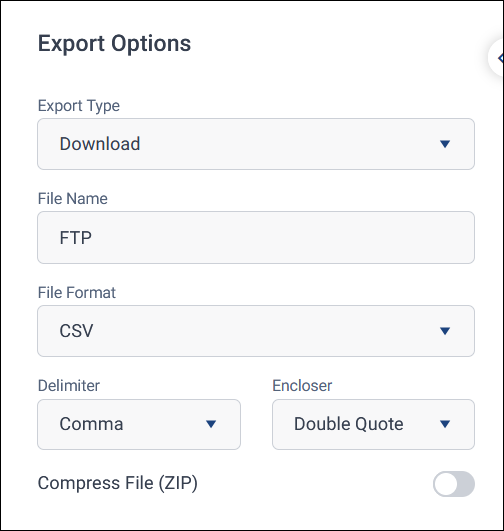
Enter a File Name.
- Choose a File Format. See File formats.
- If you chose CSV, choose a Delimiter and Encloser. See CSV options.
-
Optionally, turn on Compress File (ZIP) and enter a Password. See Compressing and password-protecting exports.
-
For an FTP site or file server folder, Publish shows when the export runs. It runs now unless you select Edit and choose a specific time. See Scheduling an export.
- Select Export.
If you chose Download, your browser downloads the file to your default downloads folder.
File formats
You can export your data in these formats:
- PDF: A document of the records. Only available when you download the file.
- CSV: Comma-separated values, compatible with most spreadsheet applications and best for sharing data between systems
- XLSX: Microsoft Excel format
- DBF: A database format for importing into database management systems
- URN: Unique reference numbers only
CSV options
When you choose CSV, you can set:
- Delimiter: The character that separates values. Choose Comma, Tab, Semicolon, Pipe, or Other.
- Encloser: The character that encloses each value. Choose Double Quote, Single Quote, None, or Other.
Compressing and password-protecting exports
If your administrator has turned on Export as zip file, you can turn on Compress File (ZIP) to export a ZIP file, and optionally protect it with a password. If your administrator has turned on Force export as a password-protected zip file, you must enter a password before you can export. See Features settings.
Note
You can't open a password-protected ZIP file with the tools built into Windows. Use a third-party tool that supports AES-256 encryption, such as 7-Zip or WinZip.
Export to a channel
Exporting to a channel creates a campaign for the records in the data grid, using a channel set up in the Channel Editor.
To export to a channel:
- Open the data grid page's option menu, then select Export.
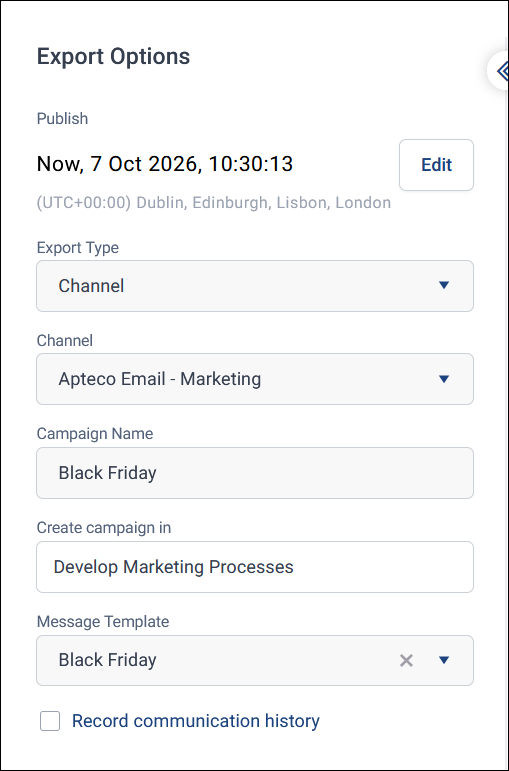
- Set Export Type to Channel.
- Choose the Channel.
- Enter a Campaign Name.
- In Create campaign in, choose the campaign folder.
- If the channel uses message templates, choose a Message Template.
- Optionally, select Record communication history. See Communication history.
-
Publish shows when the campaign runs. It runs now unless you select Edit and schedule the campaign. See Setting a campaign schedule.
-
Select Export.
Communication history
If you have a Campaigning licence bundle, you can choose whether to record communication history for each campaign you export to a channel. You might not record history for operational campaigns, such as acknowledgements or policy notifications, which need sending regardless. Record it for campaigns you include in a contact strategy or report on.
When you select Record communication history, Orbit records the number of communications sent and who was included in the output file. If the campaign has personalisation, Orbit also records content history.
Note
If you use PeopleStage, you can view the campaign in the Orbit area of PeopleStage. Any later changes made there, such as adding content, are also recorded in the communication history.
Note
Once you've published a campaign with Record communication history selected, you can't turn it off.
Troubleshooting
If you have problems exporting:
- Check that your audience has a data grid page
- Downloads use your browser's standard download process, so any company restrictions on downloads also apply to Orbit exports
- Check that your browser allows downloads from your Orbit site